> ## Documentation Index
> Fetch the complete documentation index at: https://docs.costory.io/llms.txt
> Use this file to discover all available pages before exploring further.
# Cloud Cost Alerts and Budget Monitoring
> Set up cloud cost alerts with trigger conditions, multi-metric formulas, budgets, and notifications through Slack, Teams, or email.
Cloud costs change daily, and waiting for the monthly invoice to spot problems means you're always reacting too late. **Cloud cost alerts** in Costory monitor spend, formulas, and budget progress, then notify you through Slack, Microsoft Teams, or email when your trigger conditions are met.
 ## Prerequisites
* At least one cloud provider ([AWS](/setup/billing#aws), [GCP](/setup/billing#gcp), or [Azure](/setup/billing#azure)) connected to Costory
* A notification channel configured (Slack, Microsoft Teams, or email)
## Overview
Costory evaluates your cloud spend every day, or three times a day depending on your plan, across AWS, GCP, and Azure. You define the cost or metric query, write the formula when needed, choose the trigger condition, and select where notifications go.
Use **cloud cost alerts** to turn daily evaluation into proactive notifications instead of manual checks.
Where alerts fit in your day-to-day:
* Catching a cost spike in a specific service before it compounds over the full billing period
* Tracking team-level budgets with automatic notifications when a team approaches or exceeds its target
* Monitoring commitment coverage (Savings Plans, Reserved Instances) to avoid paying on-demand rates unnecessarily
* Watching custom ratios like marginal cost per user, Savings Plan coverage, or any formula built from multiple cost and usage metrics
## Setting up a cloud cost alert
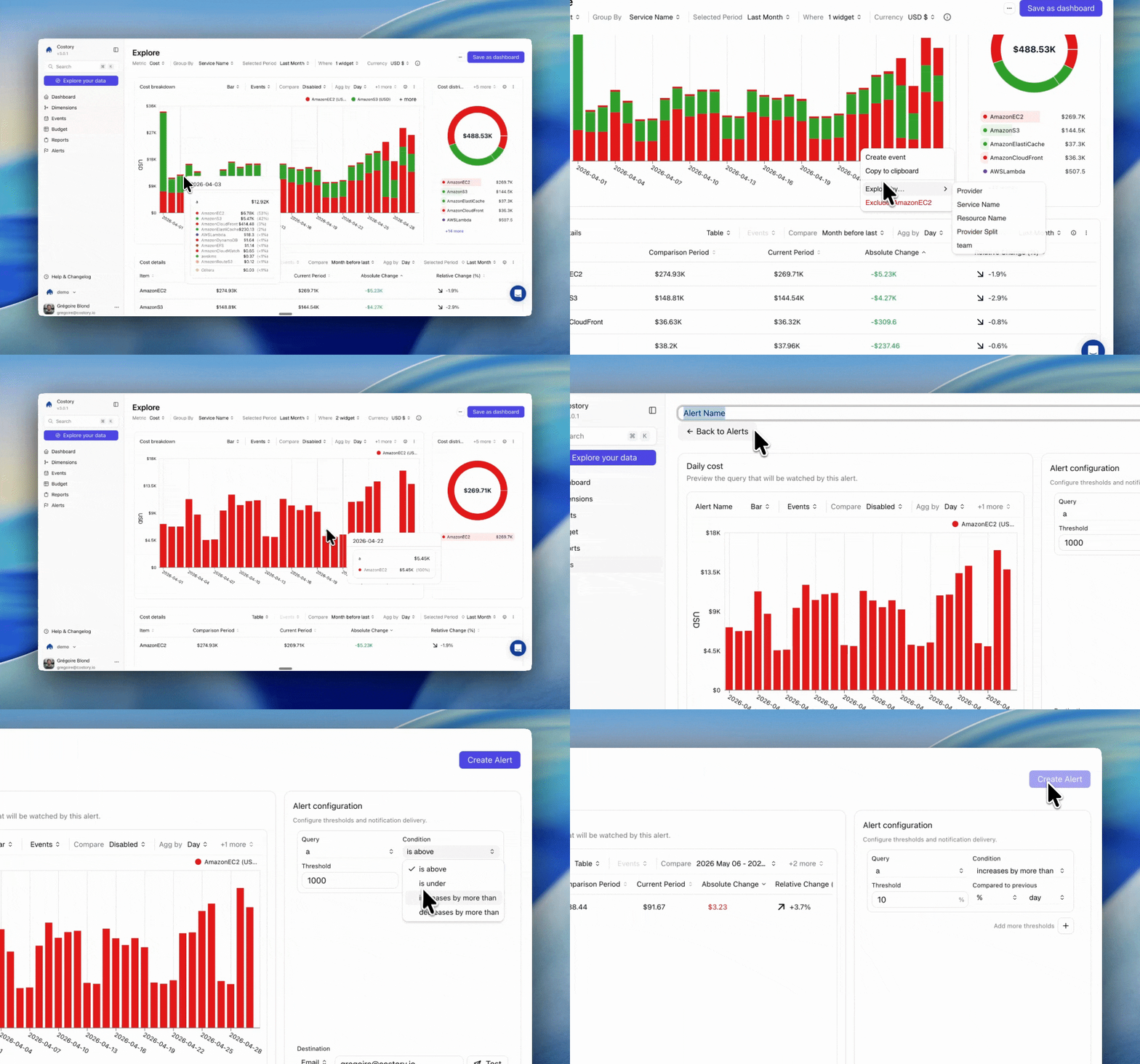
Go to **Alerts** in the Costory app. You'll see all your existing alerts in one place.
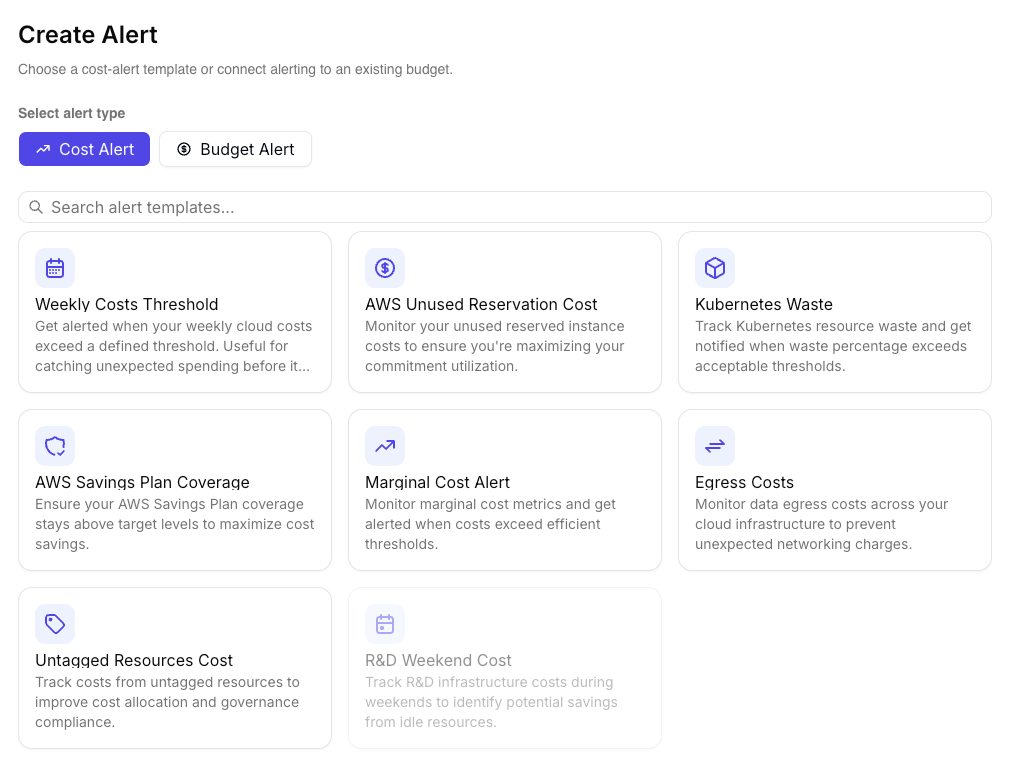
Click **Create Alert**. Choose from a pre-built template for common alert types or configure your own custom logic.
## Prerequisites
* At least one cloud provider ([AWS](/setup/billing#aws), [GCP](/setup/billing#gcp), or [Azure](/setup/billing#azure)) connected to Costory
* A notification channel configured (Slack, Microsoft Teams, or email)
## Overview
Costory evaluates your cloud spend every day, or three times a day depending on your plan, across AWS, GCP, and Azure. You define the cost or metric query, write the formula when needed, choose the trigger condition, and select where notifications go.
Use **cloud cost alerts** to turn daily evaluation into proactive notifications instead of manual checks.
Where alerts fit in your day-to-day:
* Catching a cost spike in a specific service before it compounds over the full billing period
* Tracking team-level budgets with automatic notifications when a team approaches or exceeds its target
* Monitoring commitment coverage (Savings Plans, Reserved Instances) to avoid paying on-demand rates unnecessarily
* Watching custom ratios like marginal cost per user, Savings Plan coverage, or any formula built from multiple cost and usage metrics
## Setting up a cloud cost alert
Go to **Alerts** in the Costory app. You'll see all your existing alerts in one place.
Click **Create Alert**. Choose from a pre-built template for common alert types or configure your own custom logic.
 Add one or more cost or usage metric rows. Each row gets a letter, such as `a`, `b`, or `c`, that you can reference in the alert formula.
Use a single metric, such as `a`, or combine multiple rows. For example, `(a - timeShift(a, 1 DAY)) / abs(timeShift(a, 1 DAY))` alerts on a daily percentage change.
Select the condition that should trigger the alert, such as an absolute cost threshold, a relative change, a change compared with last week, or a 7-day rolling relative change.
Add one or more cost or usage metric rows. Each row gets a letter, such as `a`, `b`, or `c`, that you can reference in the alert formula.
Use a single metric, such as `a`, or combine multiple rows. For example, `(a - timeShift(a, 1 DAY)) / abs(timeShift(a, 1 DAY))` alerts on a daily percentage change.
Select the condition that should trigger the alert, such as an absolute cost threshold, a relative change, a change compared with last week, or a 7-day rolling relative change.
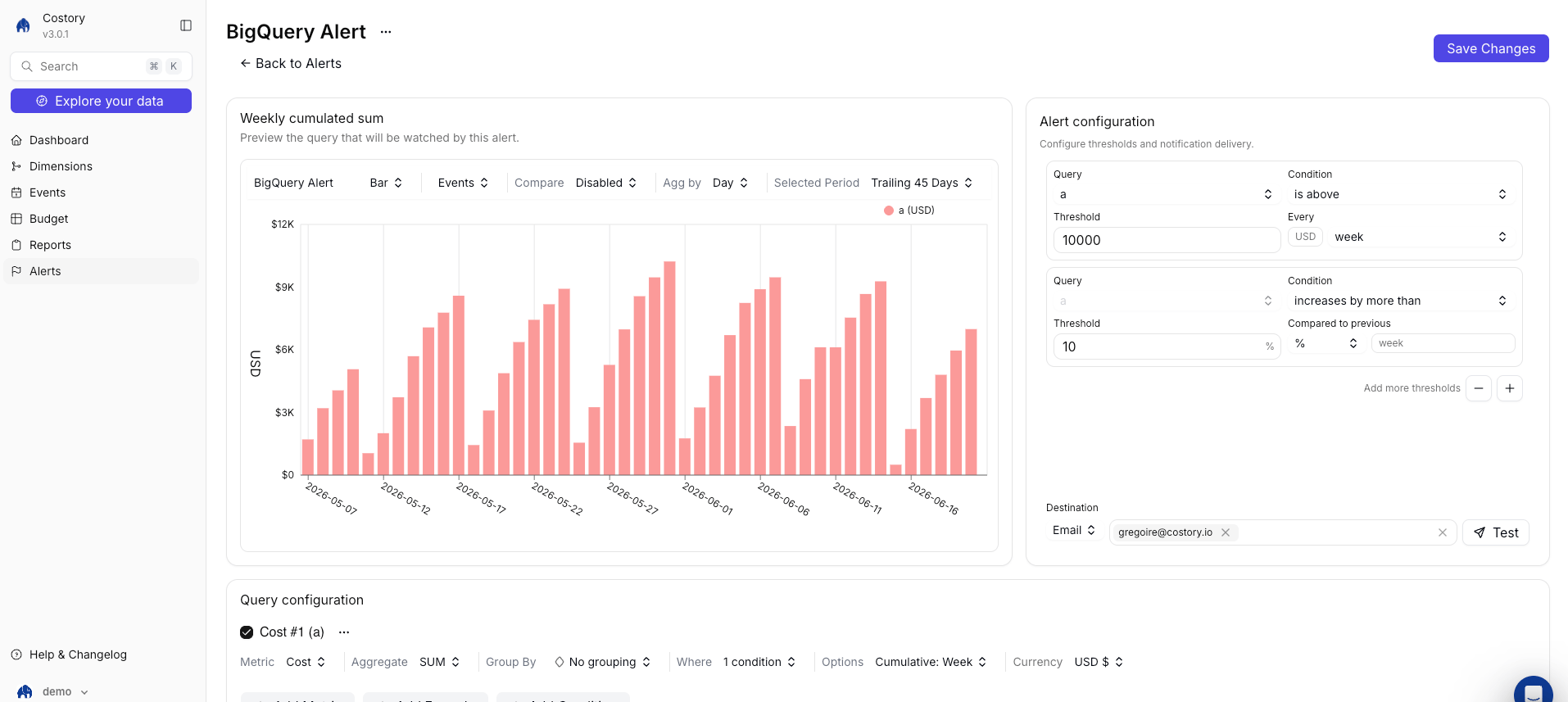 Review the preview chart and notification preview. Adjust filters, grouping, selected period, and aggregation until the alert evaluates the right cost surface.
Select where to send alerts (Slack, Microsoft Teams, or email), who should receive them, and the notification frequency.
Your alert appears in the summary view and begins evaluating data after the next data refresh.
## Alert types
### Cloud cost alerts
Cloud cost alerts track spending, metrics, or formulas against trigger conditions. The new alert builder has three working areas:
| Area | What you configure |
| ------------- | -------------------------------------------------------------------------- |
| Formula | One or more metric rows and the formula that Costory evaluates |
| Preview | Chart and notification preview showing when the alert would have fired |
| Configuration | Scope, filters, grouping, aggregation, currency, and notification settings |
Trigger conditions cover the most common FinOps alert patterns:
| Condition | What it does |
| --------------------------------- | ----------------------------------------------------------------------- |
| **Absolute cost** | Fires when the evaluated value exceeds or drops below a fixed threshold |
| **Relative change** | Fires when the percentage change exceeds your threshold |
| **Change vs last week** | Compares the current window with the same window in the previous week |
| **7-day rolling relative change** | Smooths daily volatility before evaluating a percentage change |
Review the preview chart and notification preview. Adjust filters, grouping, selected period, and aggregation until the alert evaluates the right cost surface.
Select where to send alerts (Slack, Microsoft Teams, or email), who should receive them, and the notification frequency.
Your alert appears in the summary view and begins evaluating data after the next data refresh.
## Alert types
### Cloud cost alerts
Cloud cost alerts track spending, metrics, or formulas against trigger conditions. The new alert builder has three working areas:
| Area | What you configure |
| ------------- | -------------------------------------------------------------------------- |
| Formula | One or more metric rows and the formula that Costory evaluates |
| Preview | Chart and notification preview showing when the alert would have fired |
| Configuration | Scope, filters, grouping, aggregation, currency, and notification settings |
Trigger conditions cover the most common FinOps alert patterns:
| Condition | What it does |
| --------------------------------- | ----------------------------------------------------------------------- |
| **Absolute cost** | Fires when the evaluated value exceeds or drops below a fixed threshold |
| **Relative change** | Fires when the percentage change exceeds your threshold |
| **Change vs last week** | Compares the current window with the same window in the previous week |
| **7-day rolling relative change** | Smooths daily volatility before evaluating a percentage change |
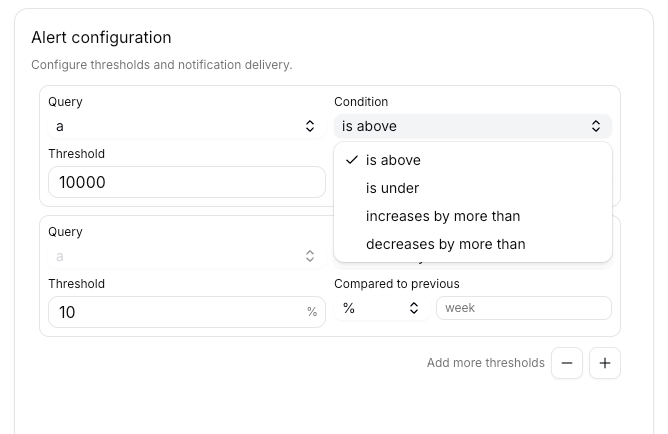 For period-over-period modes, Costory compares the current evaluation window against the relevant prior period using the same data delay rules described [below](#how-alerts-are-evaluated).
Multi-threshold severity levels (Info, Warning, Alert) let you escalate notifications based on how far costs have deviated. You can mix absolute and relative thresholds on the same alert, for example an informational notification when weekly spend increases by more than 10% and a warning when it exceeds a hard cap.
Use formulas for Savings Plan coverage ratios, marginal cost limits, cost-per-transaction thresholds, or comparisons between multiple cost queries. See the [example below](#example-savings-plan-coverage-alert) for a walkthrough.
### Budget alerts
Budget alerts track spend against allocated budgets with percentage-based triggers. When a team approaches or exceeds its budget target, Costory notifies the budget owner and each budget line owner automatically.
Weekly cumulative sums let you track running totals over the current week, so you can catch budget overruns before the month closes.
For a full walkthrough of setting up per-team budgets with automated alerts, see the [Automate Cloud Budgets](/use-cases/automate_budget) guide.
## Example: Savings Plan coverage alert
For period-over-period modes, Costory compares the current evaluation window against the relevant prior period using the same data delay rules described [below](#how-alerts-are-evaluated).
Multi-threshold severity levels (Info, Warning, Alert) let you escalate notifications based on how far costs have deviated. You can mix absolute and relative thresholds on the same alert, for example an informational notification when weekly spend increases by more than 10% and a warning when it exceeds a hard cap.
Use formulas for Savings Plan coverage ratios, marginal cost limits, cost-per-transaction thresholds, or comparisons between multiple cost queries. See the [example below](#example-savings-plan-coverage-alert) for a walkthrough.
### Budget alerts
Budget alerts track spend against allocated budgets with percentage-based triggers. When a team approaches or exceeds its budget target, Costory notifies the budget owner and each budget line owner automatically.
Weekly cumulative sums let you track running totals over the current week, so you can catch budget overruns before the month closes.
For a full walkthrough of setting up per-team budgets with automated alerts, see the [Automate Cloud Budgets](/use-cases/automate_budget) guide.
## Example: Savings Plan coverage alert
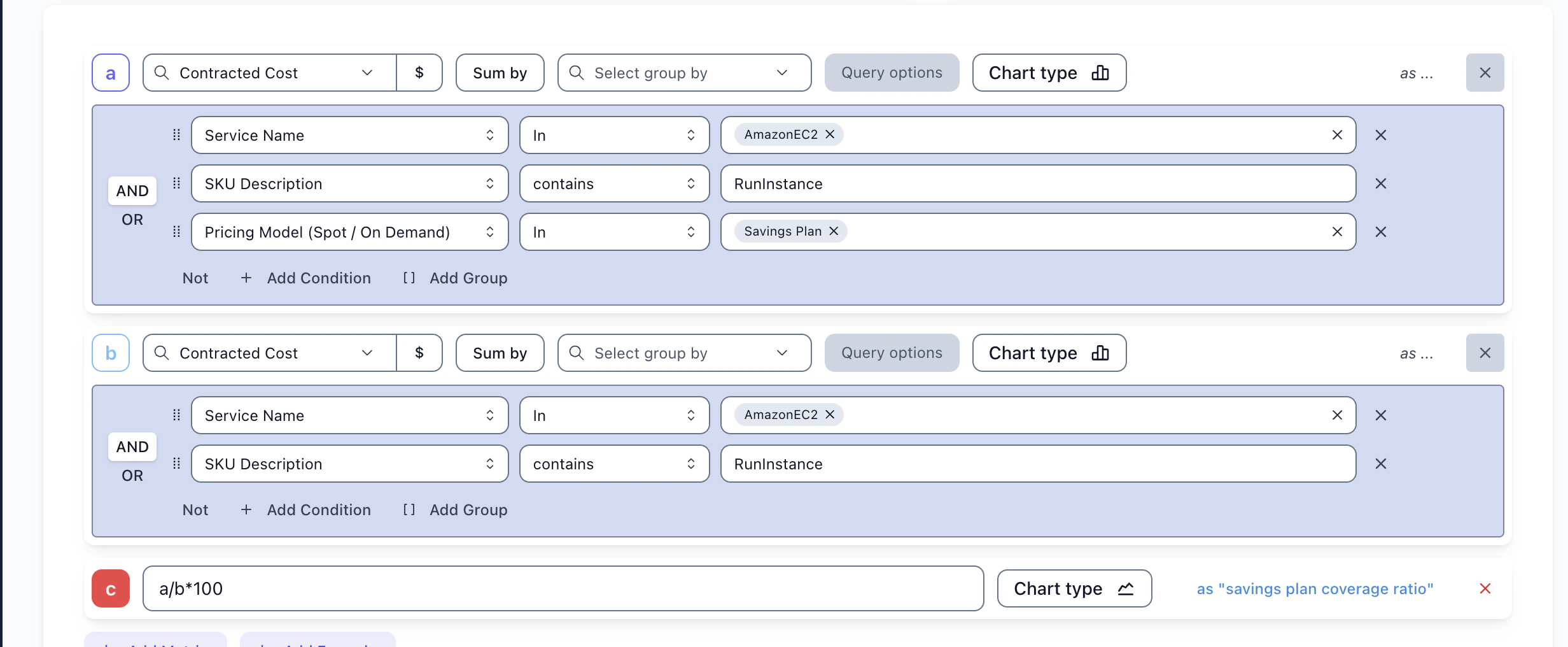 Savings Plans reduce your on-demand costs, but only when they actually cover your usage. If coverage drops, you're paying full price for compute that should be discounted. A coverage alert catches this early.
To set one up, create a cost alert with multiple metric rows:
| Row | Metric |
| --- | --------------------------- |
| `a` | Savings Plan covered cost |
| `b` | Savings Plan uncovered cost |
Then add a formula that computes the ratio of covered spend to total eligible spend:
```
a / (a + b)
```
Set a threshold at the coverage percentage you want to maintain (e.g., alert when coverage drops below 80%). Use a 7-day rolling window to smooth out daily fluctuations.
This same approach works for other ratio-based alerts. You can divide infrastructure cost by active user count from an [external usage metric](/setup/usage-metrics/csv) to track marginal cost per user and alert when it rises above a target. Or compare Contracted Cost against on-demand cost to monitor how much your commitments are saving over time.
## Example: multiple cost queries in one formula
Use multiple cost rows when the alert logic compares two scoped views. For example, alert when non-production EC2 spend grows faster than production EC2 spend:
| Row | Query |
| --- | ------------------------------------------ |
| `a` | EC2 cost where `environment = production` |
| `b` | EC2 cost where `environment != production` |
Formula:
```
b / a
```
Choose **Relative change** or **Absolute cost** depending on whether you care about the ratio movement or a hard ratio limit. The preview panel shows which historical days would have triggered a notification.
## Example: period-over-period cost spike alert
Savings Plans reduce your on-demand costs, but only when they actually cover your usage. If coverage drops, you're paying full price for compute that should be discounted. A coverage alert catches this early.
To set one up, create a cost alert with multiple metric rows:
| Row | Metric |
| --- | --------------------------- |
| `a` | Savings Plan covered cost |
| `b` | Savings Plan uncovered cost |
Then add a formula that computes the ratio of covered spend to total eligible spend:
```
a / (a + b)
```
Set a threshold at the coverage percentage you want to maintain (e.g., alert when coverage drops below 80%). Use a 7-day rolling window to smooth out daily fluctuations.
This same approach works for other ratio-based alerts. You can divide infrastructure cost by active user count from an [external usage metric](/setup/usage-metrics/csv) to track marginal cost per user and alert when it rises above a target. Or compare Contracted Cost against on-demand cost to monitor how much your commitments are saving over time.
## Example: multiple cost queries in one formula
Use multiple cost rows when the alert logic compares two scoped views. For example, alert when non-production EC2 spend grows faster than production EC2 spend:
| Row | Query |
| --- | ------------------------------------------ |
| `a` | EC2 cost where `environment = production` |
| `b` | EC2 cost where `environment != production` |
Formula:
```
b / a
```
Choose **Relative change** or **Absolute cost** depending on whether you care about the ratio movement or a hard ratio limit. The preview panel shows which historical days would have triggered a notification.
## Example: period-over-period cost spike alert
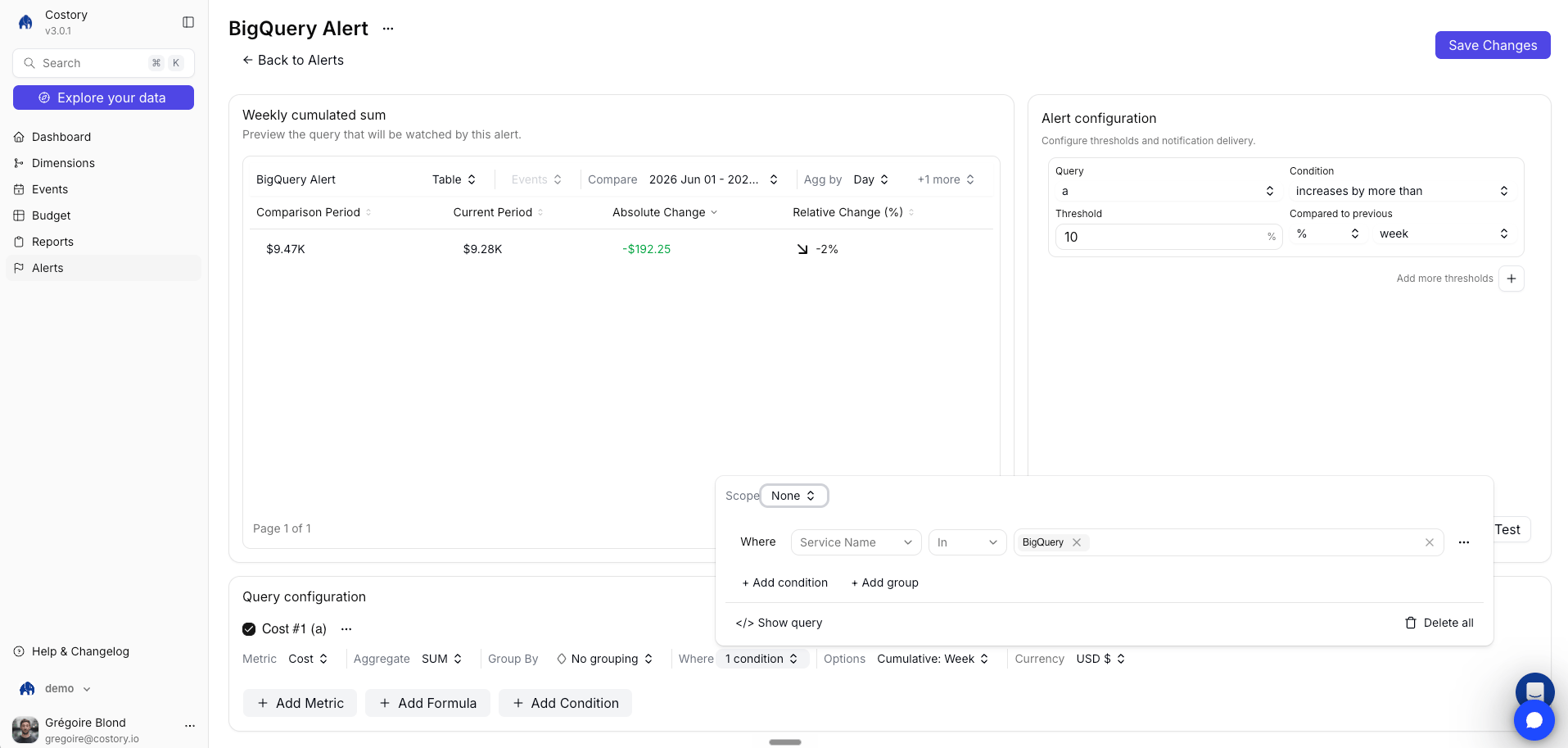 A hard spending cap catches runaway costs, but gradual week-over-week increases can slip under a fixed threshold for months. A period-over-period alert catches these trends early.
To set one up, create a cost alert and select a relative change trigger condition. Enter the change limit as a dollar amount or percentage. Choose the evaluation period, and Costory compares each window to the relevant prior period.
For example, to detect a weekly spend increase greater than 15%:
1. Set the mode to **increases by more than**
2. Enter **15** and select **%**
3. Set the evaluation period to **week**
Costory fires the alert whenever the current week's spend exceeds the previous week's by more than 15%. You can add a second threshold at a higher severity for larger swings, such as a warning at 15% and an alert at 30%.
## How alerts are evaluated
Alerts evaluate cost data with a built-in delay to ensure accuracy.
| Parameter | Value |
| -------------------- | ---------------------------------------------------------------------- |
| Evaluation frequency | Every day, or three times a day depending on your plan |
| Data delay | At least 48 hours (cloud providers finalize billing data with a delay) |
| Lookback window | 4 days |
For example, if today is January 15, the alert evaluates spend from January 9 to 13 (a 4-day window, starting 48 hours before today).
Costory does not evaluate the most recent 48 hours because cloud providers (especially AWS) can revise billing data during that window. This avoids false positives from incomplete data.
## Managing alerts
From the alerts summary page, you can snooze an alert to temporarily pause notifications during a planned migration or expected cost spike. Snoozed alerts stop sending notifications but continue evaluating in the background, so you can review what happened when you un-snooze. You can also delete an alert you no longer need, which removes the alert and its history permanently.
When an alert fires, the notification you receive in Slack, Teams, or email includes a direct link to Explorer pre-filtered to the exact scope of the alert. Click **View in Explorer** to investigate the cost change immediately, without recreating filters manually.
## Frequently Asked Questions
Costory evaluates alerts every day, or three times a day depending on your plan. Data is checked with at least a 48-hour delay to ensure billing data from your cloud provider is finalized.
Yes. Cloud cost alerts support multi-threshold severity levels (Info, Warning, Alert), so you can receive an informational notification at one threshold and escalate to a warning or critical alert at a higher one.
Snoozed alerts stop sending notifications but continue evaluating cost data in the background. When you un-snooze, you can review any threshold breaches that occurred while the alert was paused.
Yes. You can define custom formulas using multiple cost or usage metrics available in Costory. Common examples include Savings Plan coverage ratios, marginal cost per user, and cost-per-transaction thresholds.
Yes. Each threshold row has its own mode, so you can combine an absolute cap (e.g., "is above \$50,000") with a relative change rule (e.g., "increases by more than 20%") on the same alert. The highest-severity breach across all rows determines the notification level.
Alerts can be delivered to Slack, Microsoft Teams, or email. Each alert notification includes a direct link to [Explorer](/features/cost-explorer) pre-filtered to the scope of the alert.
## Key terms used in this article
* **Lookback window**: The number of days of cost data included in each evaluation. Costory uses a 4-day window, starting at least 48 hours in the past to ensure final cost data is available.
* **Dimensions**: Cost groupings that let you scope alerts to teams, products, or environments, regardless of how resources are tagged in the cloud provider.
See the [Glossary](/docs/glossary) for a full list of terms.
## Next Steps
Define per-team budgets and get notified when teams exceed targets
Auto-triage cost anomalies with AI-generated incident reports
Send recurring cost snapshots to your team's channels
Drill into specific cost changes with full context
Create team-level and product-level cost groupings for targeted alerts
A hard spending cap catches runaway costs, but gradual week-over-week increases can slip under a fixed threshold for months. A period-over-period alert catches these trends early.
To set one up, create a cost alert and select a relative change trigger condition. Enter the change limit as a dollar amount or percentage. Choose the evaluation period, and Costory compares each window to the relevant prior period.
For example, to detect a weekly spend increase greater than 15%:
1. Set the mode to **increases by more than**
2. Enter **15** and select **%**
3. Set the evaluation period to **week**
Costory fires the alert whenever the current week's spend exceeds the previous week's by more than 15%. You can add a second threshold at a higher severity for larger swings, such as a warning at 15% and an alert at 30%.
## How alerts are evaluated
Alerts evaluate cost data with a built-in delay to ensure accuracy.
| Parameter | Value |
| -------------------- | ---------------------------------------------------------------------- |
| Evaluation frequency | Every day, or three times a day depending on your plan |
| Data delay | At least 48 hours (cloud providers finalize billing data with a delay) |
| Lookback window | 4 days |
For example, if today is January 15, the alert evaluates spend from January 9 to 13 (a 4-day window, starting 48 hours before today).
Costory does not evaluate the most recent 48 hours because cloud providers (especially AWS) can revise billing data during that window. This avoids false positives from incomplete data.
## Managing alerts
From the alerts summary page, you can snooze an alert to temporarily pause notifications during a planned migration or expected cost spike. Snoozed alerts stop sending notifications but continue evaluating in the background, so you can review what happened when you un-snooze. You can also delete an alert you no longer need, which removes the alert and its history permanently.
When an alert fires, the notification you receive in Slack, Teams, or email includes a direct link to Explorer pre-filtered to the exact scope of the alert. Click **View in Explorer** to investigate the cost change immediately, without recreating filters manually.
## Frequently Asked Questions
Costory evaluates alerts every day, or three times a day depending on your plan. Data is checked with at least a 48-hour delay to ensure billing data from your cloud provider is finalized.
Yes. Cloud cost alerts support multi-threshold severity levels (Info, Warning, Alert), so you can receive an informational notification at one threshold and escalate to a warning or critical alert at a higher one.
Snoozed alerts stop sending notifications but continue evaluating cost data in the background. When you un-snooze, you can review any threshold breaches that occurred while the alert was paused.
Yes. You can define custom formulas using multiple cost or usage metrics available in Costory. Common examples include Savings Plan coverage ratios, marginal cost per user, and cost-per-transaction thresholds.
Yes. Each threshold row has its own mode, so you can combine an absolute cap (e.g., "is above \$50,000") with a relative change rule (e.g., "increases by more than 20%") on the same alert. The highest-severity breach across all rows determines the notification level.
Alerts can be delivered to Slack, Microsoft Teams, or email. Each alert notification includes a direct link to [Explorer](/features/cost-explorer) pre-filtered to the scope of the alert.
## Key terms used in this article
* **Lookback window**: The number of days of cost data included in each evaluation. Costory uses a 4-day window, starting at least 48 hours in the past to ensure final cost data is available.
* **Dimensions**: Cost groupings that let you scope alerts to teams, products, or environments, regardless of how resources are tagged in the cloud provider.
See the [Glossary](/docs/glossary) for a full list of terms.
## Next Steps
Define per-team budgets and get notified when teams exceed targets
Auto-triage cost anomalies with AI-generated incident reports
Send recurring cost snapshots to your team's channels
Drill into specific cost changes with full context
Create team-level and product-level cost groupings for targeted alerts