> ## Documentation Index
> Fetch the complete documentation index at: https://docs.costory.io/llms.txt
> Use this file to discover all available pages before exploring further.
# Dimensions
> Create cloud cost allocation dimensions that merge native AWS, GCP, and Azure tags, normalize values, and define rule-based virtual dimensions for team, product, or environment reporting.
**Dimensions** are Costory reporting fields. They map provider-specific tags, labels, and billing metadata to consistent values you can group, filter, allocate, alert, and report on across AWS, GCP, and Azure.
Costory resolves dimensions on top of your billing export and recomputes history on every change, so a dimension reads the same in [Explorer](/features/cost-explorer), dashboards, alerts, and reports. The UI and the [Costory MCP](/features/mcp) write the same definitions: rules you build in the app are the same CEL conditions an agent drafts and publishes through the virtual dimension tools.
 ## Overview
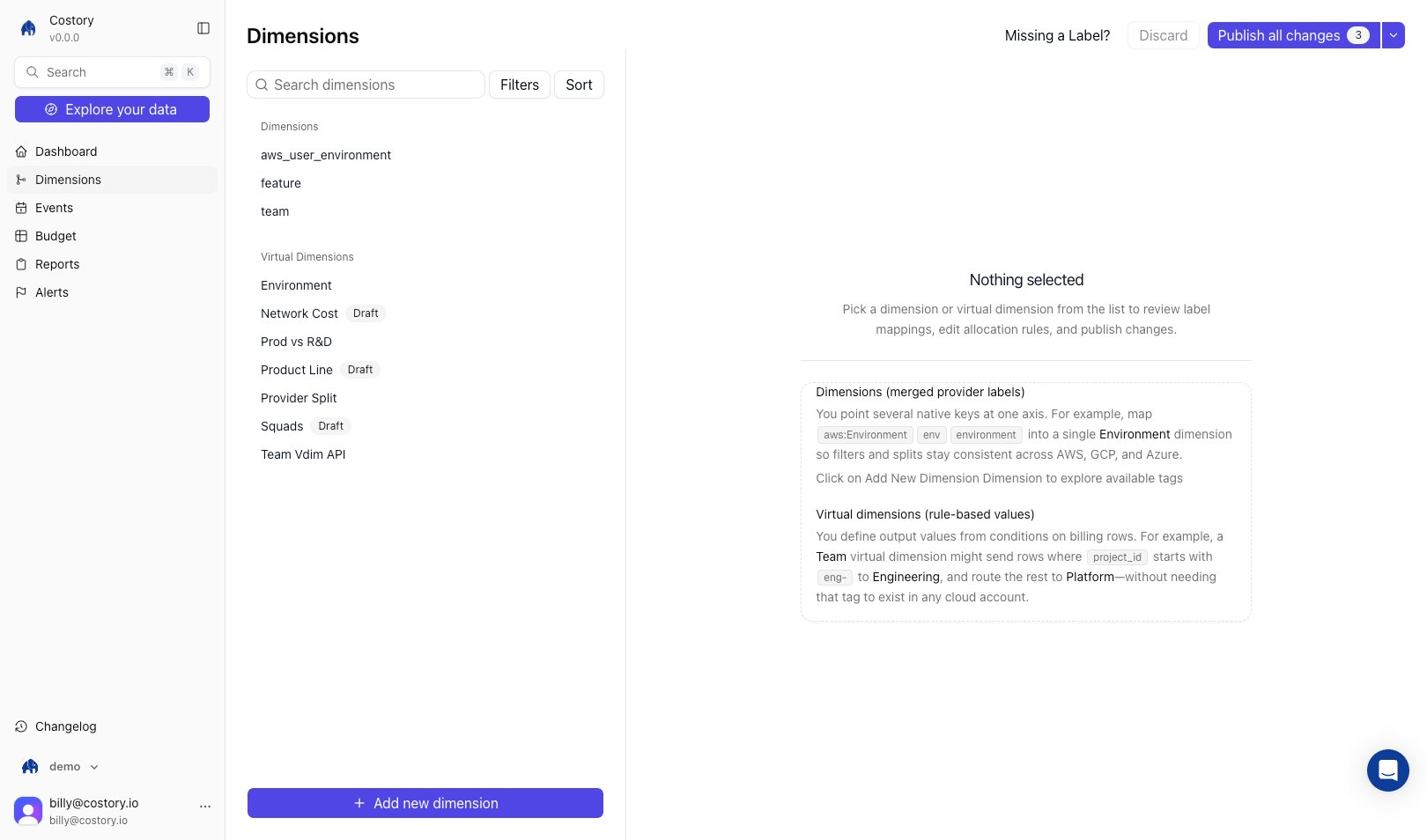
There are two kinds of dimension.
An **imported dimension** points several native tags or labels at the same concept. Map `aws:Environment`, `env`, and `environment` into one `Environment` dimension so filters and splits stay consistent across providers.
A **virtual dimension** derives its values from rules instead of an existing tag. Each rule is a CEL condition evaluated top to bottom, first match wins. A `Team` virtual dimension can route rows where `cos_gcp_project_id.startsWith("eng-")` to `Engineering` and send everything else to a leftover bucket.
Common uses:
* Collapse duplicate tag keys across AWS, GCP, and Azure into one field
* Normalize values such as `prod`, `prd`, and `production`
* Allocate untagged resources to teams, products, or cost centers
* Build shared dashboards, alerts, and reports on stable business fields
## Key terms used in this article
* **Dimension**: A Costory reporting field used to filter, group, allocate, or scope costs.
* **Imported dimension**: A dimension built from native provider tags, labels, or billing metadata.
* **Virtual dimension**: A dimension whose values come from CEL rules you define in Costory.
* **Leftover bucket**: The automatic catch-all value for any row that matches no rule. A large leftover share signals a missing or too-narrow rule.
See the [Glossary](/docs/glossary) for a full list of terms.
## Create a dimension from native tags and labels
Use imported dimensions when the data already exists in your cloud billing export, but the names or values are inconsistent.
Navigate to **Dimensions** from the left sidebar.
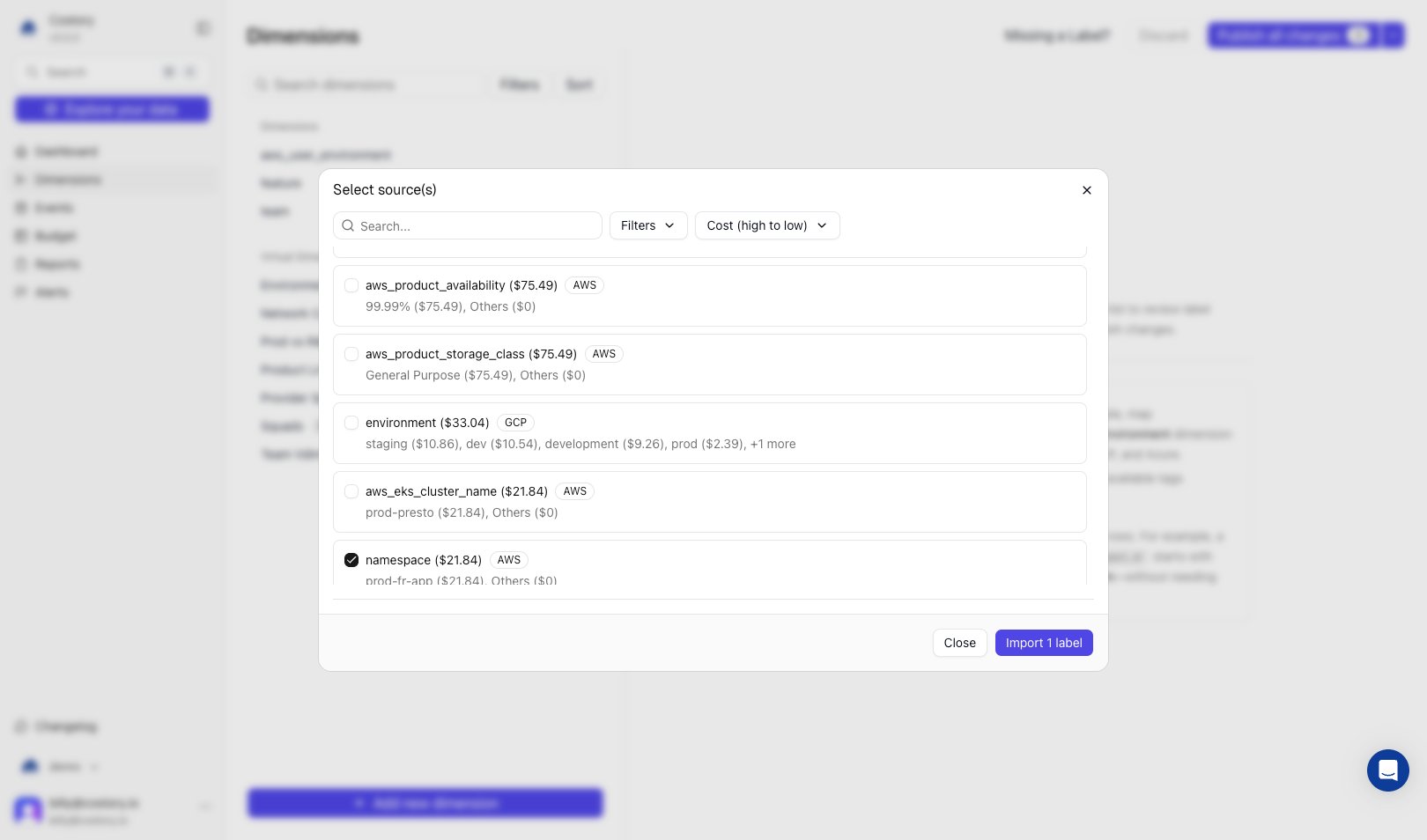
Click **+ Add new dimension**, then select the native tags or labels you want to merge.
## Overview
There are two kinds of dimension.
An **imported dimension** points several native tags or labels at the same concept. Map `aws:Environment`, `env`, and `environment` into one `Environment` dimension so filters and splits stay consistent across providers.
A **virtual dimension** derives its values from rules instead of an existing tag. Each rule is a CEL condition evaluated top to bottom, first match wins. A `Team` virtual dimension can route rows where `cos_gcp_project_id.startsWith("eng-")` to `Engineering` and send everything else to a leftover bucket.
Common uses:
* Collapse duplicate tag keys across AWS, GCP, and Azure into one field
* Normalize values such as `prod`, `prd`, and `production`
* Allocate untagged resources to teams, products, or cost centers
* Build shared dashboards, alerts, and reports on stable business fields
## Key terms used in this article
* **Dimension**: A Costory reporting field used to filter, group, allocate, or scope costs.
* **Imported dimension**: A dimension built from native provider tags, labels, or billing metadata.
* **Virtual dimension**: A dimension whose values come from CEL rules you define in Costory.
* **Leftover bucket**: The automatic catch-all value for any row that matches no rule. A large leftover share signals a missing or too-narrow rule.
See the [Glossary](/docs/glossary) for a full list of terms.
## Create a dimension from native tags and labels
Use imported dimensions when the data already exists in your cloud billing export, but the names or values are inconsistent.
Navigate to **Dimensions** from the left sidebar.
Click **+ Add new dimension**, then select the native tags or labels you want to merge.
 Pick the name you want Costory users to see, such as `environment`, `team`, or `cost_center`.
Review suggested value mappings and adjust them. For example, map `prod`, `prd`, and `production` to `production`.
Pick the name you want Costory users to see, such as `environment`, `team`, or `cost_center`.
Review suggested value mappings and adjust them. For example, map `prod`, `prd`, and `production` to `production`.
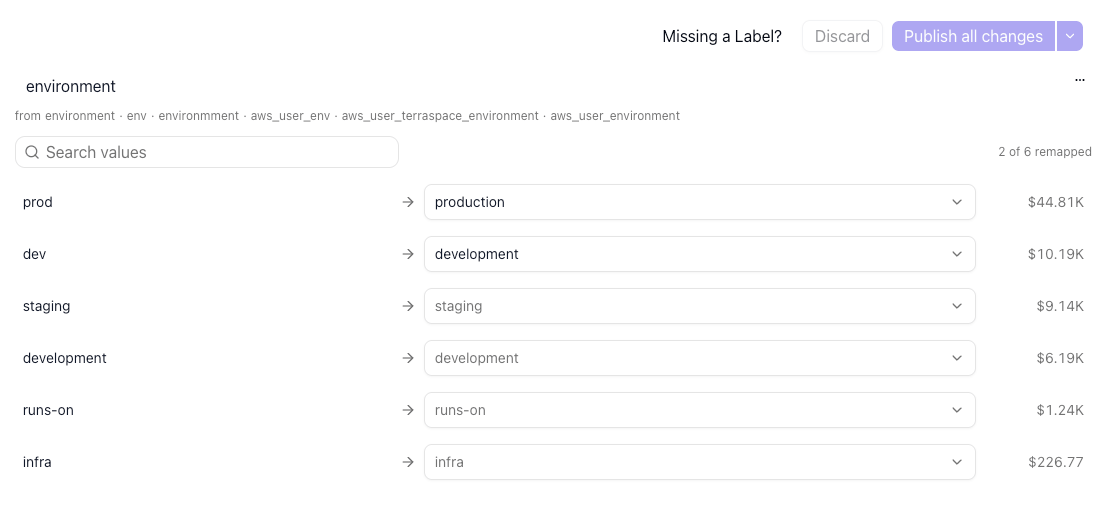 Click **Publish all changes**. Costory reprocesses historical data so the dimension is available in [Explorer](/features/cost-explorer), [Dashboards](/features/dashboards), [Alerts](/features/alerts), and [Reports](/features/slack-reports).
## Create a virtual dimension from rules
Use virtual dimensions when the right grouping does not exist as a clean tag. Rules can use billing metadata, imported dimensions, or other virtual dimensions.
Open **Dimensions**, click **+ Add new dimension** > **Virtual dimension**, and enter a name such as `team`, `business_unit`, or `product`.
Click **Publish all changes**. Costory reprocesses historical data so the dimension is available in [Explorer](/features/cost-explorer), [Dashboards](/features/dashboards), [Alerts](/features/alerts), and [Reports](/features/slack-reports).
## Create a virtual dimension from rules
Use virtual dimensions when the right grouping does not exist as a clean tag. Rules can use billing metadata, imported dimensions, or other virtual dimensions.
Open **Dimensions**, click **+ Add new dimension** > **Virtual dimension**, and enter a name such as `team`, `business_unit`, or `product`.
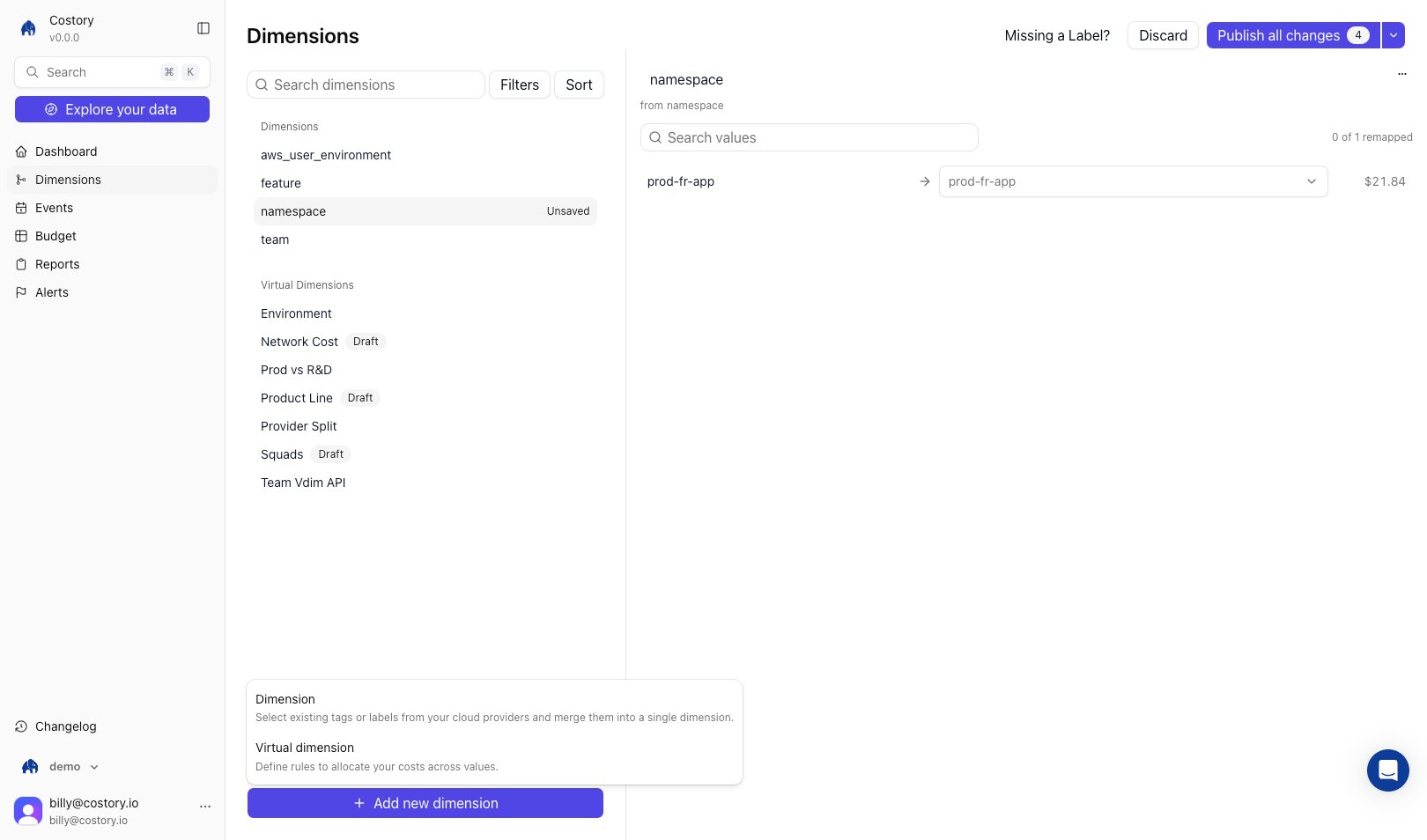 Add conditions that map cost rows to output values. Conditions can use fields such as account, service, resource name, Kubernetes namespace, imported dimensions, or another virtual dimension.
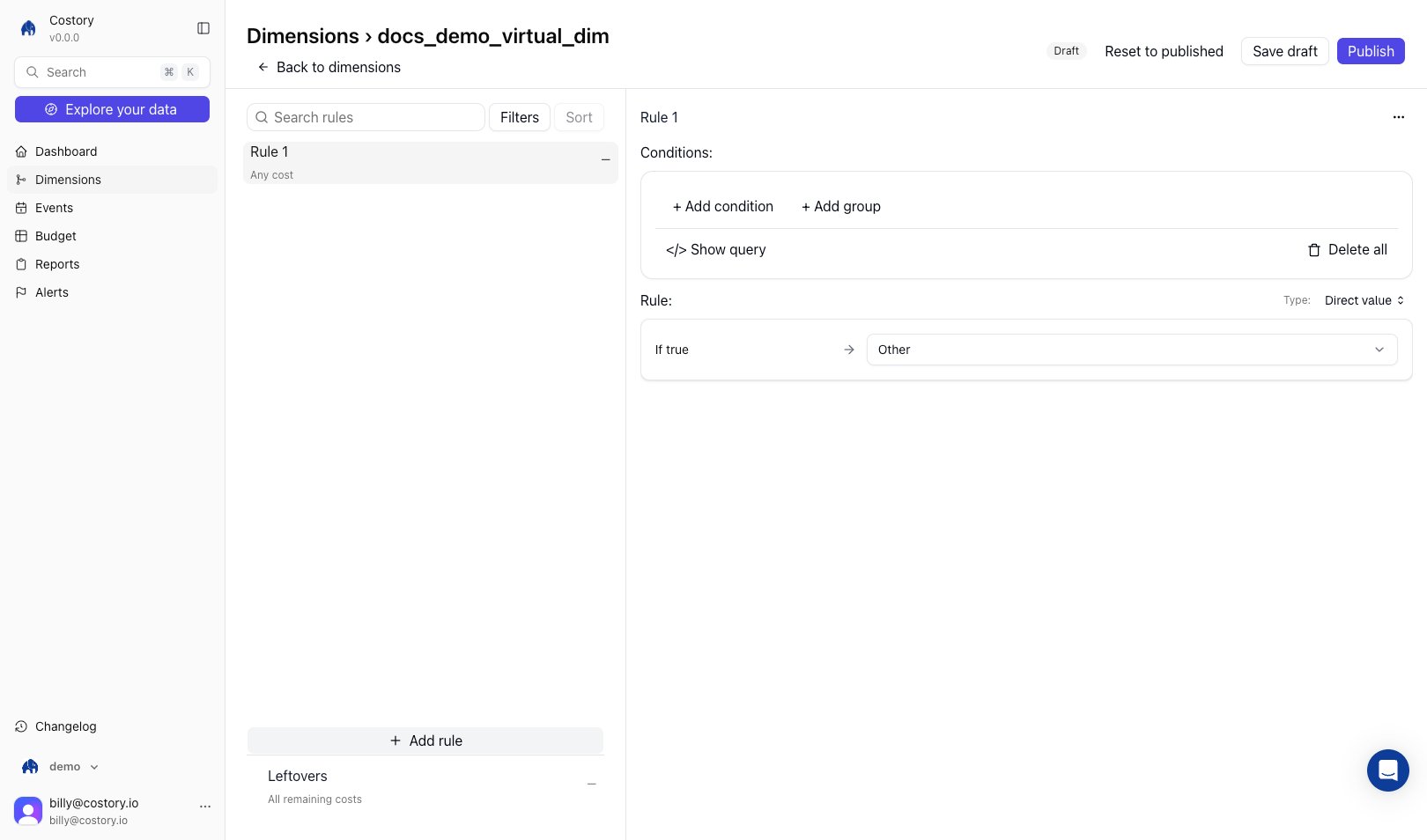 Rules are evaluated from top to bottom. Drag rules into the priority order you want.
Costory reprocesses historical data and makes the new values available across the product.
Every virtual dimension ends with a **leftover bucket**: a catch-all value for any cost row that matches none of your rules. Watch its share when you build rules: a large leftover usually means a rule is missing or too narrow.
## Explore and build allocation with your AI assistant
Most of the work in allocation is deciding which field to split on, not entering the rules. Through the [Costory FinOps MCP](/features/mcp), an assistant runs that exploration against your real spend and turns the result into a published dimension from chat. Before any rule exists, it can:
* Surface the values behind a concept with semantic search. Ask for "checkout" and you also get `payment-api`, `order-service`, and `cart-backend`, so one rule covers related spend a literal match would miss.
* Test which field best separates your cost with group-by suggestions and ad-hoc queries, so you split on something meaningful instead of guessing.
* Preview where the money lands. A per-rule preview shows trailing-30-day cost per bucket and the leftover share, so a missing or too-narrow rule is obvious before you publish.
* Flag rules that overlap. The overlap matrix shows when a broad early rule shadows a later one and swallows its spend.
Creating the dimension is the easy last step. The assistant drafts the rules as CEL conditions (top to bottom, first match wins), adds the leftover bucket automatically, and keeps everything on a **draft**. Publishing is explicit and triggers a data refresh, so production stays unchanged until you confirm.
Describe the outcome you want ("split our shared Cloud SQL bill across teams by schema size") and let the assistant explore the data and propose rules. Review the preview, especially the leftover share, before approving the publish.
See the [FinOps MCP reference](/features/mcp#virtual-dimensions) for the underlying tools and parameters.
## Reallocate shared cost with a usage metric
Beyond mapping rows to fixed values, a virtual dimension rule can split a shared cost **proportionally** across teams based on a synced usage metric, a **telemetry** allocation. For example, divide a shared Cloud SQL bill across teams by each schema's size instead of guessing a flat percentage.
Connect a metric source in [Setup > Usage Metrics](/setup/usage-metrics), then add the allocation rule from the web app or through MCP. See [Shared Cost Allocation](/features/tagging/shared-cost-allocation) for the full walkthrough and supported sources.
## Dimension sources
| Source | Examples | When to use |
| ---------------------- | ----------------------------------------------- | ------------------------------------------------------------------------------------------------------- |
| Native tags and labels | `env`, `aws:Environment`, `project.labels.team` | You already tag resources, but names or values differ by provider |
| Standard columns | Provider, account, service, region, namespace | You need allocation from billing metadata that is always present |
| Other dimensions | `environment`, `team`, `business_unit` | You want a hierarchy, such as namespace -> team -> business unit |
| Usage metrics | Database size, API calls, CPU time | You need [shared cost allocation](/features/tagging/shared-cost-allocation) based on actual consumption |
## Common patterns
### Environment dimension
Merge `env`, `environment`, and `k8s_label_env`, then normalize values into `development`, `staging`, and `production`. Use this for environment cost reports and alerts.
### Team virtual dimension
Map accounts, namespaces, services, and project IDs to teams. This helps you allocate untagged resources and create team scopes in [Teams](/features/teams).
### Allocation hierarchy
Build one dimension on top of another. For example:
```mermaid theme={null}
graph LR
A[Kubernetes namespace] --> B[Team]
B --> C[Business unit]
C --> D[P&L line]
```
When the team mapping changes, every dashboard, alert, and report that uses the downstream dimensions updates after reprocessing.
## Next Steps
See how dimensions and shared cost allocation fit together
Split shared infrastructure costs with usage metrics
Use dimensions to filter and group cost data
Walk through an environment dimension example
Explore your spend and build virtual dimensions from chat
Rules are evaluated from top to bottom. Drag rules into the priority order you want.
Costory reprocesses historical data and makes the new values available across the product.
Every virtual dimension ends with a **leftover bucket**: a catch-all value for any cost row that matches none of your rules. Watch its share when you build rules: a large leftover usually means a rule is missing or too narrow.
## Explore and build allocation with your AI assistant
Most of the work in allocation is deciding which field to split on, not entering the rules. Through the [Costory FinOps MCP](/features/mcp), an assistant runs that exploration against your real spend and turns the result into a published dimension from chat. Before any rule exists, it can:
* Surface the values behind a concept with semantic search. Ask for "checkout" and you also get `payment-api`, `order-service`, and `cart-backend`, so one rule covers related spend a literal match would miss.
* Test which field best separates your cost with group-by suggestions and ad-hoc queries, so you split on something meaningful instead of guessing.
* Preview where the money lands. A per-rule preview shows trailing-30-day cost per bucket and the leftover share, so a missing or too-narrow rule is obvious before you publish.
* Flag rules that overlap. The overlap matrix shows when a broad early rule shadows a later one and swallows its spend.
Creating the dimension is the easy last step. The assistant drafts the rules as CEL conditions (top to bottom, first match wins), adds the leftover bucket automatically, and keeps everything on a **draft**. Publishing is explicit and triggers a data refresh, so production stays unchanged until you confirm.
Describe the outcome you want ("split our shared Cloud SQL bill across teams by schema size") and let the assistant explore the data and propose rules. Review the preview, especially the leftover share, before approving the publish.
See the [FinOps MCP reference](/features/mcp#virtual-dimensions) for the underlying tools and parameters.
## Reallocate shared cost with a usage metric
Beyond mapping rows to fixed values, a virtual dimension rule can split a shared cost **proportionally** across teams based on a synced usage metric, a **telemetry** allocation. For example, divide a shared Cloud SQL bill across teams by each schema's size instead of guessing a flat percentage.
Connect a metric source in [Setup > Usage Metrics](/setup/usage-metrics), then add the allocation rule from the web app or through MCP. See [Shared Cost Allocation](/features/tagging/shared-cost-allocation) for the full walkthrough and supported sources.
## Dimension sources
| Source | Examples | When to use |
| ---------------------- | ----------------------------------------------- | ------------------------------------------------------------------------------------------------------- |
| Native tags and labels | `env`, `aws:Environment`, `project.labels.team` | You already tag resources, but names or values differ by provider |
| Standard columns | Provider, account, service, region, namespace | You need allocation from billing metadata that is always present |
| Other dimensions | `environment`, `team`, `business_unit` | You want a hierarchy, such as namespace -> team -> business unit |
| Usage metrics | Database size, API calls, CPU time | You need [shared cost allocation](/features/tagging/shared-cost-allocation) based on actual consumption |
## Common patterns
### Environment dimension
Merge `env`, `environment`, and `k8s_label_env`, then normalize values into `development`, `staging`, and `production`. Use this for environment cost reports and alerts.
### Team virtual dimension
Map accounts, namespaces, services, and project IDs to teams. This helps you allocate untagged resources and create team scopes in [Teams](/features/teams).
### Allocation hierarchy
Build one dimension on top of another. For example:
```mermaid theme={null}
graph LR
A[Kubernetes namespace] --> B[Team]
B --> C[Business unit]
C --> D[P&L line]
```
When the team mapping changes, every dashboard, alert, and report that uses the downstream dimensions updates after reprocessing.
## Next Steps
See how dimensions and shared cost allocation fit together
Split shared infrastructure costs with usage metrics
Use dimensions to filter and group cost data
Walk through an environment dimension example
Explore your spend and build virtual dimensions from chat