> ## Documentation Index
> Fetch the complete documentation index at: https://docs.costory.io/llms.txt
> Use this file to discover all available pages before exploring further.
# Split Shared Infrastructure Costs Across Teams
> Allocate shared cloud infrastructure costs like Cloud SQL, RDS, or network to teams based on actual usage metrics from Datadog, BigQuery, Snowflake, or Google Sheets.
Shared cost allocation is one of the hardest problems in FinOps. Your shared Cloud SQL database costs \$10K/month, but how much should each team pay?
Instead of guessing a 50/50 split, Costory allocates `$7K` to Team A and `$3K` to Team B based on actual database usage from Datadog. Connect any usage metric, and Costory splits the cost proportionally. No manual percentages to maintain.
 ## Key terms
* **Shared cost allocation**: The process of distributing a shared infrastructure cost across the teams or services that consume it, proportionally based on usage.
* **Usage metric**: An external measurement (e.g., database size per schema, CPU time per user, API calls per team) used to determine each team's share of a shared cost.
* **Virtual dimension**: A rule-based cost grouping. Shared cost allocation is configured as a special type of virtual dimension rule. See [Dimensions](/features/tagging/dimensions#virtual-dimensions).
See the [Glossary](/docs/glossary) for a full list of terms.
## Supported metric sources
Costory can pull usage metrics from several data sources to drive proportional cost allocation.
Connect your metric source in [Setup > Usage Metrics](/setup/usage-metrics), then reference it in a [virtual dimension](/features/tagging/dimensions#virtual-dimensions) rule.
## How it works
Navigate to **Setup** > **Usage Metrics** and connect one of the supported sources (Datadog, BigQuery, Snowflake, or Google Sheets). See the [Usage Metrics setup guide](/setup/usage-metrics) for details.
Open the virtual dimension where you want to add shared cost allocation, for example `Team`. See [Dimensions](/features/tagging/dimensions#virtual-dimensions) if you haven't created one yet.
Select the usage metric you connected. Costory will use the metric's values to determine each team's proportional share of the cost.
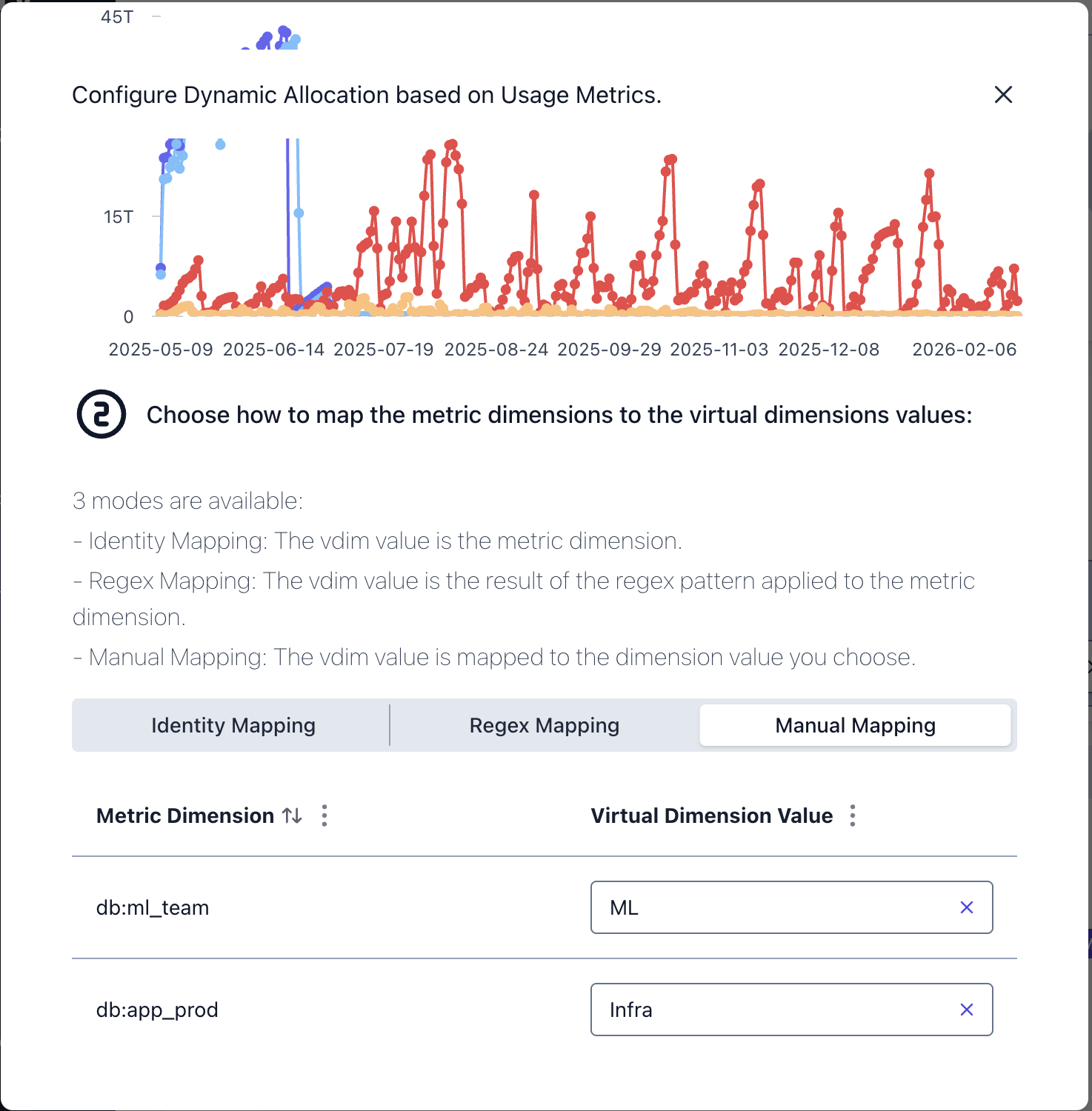
Tell Costory how metric labels correspond to team names. Three mapping types are available (see below).
Costory reprocesses your data. The shared cost is split proportionally and appears in [Explorer](/features/cost-explorer) grouped by team.
## Mapping metric labels to teams
When a usage metric has dimension labels (e.g., a `schema` label per database schema), you need to map those labels to the team names in your virtual dimension.
| Mapping type | How it works | When to use |
| ------------ | ---------------------------------------------------------------------- | ------------------------------------------------------------------------------------ |
| **Identity** | The metric label already matches the team name exactly | Your metric labels and team names are the same (e.g., `payments` in both) |
| **Regex** | Extract the team name from the metric label using a regular expression | Labels follow a pattern like `team-payments-prod` and you need to extract `payments` |
| **Manual** | Explicitly assign each metric label to a team | Labels don't follow a pattern, or you need full control over the mapping |
## Common allocation patterns
Shared cost allocation works well for:
* Shared databases (Cloud SQL, RDS, Aurora), split by schema size, query count, or connection time per team
* Network and egress costs, split by traffic volume per namespace or service
* Shared Kubernetes clusters, split by CPU or memory usage per namespace. See [EKS cost allocation](/use-cases/eks-cost-allocation) for a full example.
* Third-party API costs, split by API call count per team. See [Reallocate API Costs](/use-cases/reallocate_api_costs) for a walkthrough.
* Support and licensing fees, split proportionally based on each team's share of total spend
## Automate reporting
Once costs are allocated, you can automate weekly reports per team via [Cost Reports](/features/slack-reports). Each team sees their share of shared infrastructure alongside their direct costs, all in one place.
For a step-by-step walkthrough, see [Allocate a shared Cloud SQL database](/use-cases/allocate_shared_cloud_sql_database/allocate).
## Next Steps
Build imported and rule-based dimensions
Step-by-step: split a Cloud SQL bill across teams
Split shared API costs using an external usage metric
Connect Datadog, BigQuery, Snowflake, or Google Sheets
## Key terms
* **Shared cost allocation**: The process of distributing a shared infrastructure cost across the teams or services that consume it, proportionally based on usage.
* **Usage metric**: An external measurement (e.g., database size per schema, CPU time per user, API calls per team) used to determine each team's share of a shared cost.
* **Virtual dimension**: A rule-based cost grouping. Shared cost allocation is configured as a special type of virtual dimension rule. See [Dimensions](/features/tagging/dimensions#virtual-dimensions).
See the [Glossary](/docs/glossary) for a full list of terms.
## Supported metric sources
Costory can pull usage metrics from several data sources to drive proportional cost allocation.
Connect your metric source in [Setup > Usage Metrics](/setup/usage-metrics), then reference it in a [virtual dimension](/features/tagging/dimensions#virtual-dimensions) rule.
## How it works
Navigate to **Setup** > **Usage Metrics** and connect one of the supported sources (Datadog, BigQuery, Snowflake, or Google Sheets). See the [Usage Metrics setup guide](/setup/usage-metrics) for details.
Open the virtual dimension where you want to add shared cost allocation, for example `Team`. See [Dimensions](/features/tagging/dimensions#virtual-dimensions) if you haven't created one yet.
Select the usage metric you connected. Costory will use the metric's values to determine each team's proportional share of the cost.
Tell Costory how metric labels correspond to team names. Three mapping types are available (see below).
Costory reprocesses your data. The shared cost is split proportionally and appears in [Explorer](/features/cost-explorer) grouped by team.
## Mapping metric labels to teams
When a usage metric has dimension labels (e.g., a `schema` label per database schema), you need to map those labels to the team names in your virtual dimension.
| Mapping type | How it works | When to use |
| ------------ | ---------------------------------------------------------------------- | ------------------------------------------------------------------------------------ |
| **Identity** | The metric label already matches the team name exactly | Your metric labels and team names are the same (e.g., `payments` in both) |
| **Regex** | Extract the team name from the metric label using a regular expression | Labels follow a pattern like `team-payments-prod` and you need to extract `payments` |
| **Manual** | Explicitly assign each metric label to a team | Labels don't follow a pattern, or you need full control over the mapping |
## Common allocation patterns
Shared cost allocation works well for:
* Shared databases (Cloud SQL, RDS, Aurora), split by schema size, query count, or connection time per team
* Network and egress costs, split by traffic volume per namespace or service
* Shared Kubernetes clusters, split by CPU or memory usage per namespace. See [EKS cost allocation](/use-cases/eks-cost-allocation) for a full example.
* Third-party API costs, split by API call count per team. See [Reallocate API Costs](/use-cases/reallocate_api_costs) for a walkthrough.
* Support and licensing fees, split proportionally based on each team's share of total spend
## Automate reporting
Once costs are allocated, you can automate weekly reports per team via [Cost Reports](/features/slack-reports). Each team sees their share of shared infrastructure alongside their direct costs, all in one place.
For a step-by-step walkthrough, see [Allocate a shared Cloud SQL database](/use-cases/allocate_shared_cloud_sql_database/allocate).
## Next Steps
Build imported and rule-based dimensions
Step-by-step: split a Cloud SQL bill across teams
Split shared API costs using an external usage metric
Connect Datadog, BigQuery, Snowflake, or Google Sheets