> ## Documentation Index
> Fetch the complete documentation index at: https://docs.costory.io/llms.txt
> Use this file to discover all available pages before exploring further.
# Teams
> Scope cloud costs, default metrics, and dashboards per team so every stakeholder sees the data that matters to them.
A single cost view rarely works for an entire organization. Your backend squad needs Contracted Cost scoped to their services, while finance needs Billed Cost across everything. **Teams** let you configure those defaults once so each group lands on the right numbers without manual filtering.
 ## Overview
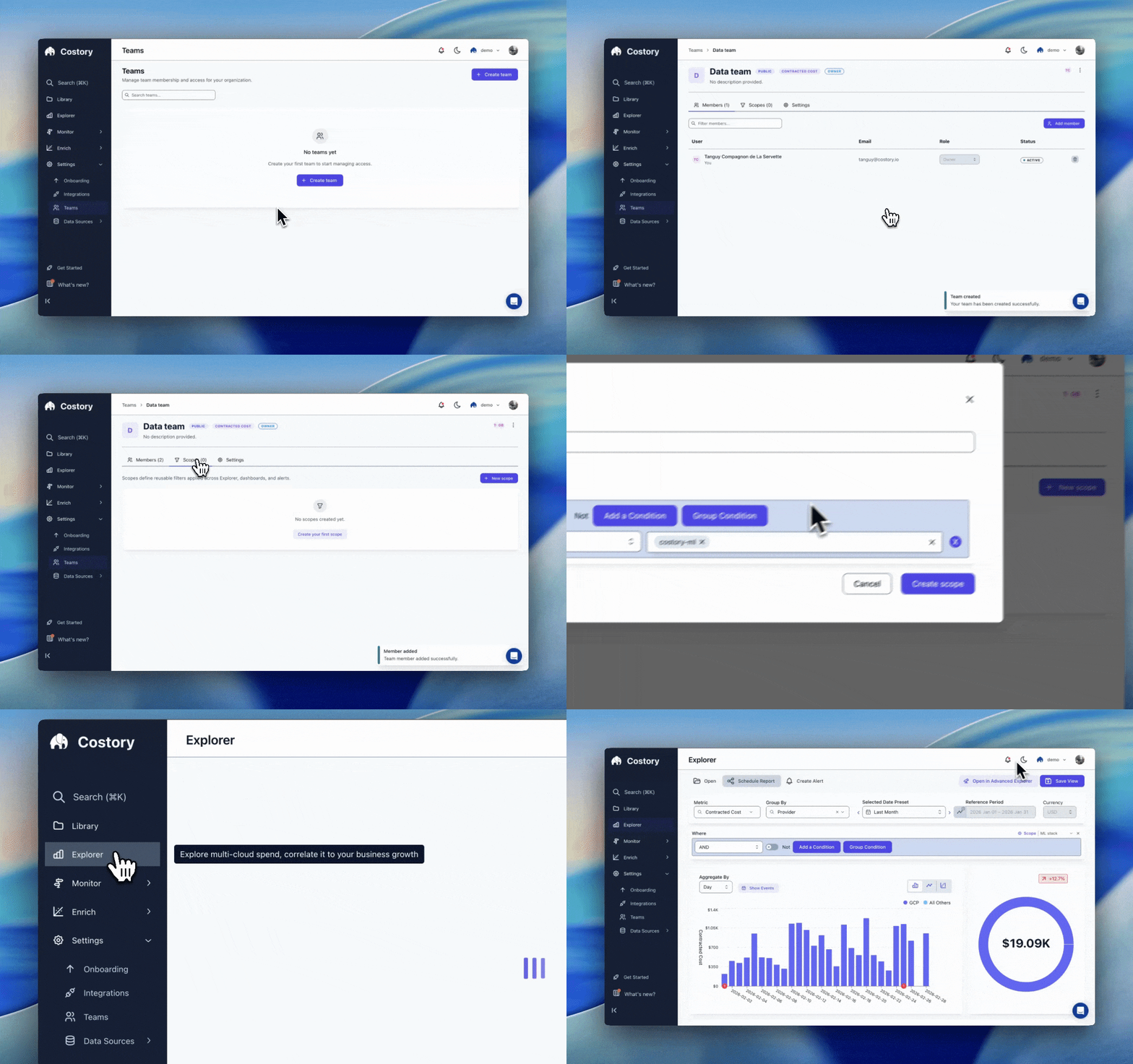
A Team is a group of users that share three things: a default cost metric (Contracted, Effective, or Billed) applied across all screens, one or more cost scopes that pre-filter every view to the team's perimeter, and a set of dashboards and saved views that all members can edit together. Dashboards can be public (visible org-wide) or private (team members only).
If you are looking for where Teams and other admin pages live in the app, see [Settings](/get-started/settings).
When a user belongs to multiple teams, the first team they were added to provides the default scope.
## Get started
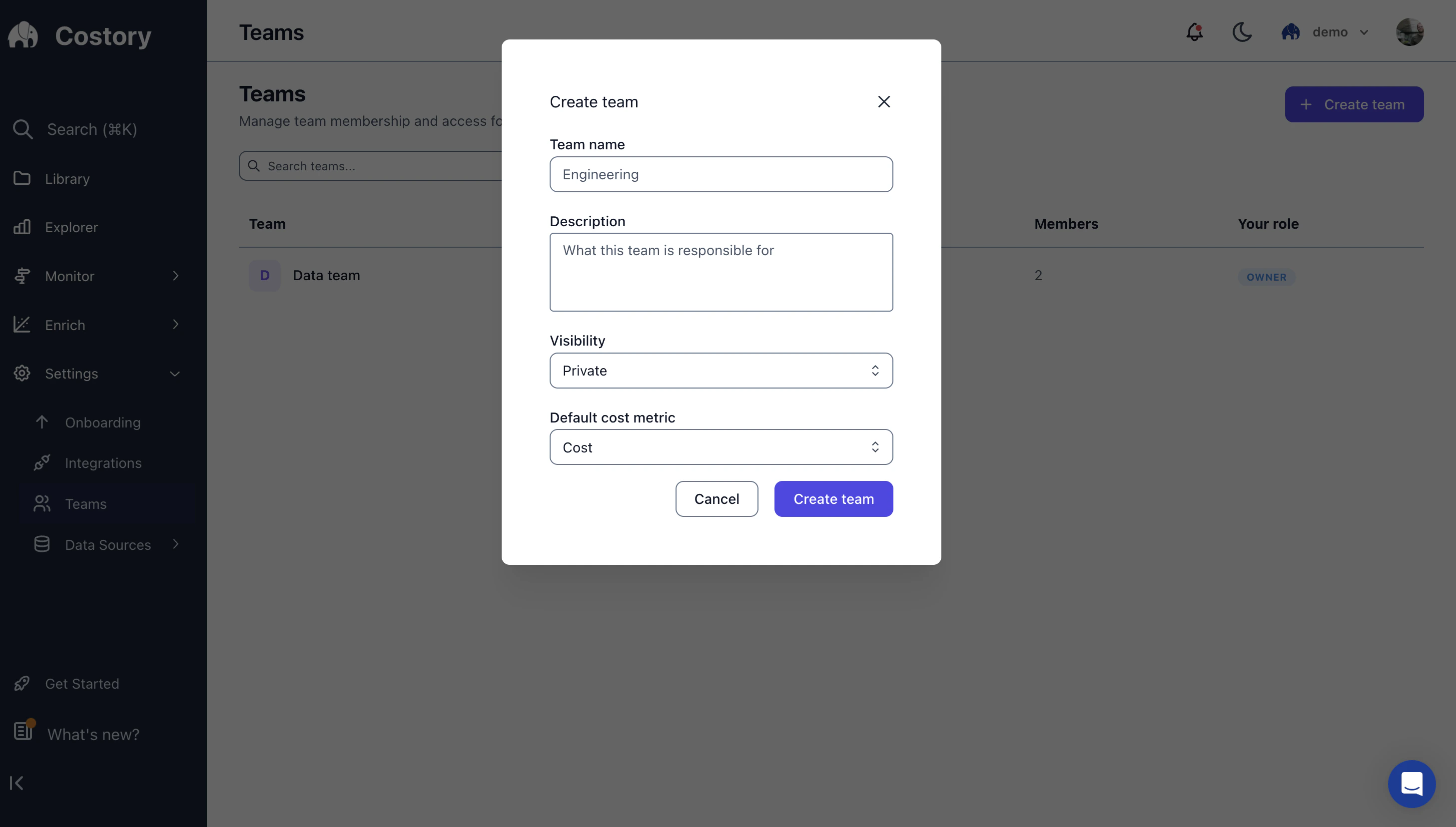
Navigate to **Settings > Teams** and click **Create Team**. Give the team a name, an optional description, and choose its visibility.
## Overview
A Team is a group of users that share three things: a default cost metric (Contracted, Effective, or Billed) applied across all screens, one or more cost scopes that pre-filter every view to the team's perimeter, and a set of dashboards and saved views that all members can edit together. Dashboards can be public (visible org-wide) or private (team members only).
If you are looking for where Teams and other admin pages live in the app, see [Settings](/get-started/settings).
When a user belongs to multiple teams, the first team they were added to provides the default scope.
## Get started
Navigate to **Settings > Teams** and click **Create Team**. Give the team a name, an optional description, and choose its visibility.
 ```hcl theme={null}
terraform {
required_providers {
costory = {
source = "costory-io/costory"
version = ">= 0.1.0"
}
}
}
variable "costory_api_token" {
type = string
description = "Costory API token."
sensitive = true
}
provider "costory" {
token = var.costory_api_token
}
# Public team
resource "costory_team" "engineering" {
name = "Engineering"
description = "All engineering members"
visibility = "PUBLIC"
}
```
```hcl theme={null}
terraform {
required_providers {
costory = {
source = "costory-io/costory"
version = ">= 0.1.0"
}
}
}
variable "costory_api_token" {
type = string
description = "Costory API token."
sensitive = true
}
provider "costory" {
token = var.costory_api_token
}
# Public team
resource "costory_team" "engineering" {
name = "Engineering"
description = "All engineering members"
visibility = "PUBLIC"
}
```
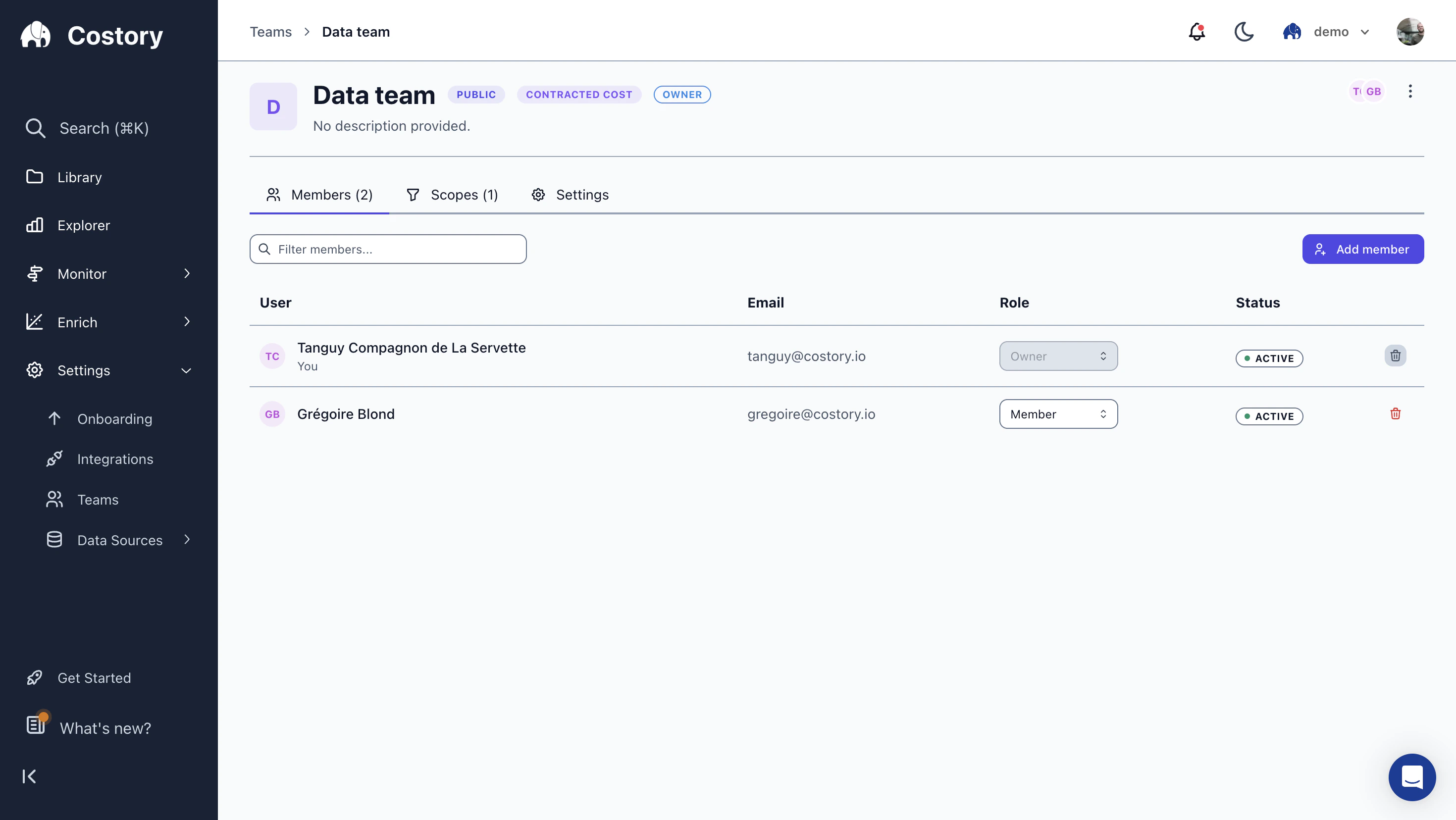
Open your team in **Settings > Teams** and click **Add member**. Invite members by email and assign each person a role.
```hcl theme={null}
terraform {
required_providers {
costory = {
source = "costory-io/costory"
version = ">= 0.1.0"
}
}
}
variable "costory_api_token" {
type = string
description = "Costory API token."
sensitive = true
}
provider "costory" {
token = var.costory_api_token
}
# Public team
resource "costory_team" "engineering" {
name = "Engineering"
description = "All engineering members"
visibility = "PUBLIC"
}
```
```hcl theme={null}
terraform {
required_providers {
costory = {
source = "costory-io/costory"
version = ">= 0.1.0"
}
}
}
variable "costory_api_token" {
type = string
description = "Costory API token."
sensitive = true
}
provider "costory" {
token = var.costory_api_token
}
# Public team
resource "costory_team" "engineering" {
name = "Engineering"
description = "All engineering members"
visibility = "PUBLIC"
}
```
Open your team in **Settings > Teams** and click **Add member**. Invite members by email and assign each person a role.
 | Role | Permissions |
| ---------- | ----------------------------------------------------- |
| **Owner** | Add/remove members, manage scopes, edit team settings |
| **Member** | Use team scopes, view and edit team dashboards |
```hcl theme={null}
terraform {
required_providers {
costory = {
source = "costory-io/costory"
version = ">= 0.1.0"
}
}
}
variable "costory_api_token" {
type = string
description = "Costory API token."
sensitive = true
}
provider "costory" {
token = var.costory_api_token
}
resource "costory_team" "engineering" {
name = "Engineering"
visibility = "PRIVATE"
}
variable "team_members" {
type = map(object({
email = string
role = string
}))
default = {
alice = { email = "alice@example.com", role = "OWNER" }
bob = { email = "bob@example.com", role = "MEMBER" }
carol = { email = "carol@example.com", role = "MEMBER" }
}
}
resource "costory_team_member" "members" {
for_each = var.team_members
team_id = costory_team.engineering.id
email = each.value.email
role = each.value.role
}
```
```hcl theme={null}
terraform {
required_providers {
costory = {
source = "costory-io/costory"
version = ">= 0.1.0"
}
}
}
variable "costory_api_token" {
type = string
description = "Costory API token."
sensitive = true
}
provider "costory" {
token = var.costory_api_token
}
resource "costory_team" "engineering" {
name = "Engineering"
visibility = "PRIVATE"
}
variable "team_members" {
type = map(object({
email = string
role = string
}))
default = {
alice = { email = "alice@example.com", role = "OWNER" }
bob = { email = "bob@example.com", role = "MEMBER" }
carol = { email = "carol@example.com", role = "MEMBER" }
}
}
resource "costory_team_member" "members" {
for_each = var.team_members
team_id = costory_team.engineering.id
email = each.value.email
role = each.value.role
}
```
Scopes are persistent filters that apply by default whenever a team member opens [Explorer](/features/cost-explorer), a dashboard, or any cost view. They define the team's cost boundary: for example, only the AWS accounts or GCP projects the team owns.
| Role | Permissions |
| ---------- | ----------------------------------------------------- |
| **Owner** | Add/remove members, manage scopes, edit team settings |
| **Member** | Use team scopes, view and edit team dashboards |
```hcl theme={null}
terraform {
required_providers {
costory = {
source = "costory-io/costory"
version = ">= 0.1.0"
}
}
}
variable "costory_api_token" {
type = string
description = "Costory API token."
sensitive = true
}
provider "costory" {
token = var.costory_api_token
}
resource "costory_team" "engineering" {
name = "Engineering"
visibility = "PRIVATE"
}
variable "team_members" {
type = map(object({
email = string
role = string
}))
default = {
alice = { email = "alice@example.com", role = "OWNER" }
bob = { email = "bob@example.com", role = "MEMBER" }
carol = { email = "carol@example.com", role = "MEMBER" }
}
}
resource "costory_team_member" "members" {
for_each = var.team_members
team_id = costory_team.engineering.id
email = each.value.email
role = each.value.role
}
```
```hcl theme={null}
terraform {
required_providers {
costory = {
source = "costory-io/costory"
version = ">= 0.1.0"
}
}
}
variable "costory_api_token" {
type = string
description = "Costory API token."
sensitive = true
}
provider "costory" {
token = var.costory_api_token
}
resource "costory_team" "engineering" {
name = "Engineering"
visibility = "PRIVATE"
}
variable "team_members" {
type = map(object({
email = string
role = string
}))
default = {
alice = { email = "alice@example.com", role = "OWNER" }
bob = { email = "bob@example.com", role = "MEMBER" }
carol = { email = "carol@example.com", role = "MEMBER" }
}
}
resource "costory_team_member" "members" {
for_each = var.team_members
team_id = costory_team.engineering.id
email = each.value.email
role = each.value.role
}
```
Scopes are persistent filters that apply by default whenever a team member opens [Explorer](/features/cost-explorer), a dashboard, or any cost view. They define the team's cost boundary: for example, only the AWS accounts or GCP projects the team owns.
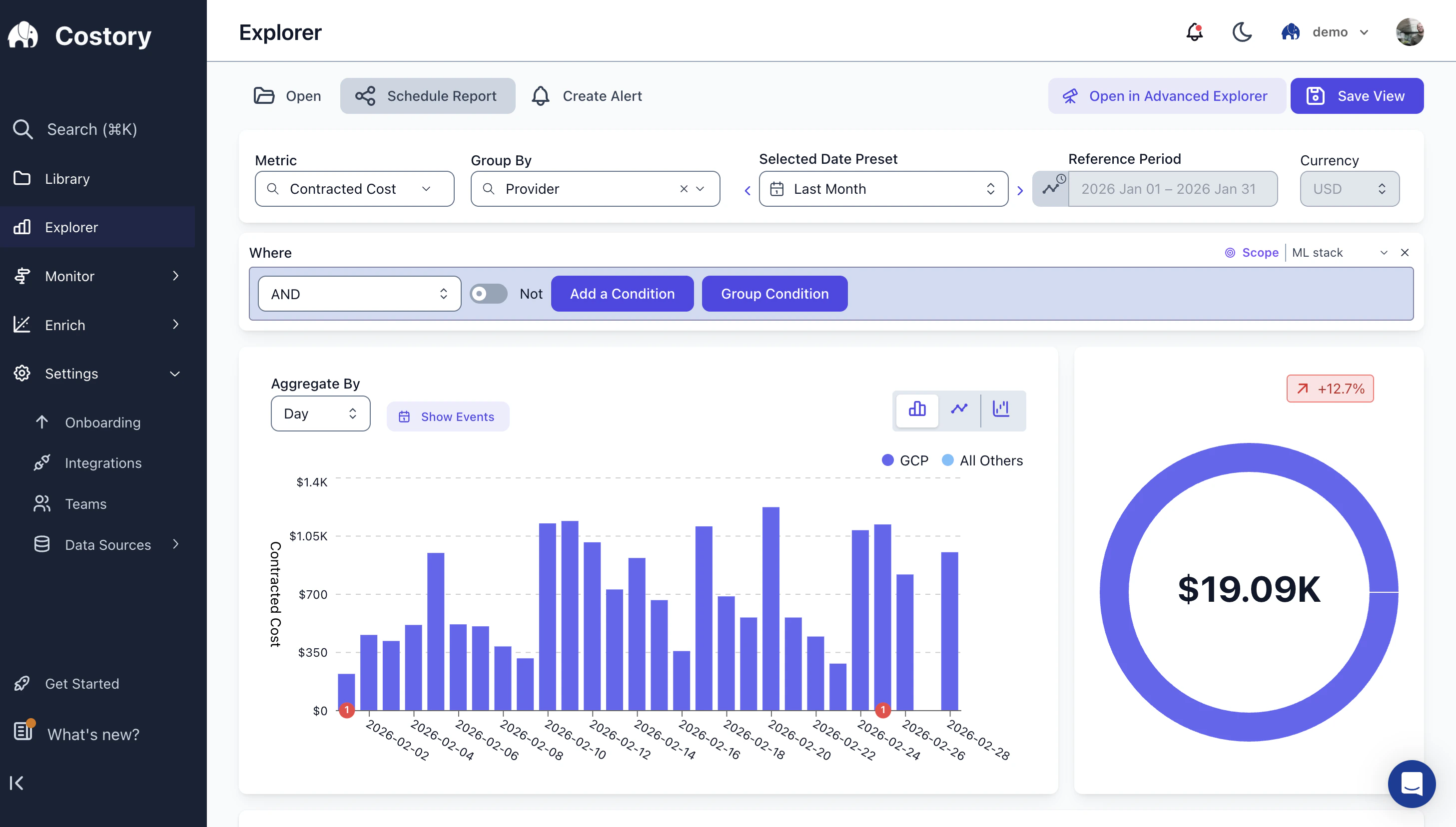 To add a scope:
1. Go to **Settings > Teams** and select your team.
2. Click **Add Scope** and define the filter conditions.
3. Save. The scope applies by default to every view for all team members.
You can assign multiple scopes per team, for example one for compute resources and another for storage.
Team members can temporarily remove a scope to see organization-wide costs. The scope is re-applied automatically when they open a new view.
## Key capabilities
### Default cost metric per team
Different stakeholders need different [cost metrics](/docs/cost-metrics). With Teams, you set the default once and it applies across Explorer, dashboards, and Digest.
Engineering teams typically default to Contracted Cost, which is stable and reflects actual resource usage without [Savings Plan fluctuations](/docs/savings-plan-cost-fluctuation). Finance teams prefer Effective Cost or Billed Cost, which reflects what is actually invoiced.
Individual users can still switch metrics on the fly. For a guide on matching metrics to personas, see [Cost Metrics Per Persona](/use-cases/show_the_correct_cost_metric_to_each_persona).
### Persistent cost scopes
Common scope patterns include scoping by AWS account or GCP project to match the team's ownership, by cloud service (e.g., SageMaker, BigQuery), by dimension such as `team = ML` using [Dimensions](/features/tagging/dimensions), or by Kubernetes namespace.
### Shared dashboards and views
Assign dashboards and saved views to a team so all members can collaborate. Public dashboards are visible to the entire organization, which is useful for cross-team cost overviews. Private dashboards are restricted to team members for team-specific analysis.
To add a scope:
1. Go to **Settings > Teams** and select your team.
2. Click **Add Scope** and define the filter conditions.
3. Save. The scope applies by default to every view for all team members.
You can assign multiple scopes per team, for example one for compute resources and another for storage.
Team members can temporarily remove a scope to see organization-wide costs. The scope is re-applied automatically when they open a new view.
## Key capabilities
### Default cost metric per team
Different stakeholders need different [cost metrics](/docs/cost-metrics). With Teams, you set the default once and it applies across Explorer, dashboards, and Digest.
Engineering teams typically default to Contracted Cost, which is stable and reflects actual resource usage without [Savings Plan fluctuations](/docs/savings-plan-cost-fluctuation). Finance teams prefer Effective Cost or Billed Cost, which reflects what is actually invoiced.
Individual users can still switch metrics on the fly. For a guide on matching metrics to personas, see [Cost Metrics Per Persona](/use-cases/show_the_correct_cost_metric_to_each_persona).
### Persistent cost scopes
Common scope patterns include scoping by AWS account or GCP project to match the team's ownership, by cloud service (e.g., SageMaker, BigQuery), by dimension such as `team = ML` using [Dimensions](/features/tagging/dimensions), or by Kubernetes namespace.
### Shared dashboards and views
Assign dashboards and saved views to a team so all members can collaborate. Public dashboards are visible to the entire organization, which is useful for cross-team cost overviews. Private dashboards are restricted to team members for team-specific analysis.
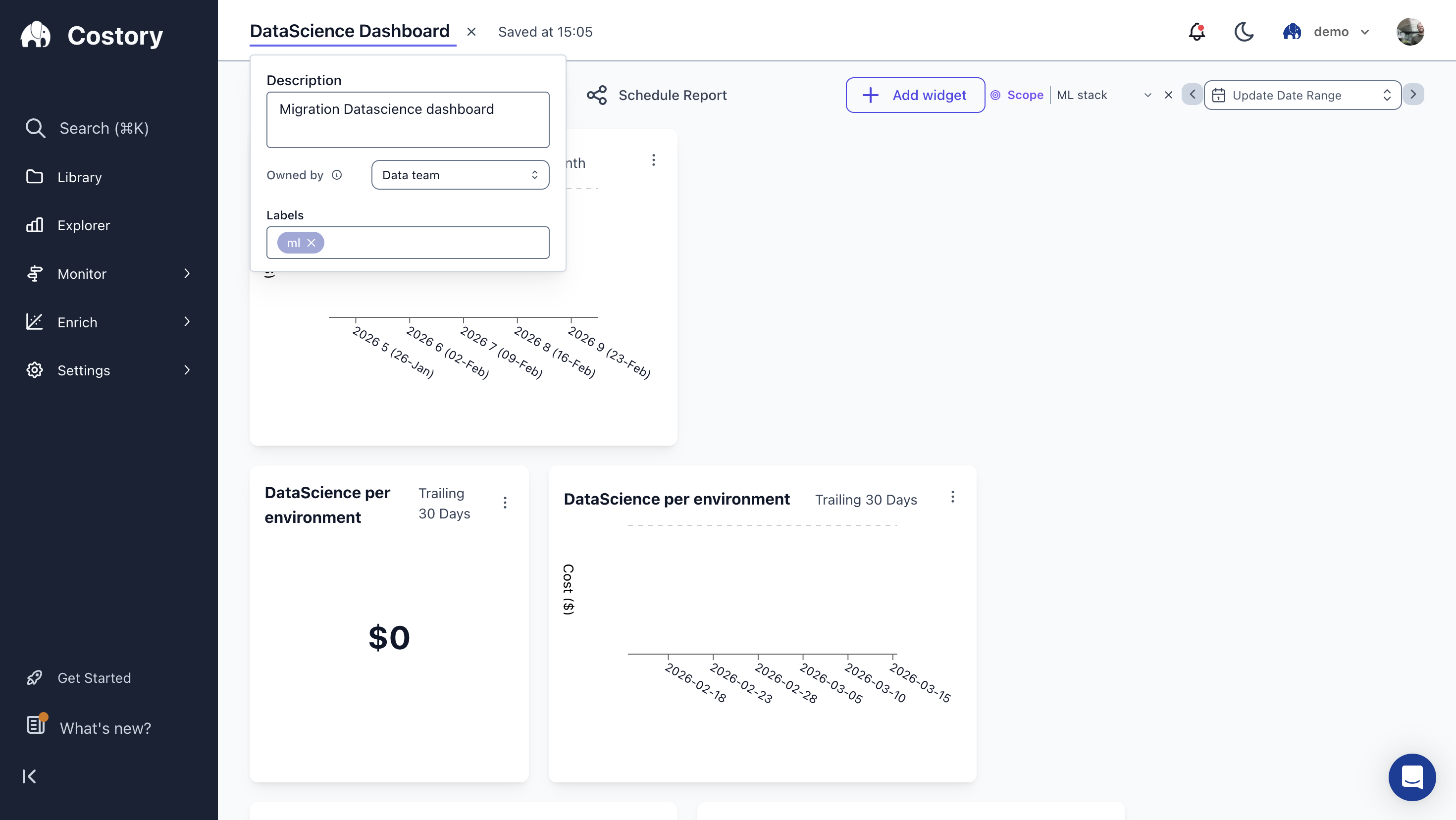 All team members can edit dashboards assigned to their team. People outside the team can view public dashboards but cannot edit them.
## Manage teams
### Edit a team
Open **Settings > Teams** and select the team you want to modify. From there you can rename the team, update its description, change its visibility (Public or Private), and update the default cost metric.
In Terraform, update the corresponding `costory_team` resource attributes and run `terraform apply`.
### Delete a team
Open **Settings > Teams**, select the team, and click **Delete Team**. Deleting a team removes all scopes and unlinks all dashboards. Members are not deleted from Costory, they just lose access to the team's private dashboards.
Deleting a team cannot be undone. Make sure to reassign any dashboards you want to keep before deleting.
In Terraform, remove the `costory_team` resource from your configuration and run `terraform apply`.
### Roles and permissions
| Role | Members | Scopes | Team settings | Dashboards |
| ---------- | -------------- | -------------------- | -------------------------------------------------- | ------------------------ |
| **Owner** | Add and remove | Create, edit, delete | Edit name, description, visibility, default metric | Edit all team dashboards |
| **Member** | View only | View only | View only | Edit all team dashboards |
Owners have full control over the team configuration. Members can use the team's scopes and edit dashboards assigned to the team, but cannot change membership or settings. Both roles can temporarily remove a scope to see organization-wide costs.
## Frequently Asked Questions
The first team the user was added to provides the default scope. The user can still access dashboards and scopes from all their teams.
Yes. Scopes apply by default, but any team member can remove the scope filter to see organization-wide costs. The scope is re-applied when they navigate to a new view.
Team scopes are applied when a team member creates a [Cost Report](/features/slack-reports) or a saved View. Alerts and scheduled reports cannot be owned by a team yet, so they are managed per user.
A **Public** team's dashboards are visible to everyone in the organization. A **Private** team's dashboards are only visible to team members. In both cases, only team members can edit the team's dashboards.
Not yet. Scopes are currently managed through the UI. Team creation and member assignment are available via the [Costory Terraform provider](#create-a-team).
## Next Steps
Find Teams, Data Integrations, API Keys, and Plan & Invoices.
Explore your costs with team scopes applied by default
Build the dimensions that power your team scopes
Match the right cost metric to each stakeholder
Understand Contracted, Effective, and Billed costs
All team members can edit dashboards assigned to their team. People outside the team can view public dashboards but cannot edit them.
## Manage teams
### Edit a team
Open **Settings > Teams** and select the team you want to modify. From there you can rename the team, update its description, change its visibility (Public or Private), and update the default cost metric.
In Terraform, update the corresponding `costory_team` resource attributes and run `terraform apply`.
### Delete a team
Open **Settings > Teams**, select the team, and click **Delete Team**. Deleting a team removes all scopes and unlinks all dashboards. Members are not deleted from Costory, they just lose access to the team's private dashboards.
Deleting a team cannot be undone. Make sure to reassign any dashboards you want to keep before deleting.
In Terraform, remove the `costory_team` resource from your configuration and run `terraform apply`.
### Roles and permissions
| Role | Members | Scopes | Team settings | Dashboards |
| ---------- | -------------- | -------------------- | -------------------------------------------------- | ------------------------ |
| **Owner** | Add and remove | Create, edit, delete | Edit name, description, visibility, default metric | Edit all team dashboards |
| **Member** | View only | View only | View only | Edit all team dashboards |
Owners have full control over the team configuration. Members can use the team's scopes and edit dashboards assigned to the team, but cannot change membership or settings. Both roles can temporarily remove a scope to see organization-wide costs.
## Frequently Asked Questions
The first team the user was added to provides the default scope. The user can still access dashboards and scopes from all their teams.
Yes. Scopes apply by default, but any team member can remove the scope filter to see organization-wide costs. The scope is re-applied when they navigate to a new view.
Team scopes are applied when a team member creates a [Cost Report](/features/slack-reports) or a saved View. Alerts and scheduled reports cannot be owned by a team yet, so they are managed per user.
A **Public** team's dashboards are visible to everyone in the organization. A **Private** team's dashboards are only visible to team members. In both cases, only team members can edit the team's dashboards.
Not yet. Scopes are currently managed through the UI. Team creation and member assignment are available via the [Costory Terraform provider](#create-a-team).
## Next Steps
Find Teams, Data Integrations, API Keys, and Plan & Invoices.
Explore your costs with team scopes applied by default
Build the dimensions that power your team scopes
Match the right cost metric to each stakeholder
Understand Contracted, Effective, and Billed costs