> ## Documentation Index
> Fetch the complete documentation index at: https://docs.costory.io/llms.txt
> Use this file to discover all available pages before exploring further.
# Quickstart: How to set up automated cloud cost reporting in 30 minutes
> Step-by-step guide to connect AWS, GCP, Azure and Datadog to Costory. Set up automated FinOps Slack & Teams cost reports in 30 minutes, free trial included.
New to Costory? Read the [Welcome](/get-started/welcome) page for how the product fits DevOps workflows, then follow the steps below.
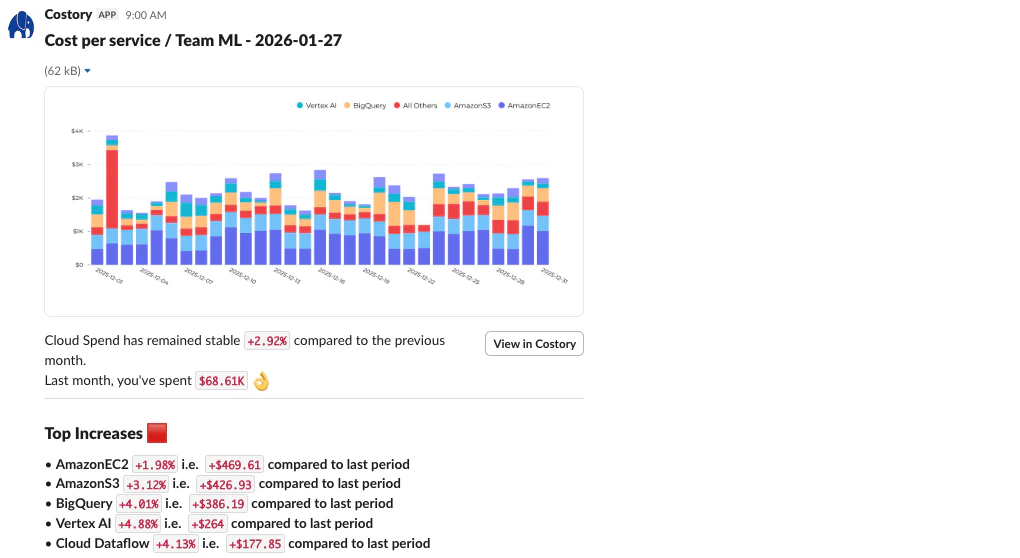 Here's what you can expect in 30 minutes (and a large lunch break):
* Set up your 14-day free trial with your cloud billing data connected.
* Get a unified view of your costs across teams, providers, and environments.
* Receive your first Costory report directly to your team's inbox (Slack, Teams, Email).
## Prerequisites for Costory cloud cost management setup
* **Cloud Billing Admin Access**: Be a Billing Admin on your cloud provider account. If you're a marketplace admin, you can also purchase Costory directly from the marketplace at the end of onboarding.
* **Slack or Teams App Install**: Have your Slack or Teams admin ready to install the Costory app, or ensure you have admin permissions to do it yourself.
## Step 1: Connect your AWS, GCP, Azure billing accounts (10 minutes)
Request a free trial
Go to [Setup Billing Datasources](https://app.costory.io/datasources/billing)
Here's what you can expect in 30 minutes (and a large lunch break):
* Set up your 14-day free trial with your cloud billing data connected.
* Get a unified view of your costs across teams, providers, and environments.
* Receive your first Costory report directly to your team's inbox (Slack, Teams, Email).
## Prerequisites for Costory cloud cost management setup
* **Cloud Billing Admin Access**: Be a Billing Admin on your cloud provider account. If you're a marketplace admin, you can also purchase Costory directly from the marketplace at the end of onboarding.
* **Slack or Teams App Install**: Have your Slack or Teams admin ready to install the Costory app, or ensure you have admin permissions to do it yourself.
## Step 1: Connect your AWS, GCP, Azure billing accounts (10 minutes)
Request a free trial
Go to [Setup Billing Datasources](https://app.costory.io/datasources/billing)
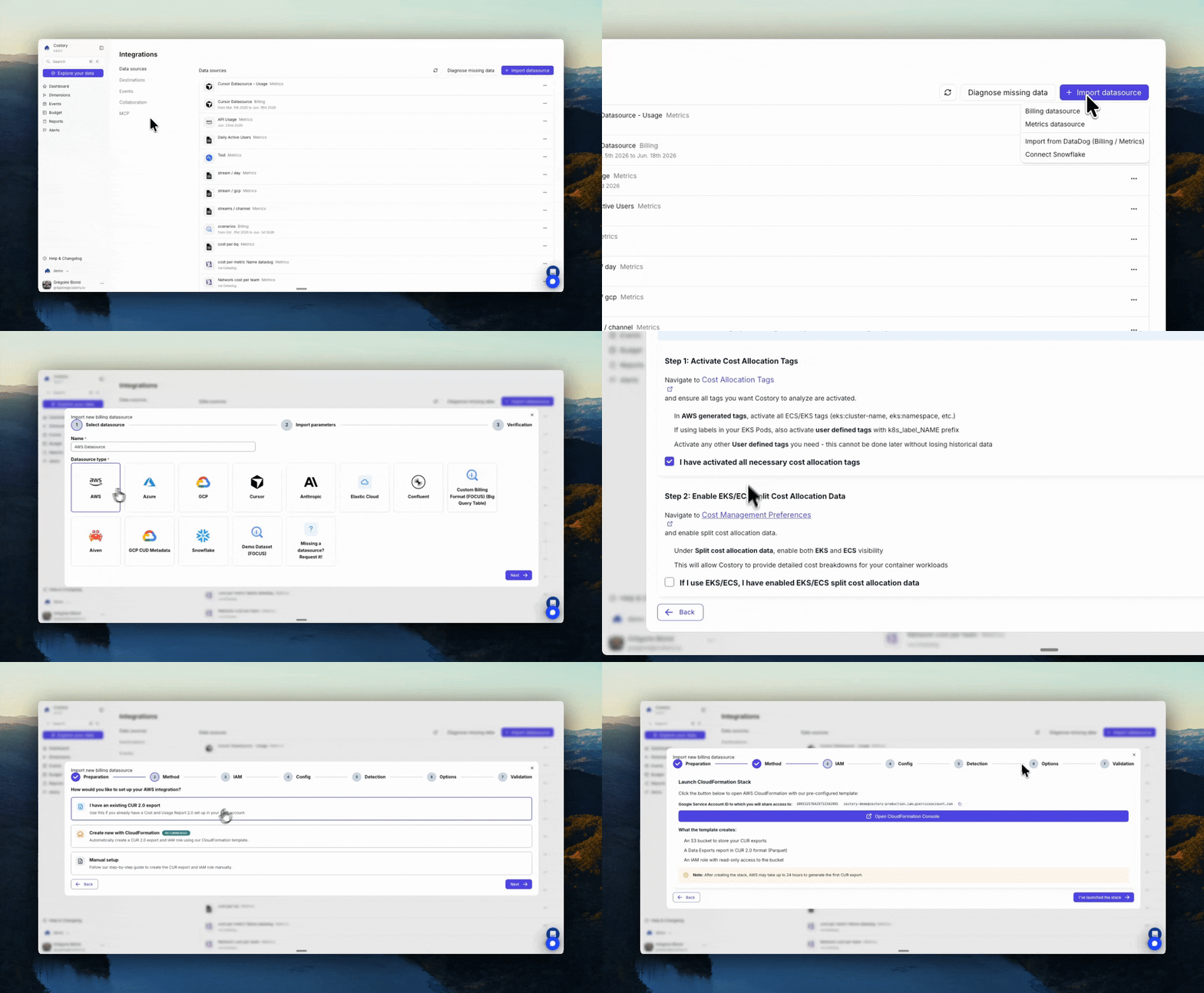 If you have an existing export, you will be able to import it directly in Costory.
If you need to create a new report, AWS takes between 6 and 12 hours to export the first file. And 12-24 hours to backfill the historical data. Costory will ping you when your data is ready.
Click new datasource and select GCP. You will see your Costory service account email. Share your BigQuery dataset with it using these IAM roles: BigQuery Data Viewer and BigQuery Metadata Viewer.
The data will be available in Costory within 10 minutes.
If you have an existing export, you will be able to import it directly in Costory.
If you need to create a new report, AWS takes between 6 and 12 hours to export the first file. And 12-24 hours to backfill the historical data. Costory will ping you when your data is ready.
Click new datasource and select GCP. You will see your Costory service account email. Share your BigQuery dataset with it using these IAM roles: BigQuery Data Viewer and BigQuery Metadata Viewer.
The data will be available in Costory within 10 minutes.
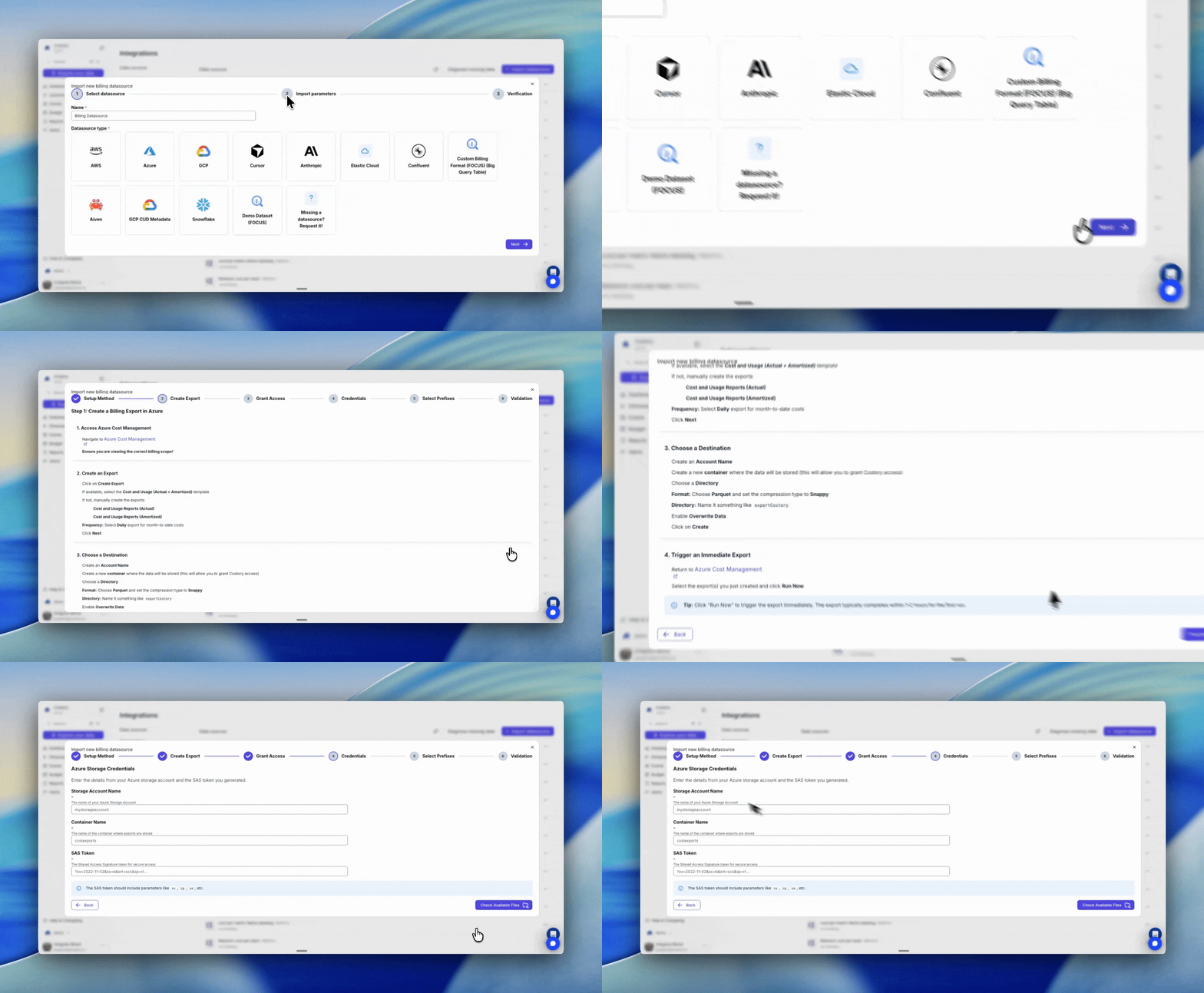 If you have an existing export, you will be able to import it directly in Costory.
If you need to create a new report, Azure takes between 5 and 10 minutes to export the first file. You can then trigger backfills (\~1 hour).
If you have an existing export, you will be able to import it directly in Costory.
If you need to create a new report, Azure takes between 5 and 10 minutes to export the first file. You can then trigger backfills (\~1 hour).
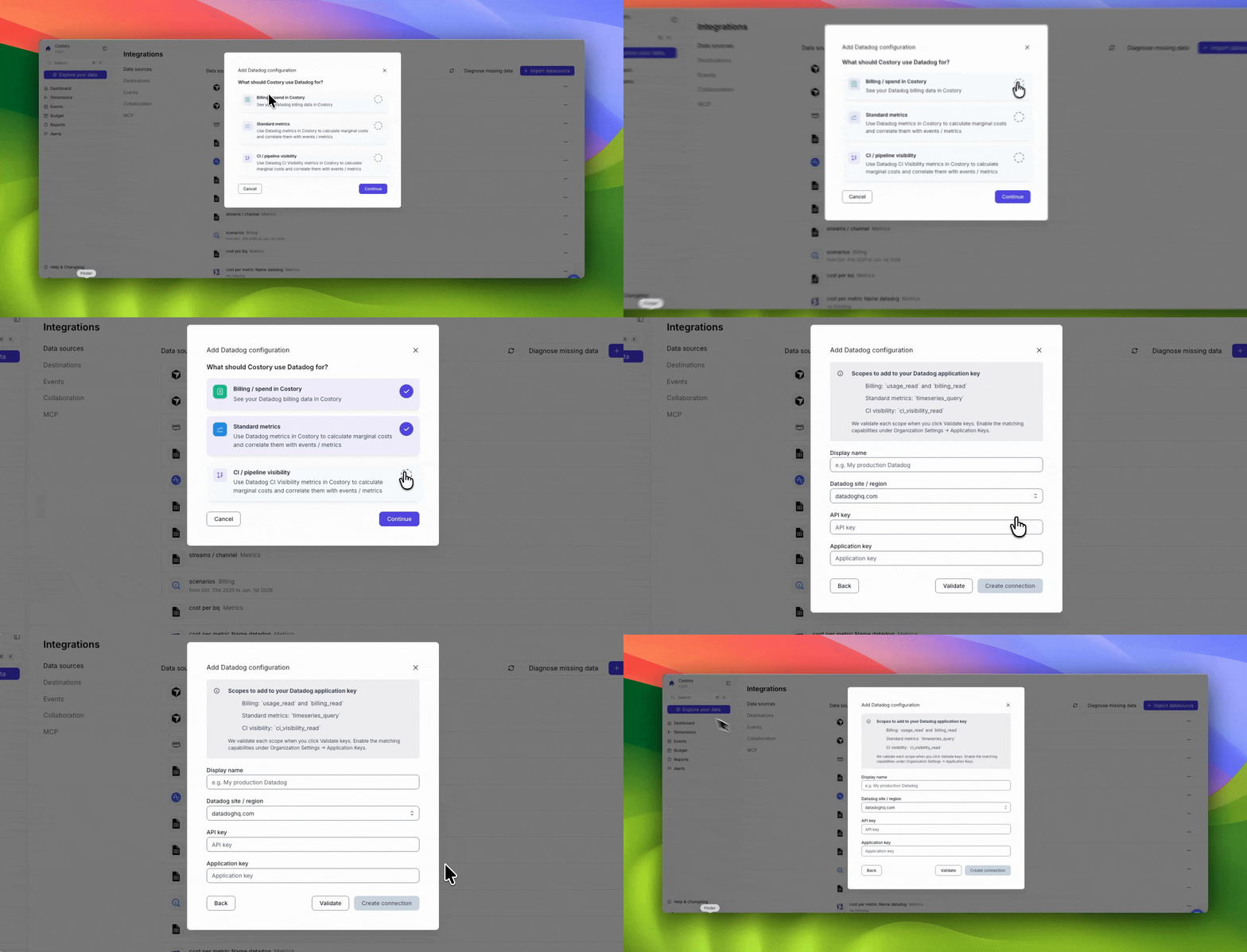 The data will be available in Costory within 10 minutes.
Costory will ingest your data and make it available.
Depending on your provider, the first export may take from 10 minutes (GCP, Azure) to several hours (AWS).
## Step 2: Automate your cloud cost reporting (20 minutes)
Costory will read your existing labels across providers, suggest merges and mappings to standardize keys and values.
Going from 3 labels: `env`, `environment`, `k8s_label_env` with many different values to a single label: `environment`, with only 3 values: `development`, `staging`, `production`.
You can review those in the [Dimensions page](https://app.costory.io/dimensions), and add more transformations to your labels:
The data will be available in Costory within 10 minutes.
Costory will ingest your data and make it available.
Depending on your provider, the first export may take from 10 minutes (GCP, Azure) to several hours (AWS).
## Step 2: Automate your cloud cost reporting (20 minutes)
Costory will read your existing labels across providers, suggest merges and mappings to standardize keys and values.
Going from 3 labels: `env`, `environment`, `k8s_label_env` with many different values to a single label: `environment`, with only 3 values: `development`, `staging`, `production`.
You can review those in the [Dimensions page](https://app.costory.io/dimensions), and add more transformations to your labels:
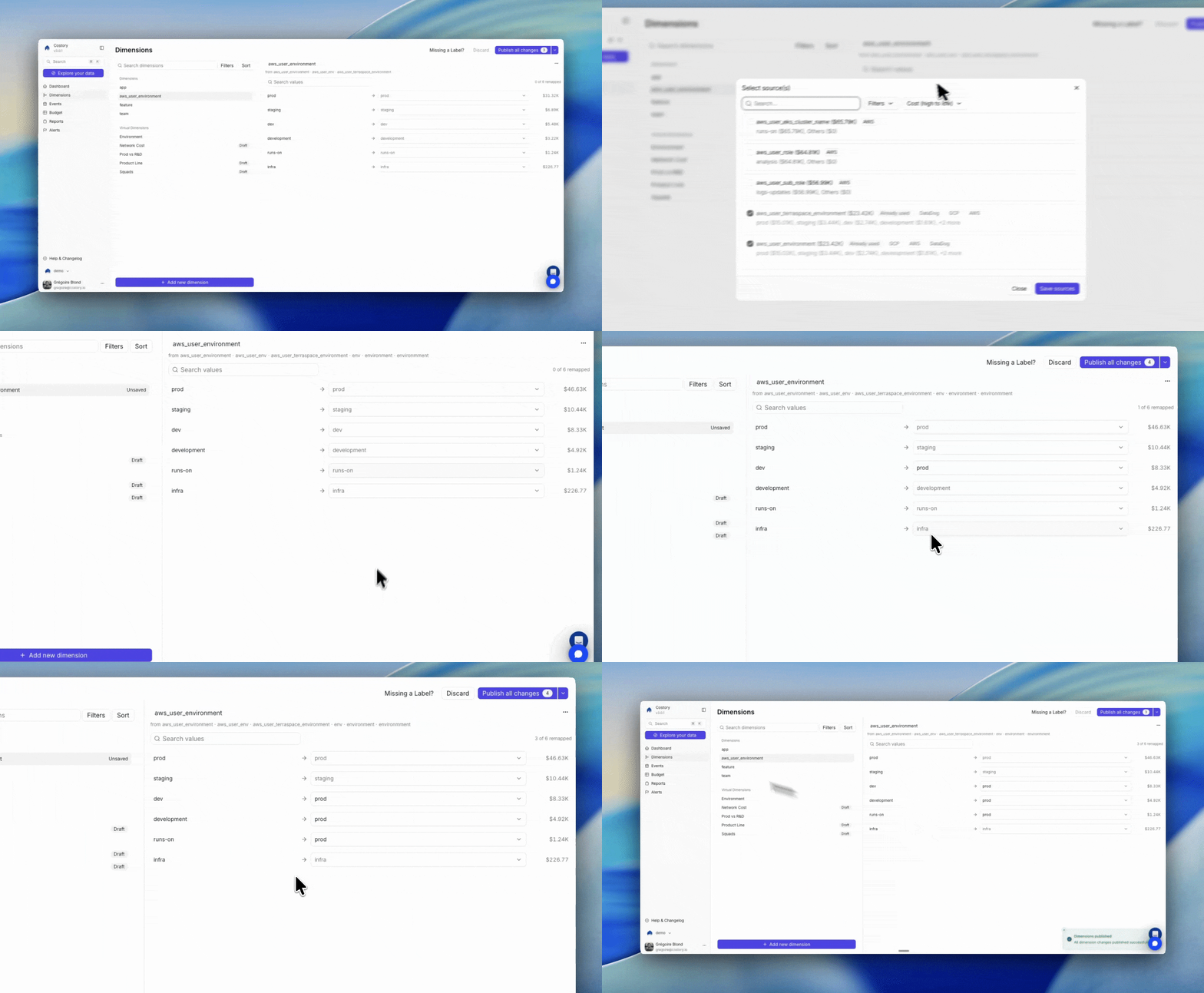 Dimensions keep Explorer clean with only the
meaningful labels and values. They also help our AI assistant Billy better
understand your data and keep its explanations clear and actionable.
Explore the cost using Last Month date preset, or Last invoice month (uses invoice date instead of usage dates).
Dimensions keep Explorer clean with only the
meaningful labels and values. They also help our AI assistant Billy better
understand your data and keep its explanations clear and actionable.
Explore the cost using Last Month date preset, or Last invoice month (uses invoice date instead of usage dates).
 Check that the amounts are correct. You need to trust the data before building reports on top of it.
A few useful docs to help you:
* [Standard Columns](/docs/standard-columns) to understand how we normalize the data into columns.
* [Costs measures](/docs/cost-metrics) to understand the different metrics we compute on top of your data.
* [Currency conversion](/docs/currency-conversion) to understand how we convert the data into your local currency.
Start from battle-tested dashboards instead of building from scratch.
Costory templates cover the most common FinOps scenarios. Choose the ones that fit your needs, and Costory will also suggest relevant ones for you.
Check that the amounts are correct. You need to trust the data before building reports on top of it.
A few useful docs to help you:
* [Standard Columns](/docs/standard-columns) to understand how we normalize the data into columns.
* [Costs measures](/docs/cost-metrics) to understand the different metrics we compute on top of your data.
* [Currency conversion](/docs/currency-conversion) to understand how we convert the data into your local currency.
Start from battle-tested dashboards instead of building from scratch.
Costory templates cover the most common FinOps scenarios. Choose the ones that fit your needs, and Costory will also suggest relevant ones for you.
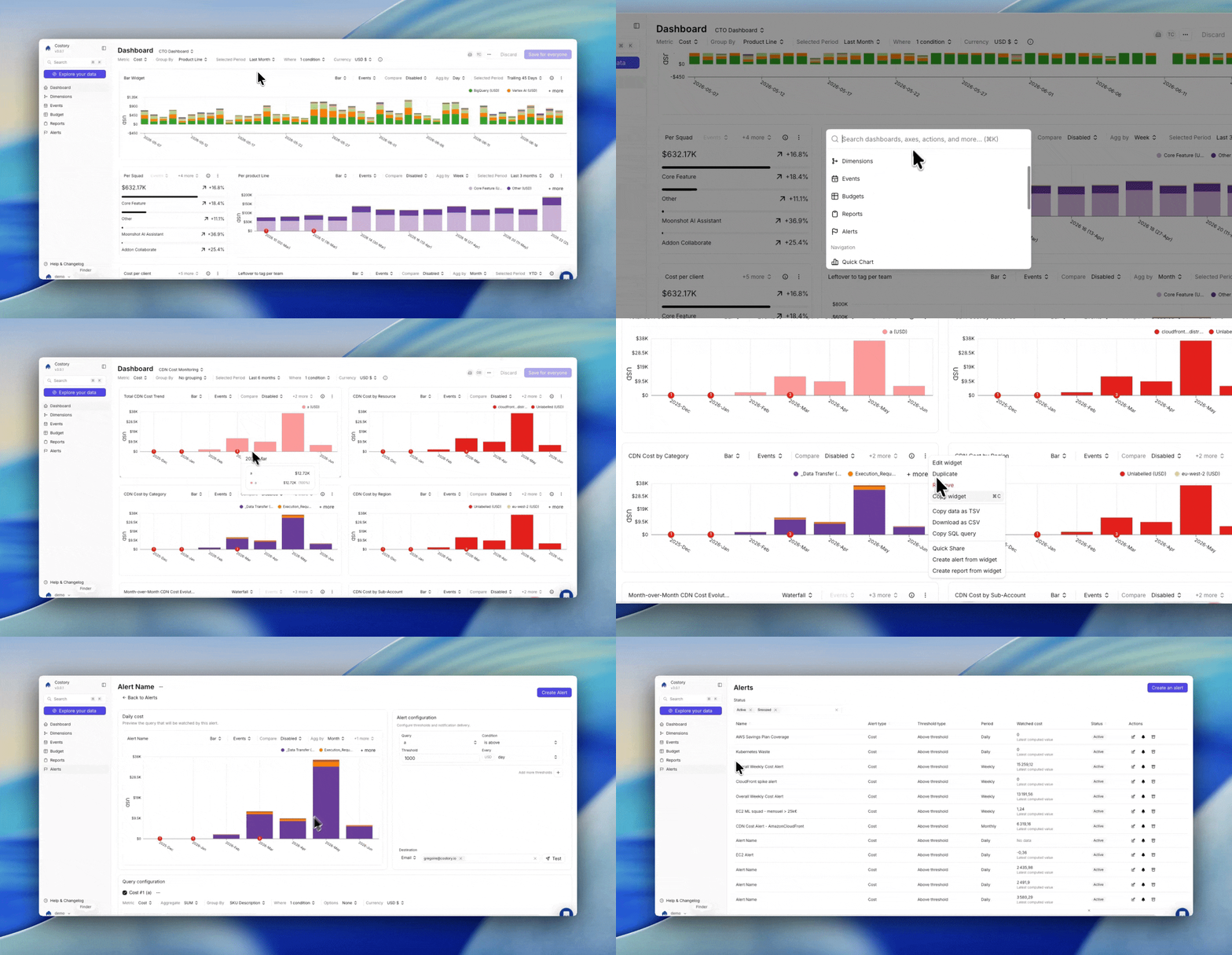 With [dashboards](https://app.costory.io/dashboards/new) you can:
* Check your Kubernetes costs, waste...
* Check your EC2 and savings plan coverage, network costs...
* Check your savings.
* and more.
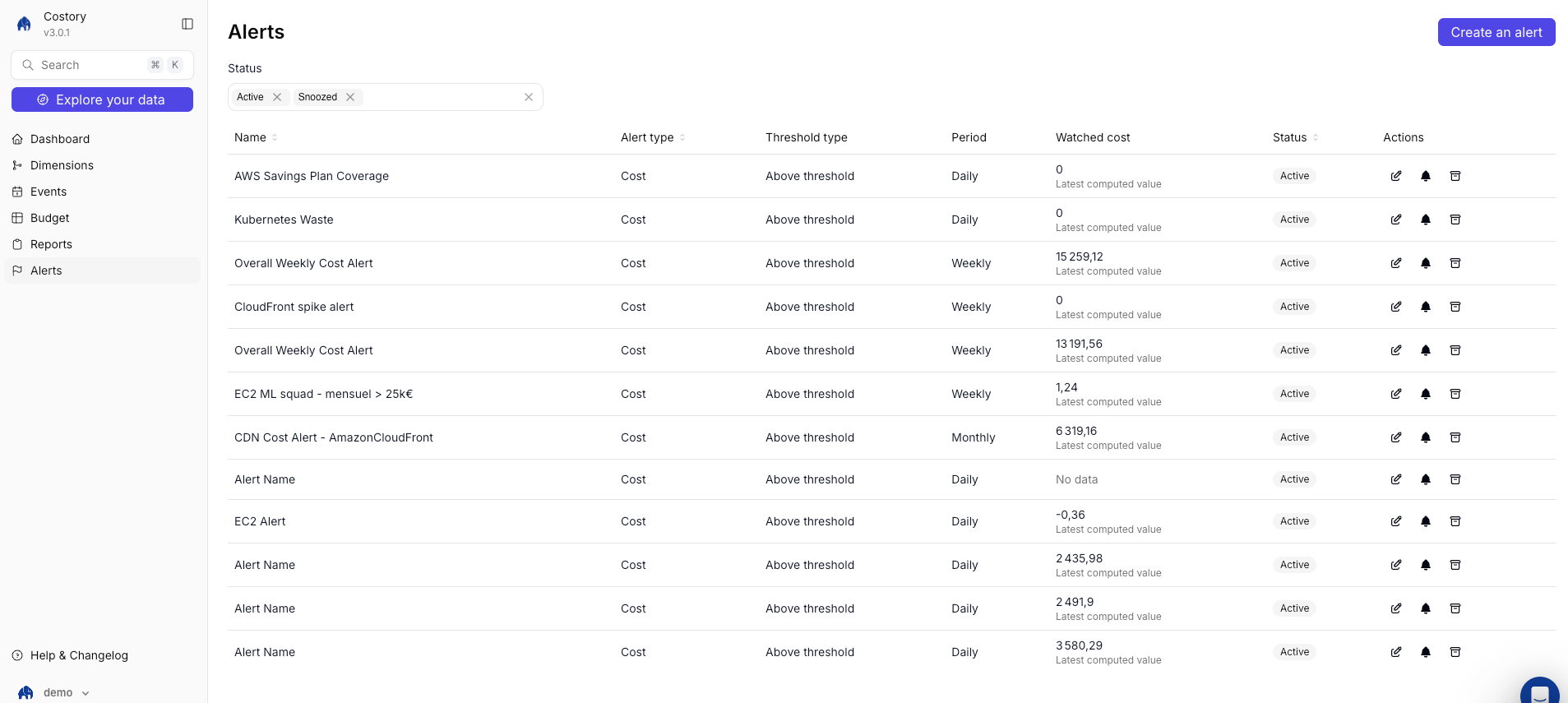
Alerts Templates:
Be alerted when:
* The cost of your R\&D environment is above your production costs.
* The data scientists started two VMs with huge GPU during the week-end.
* Reserved instances are not fully used.
* Your savings plan no longer covers 50% of your costs.
* A mandatory tag is no longer attached to most of your costs.
* Your K8S waste ratio is above 75%.
With [dashboards](https://app.costory.io/dashboards/new) you can:
* Check your Kubernetes costs, waste...
* Check your EC2 and savings plan coverage, network costs...
* Check your savings.
* and more.
Alerts Templates:
Be alerted when:
* The cost of your R\&D environment is above your production costs.
* The data scientists started two VMs with huge GPU during the week-end.
* Reserved instances are not fully used.
* Your savings plan no longer covers 50% of your costs.
* A mandatory tag is no longer attached to most of your costs.
* Your K8S waste ratio is above 75%.
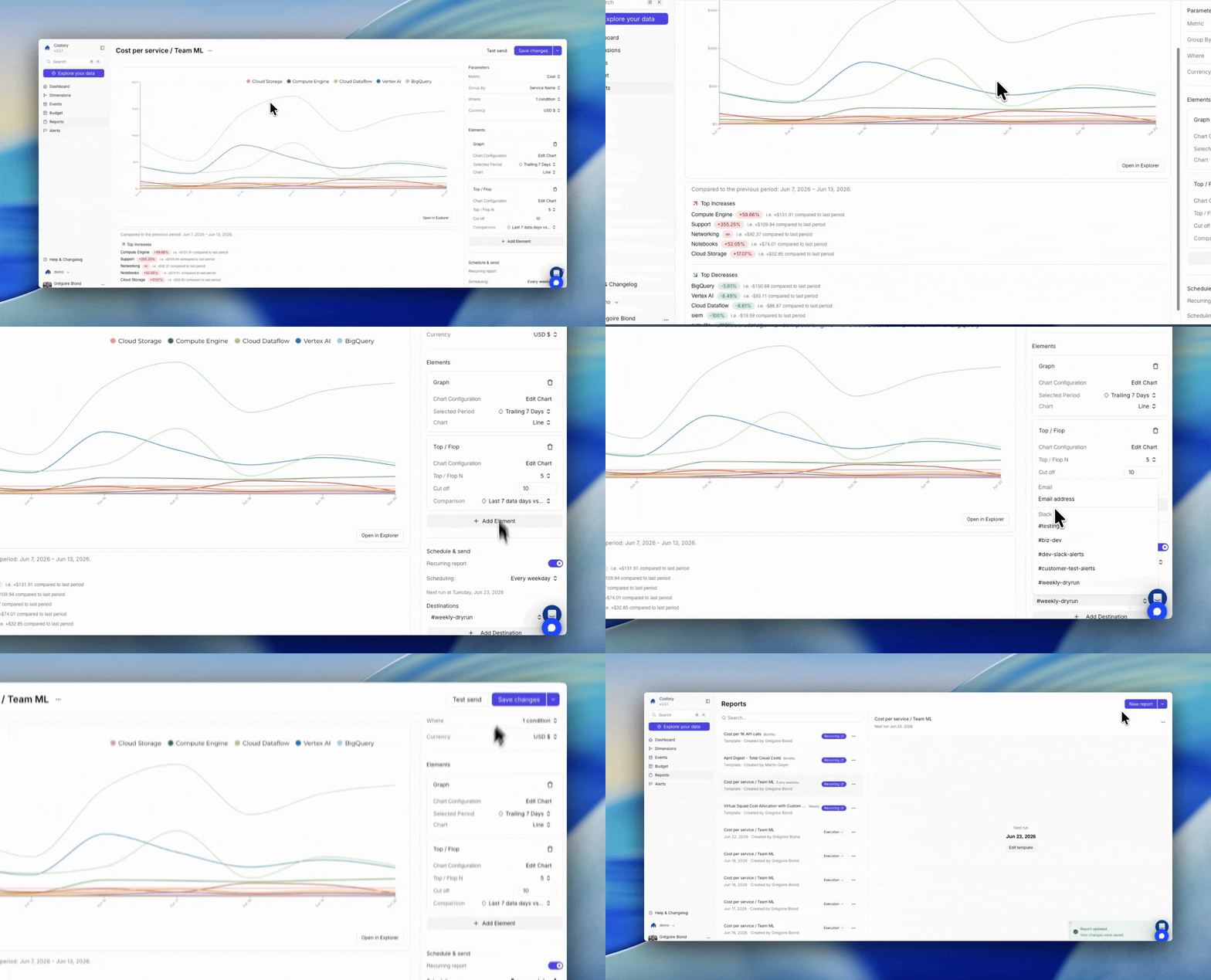
 To automate and have your team responsible for cloud costs you need to give them visibility on the costs.
Share a weekly and a monthly report with your team via Slack / Teams or email. You can share any view:
* [Cost per environment](/use-cases/automated_env_allocation/visibility)
* Service name with cost changes over the last week.
* [Monthly cost per daily active users](/use-cases/amplitude/cost_per_active_users)
To automate and have your team responsible for cloud costs you need to give them visibility on the costs.
Share a weekly and a monthly report with your team via Slack / Teams or email. You can share any view:
* [Cost per environment](/use-cases/automated_env_allocation/visibility)
* Service name with cost changes over the last week.
* [Monthly cost per daily active users](/use-cases/amplitude/cost_per_active_users)
 Connect easily with your team. We support:
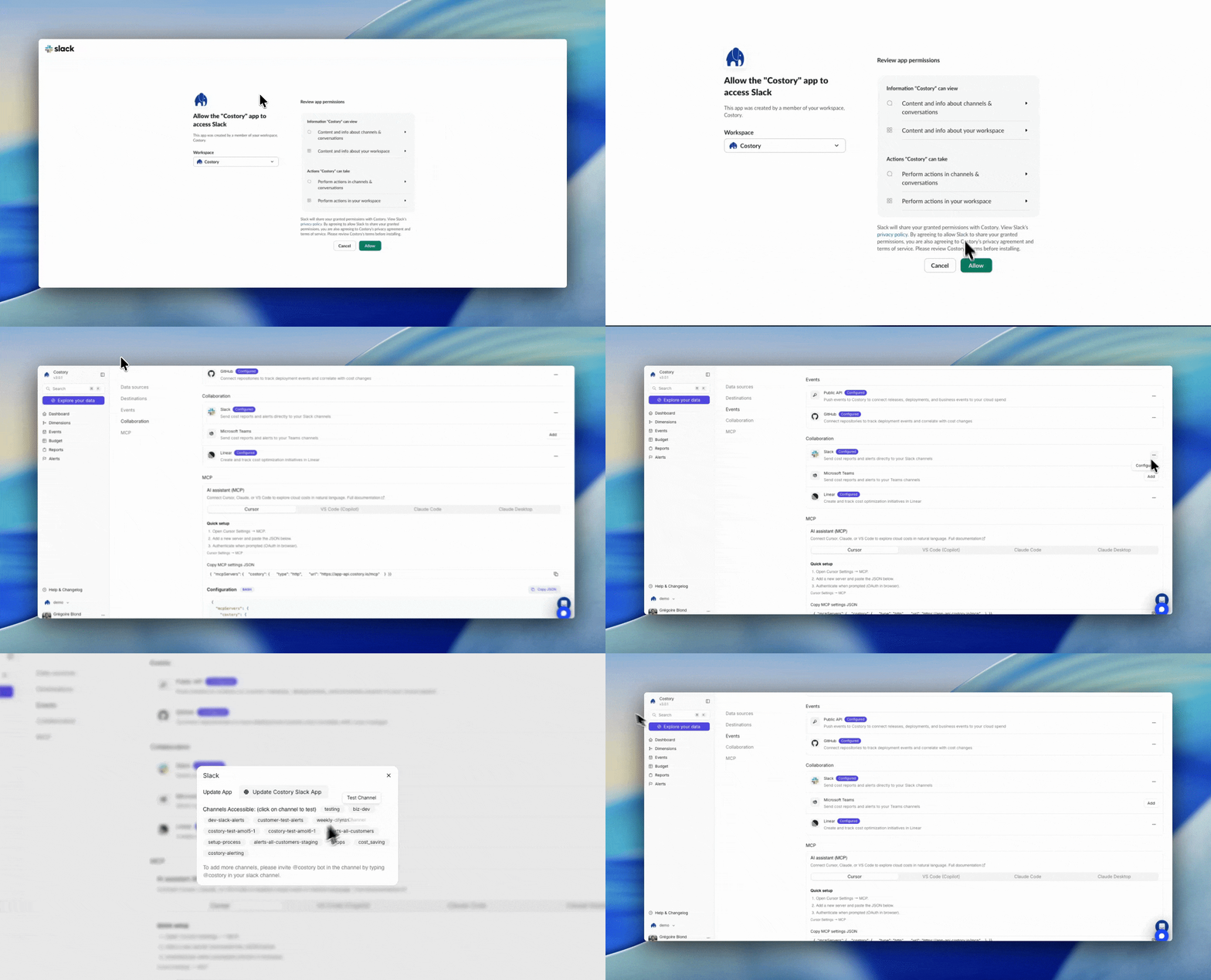
Go to [Integrations](https://app.costory.io/integration/). Connect the Costory App to your Slack.
Connect easily with your team. We support:
Go to [Integrations](https://app.costory.io/integration/). Connect the Costory App to your Slack.
 Go to [Integrations](https://app.costory.io/integration/). Download the zip from Integrations, then upload it in Teams Admin Center > Manage Apps
No setup required, you can use it right away.
## Next Steps
Here's what most of our customers do in their first week:
* Set up alerts: [check our templates](https://app.costory.io/alerts/new)
* [Calculate your cost per environment](/use-cases/automated_env_allocation/visibility)
* [Show the correct metrics to your exec team](/use-cases/what_your_exec_team_wants/value)
* [Import a business metric to understand your marginal costs](/use-cases/amplitude/cost_per_active_users).
### Need help?
We're here to help. Reach out to us at [support@costory.io](mailto:support@costory.io) or by Intercom in the bottom right corner of the app.
Go to [Integrations](https://app.costory.io/integration/). Download the zip from Integrations, then upload it in Teams Admin Center > Manage Apps
No setup required, you can use it right away.
## Next Steps
Here's what most of our customers do in their first week:
* Set up alerts: [check our templates](https://app.costory.io/alerts/new)
* [Calculate your cost per environment](/use-cases/automated_env_allocation/visibility)
* [Show the correct metrics to your exec team](/use-cases/what_your_exec_team_wants/value)
* [Import a business metric to understand your marginal costs](/use-cases/amplitude/cost_per_active_users).
### Need help?
We're here to help. Reach out to us at [support@costory.io](mailto:support@costory.io) or by Intercom in the bottom right corner of the app.