> ## Documentation Index
> Fetch the complete documentation index at: https://docs.costory.io/llms.txt
> Use this file to discover all available pages before exploring further.
# Settings
> Find Costory settings, account settings, organization settings, Teams, data integrations, API keys, subscription, plans, and invoices.
# Settings
Costory settings are split across personal account settings, organization settings, and Costory-managed settings. Use this page when you need to update login details, invite members, allow a company email domain, connect data, manage Teams, or review your plan and invoices.
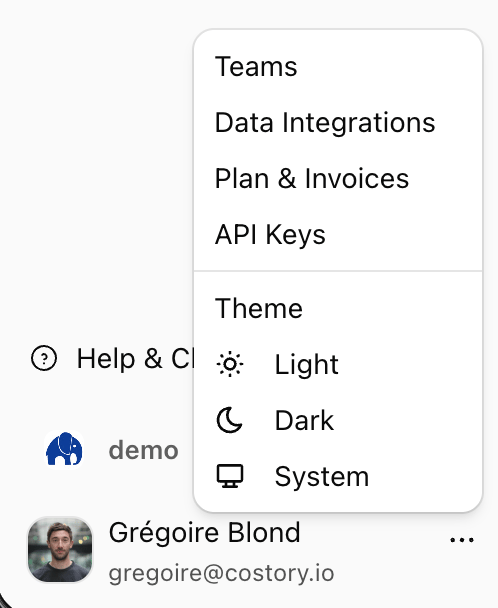
Most settings live in the user menu next to your name. Some account and organization screens are hosted by Costory's authentication provider, since it controls sign-in, email addresses, passwords, connected accounts, and organization membership.
 ## Settings overview
| Settings area | Managed by | Use it for | Where to find it |
| ------------------------------ | ----------------------- | ---------------------------------------------------------------------------------------------------- | -------------------------------------------------------------------- |
| Personal account settings | Authentication provider | Change your profile, email address, password, and connected login accounts | User menu next to your name, then **Profile** or **Account** |
| Organization identity settings | Authentication provider | Invite members and allow a verified company domain for automatic joining | User menu next to your name, then **Organization** |
| Costory-managed settings | Costory | Manage **Teams**, **Data Integrations**, **API Keys**, **Plan & Invoices**, and subscription details | User menu next to your name, then the relevant Costory settings page |
If a settings screen looks different from the rest of Costory, it is usually an authentication-provider screen. Changes made there still apply to your Costory account or organization.
## Personal account settings
Use personal account settings to manage your own sign-in details.
You can usually update:
* Profile name and avatar.
* Email addresses.
* Password, when password sign-in is enabled for your account.
* Connected accounts such as Google or Microsoft.
## Settings overview
| Settings area | Managed by | Use it for | Where to find it |
| ------------------------------ | ----------------------- | ---------------------------------------------------------------------------------------------------- | -------------------------------------------------------------------- |
| Personal account settings | Authentication provider | Change your profile, email address, password, and connected login accounts | User menu next to your name, then **Profile** or **Account** |
| Organization identity settings | Authentication provider | Invite members and allow a verified company domain for automatic joining | User menu next to your name, then **Organization** |
| Costory-managed settings | Costory | Manage **Teams**, **Data Integrations**, **API Keys**, **Plan & Invoices**, and subscription details | User menu next to your name, then the relevant Costory settings page |
If a settings screen looks different from the rest of Costory, it is usually an authentication-provider screen. Changes made there still apply to your Costory account or organization.
## Personal account settings
Use personal account settings to manage your own sign-in details.
You can usually update:
* Profile name and avatar.
* Email addresses.
* Password, when password sign-in is enabled for your account.
* Connected accounts such as Google or Microsoft.
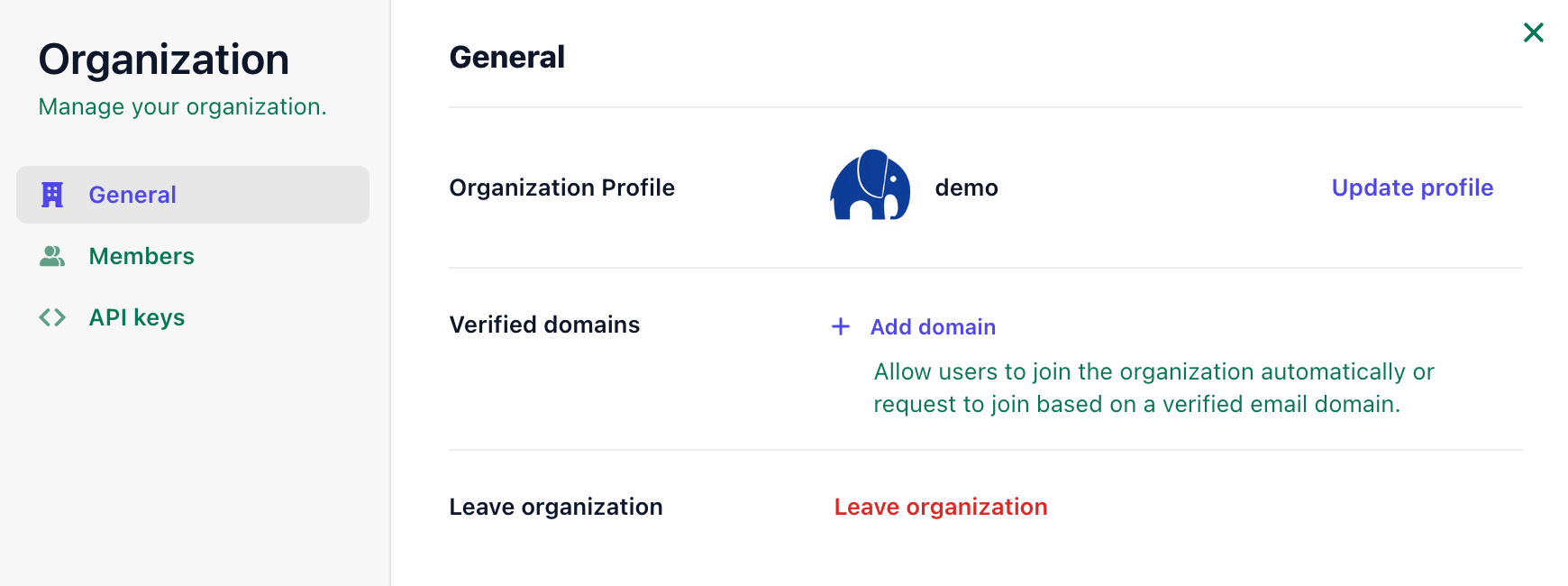 These settings affect your user account, not the full Costory organization. If you need to change how other users join, use organization settings instead.
## Organization settings
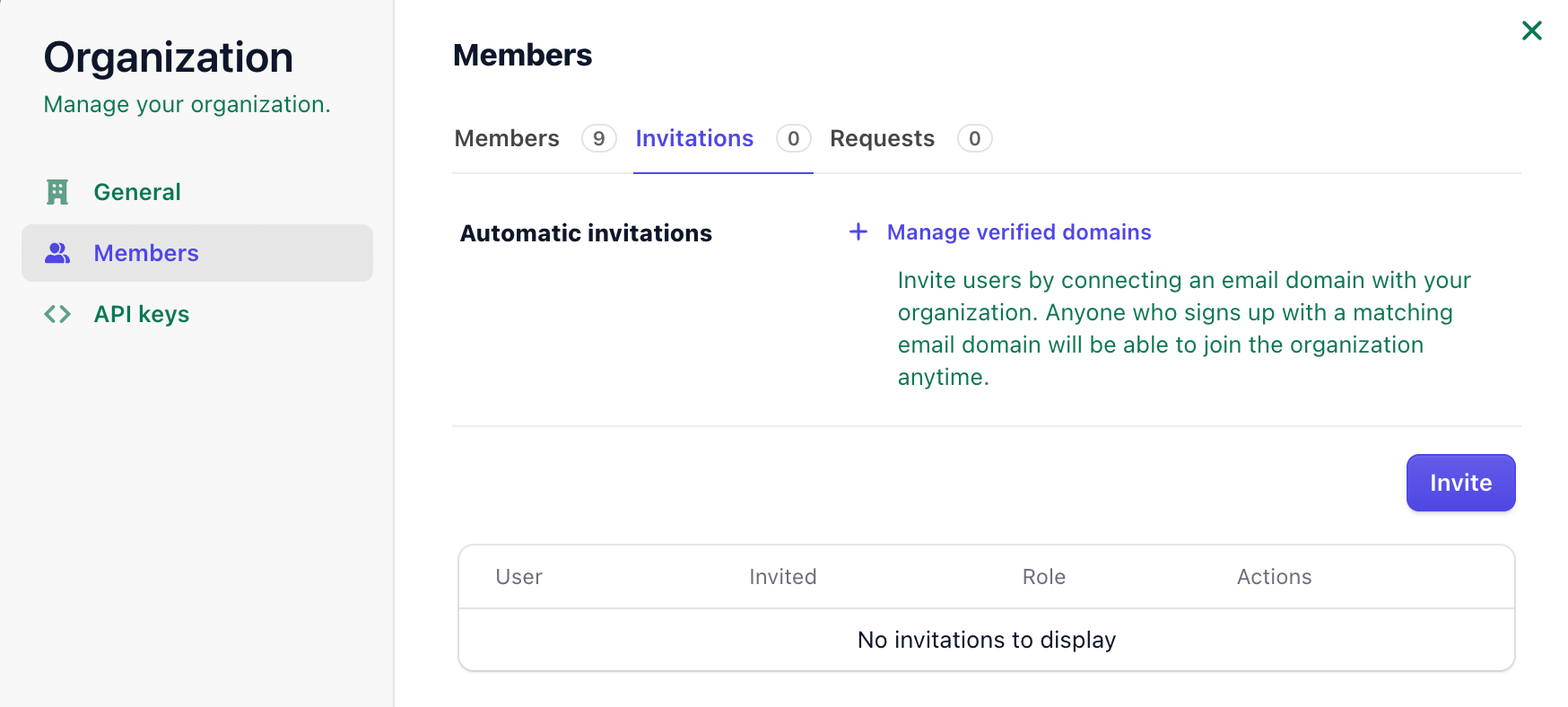
Organization settings control who can access your Costory workspace.
Use organization settings to:
* Invite new members.
* Review existing members.
* Add a verified company email domain so users can join automatically.
* Manage domain-based access rules for your workspace.
These settings affect your user account, not the full Costory organization. If you need to change how other users join, use organization settings instead.
## Organization settings
Organization settings control who can access your Costory workspace.
Use organization settings to:
* Invite new members.
* Review existing members.
* Add a verified company email domain so users can join automatically.
* Manage domain-based access rules for your workspace.
 For SSO, SCIM directory sync, domain auto-join, and identity-provider requirements, see [Identity and Access](/docs/sso-access-control).
## Costory-managed settings
Costory-managed settings control your FinOps workspace configuration.
| Page | Use it for | Related docs |
| --------------------- | --------------------------------------------------------------------------- | --------------------------------------------------------------------------------------------------------------------------------------------------------- |
| **Teams** | Create teams, add members, set default cost metrics, and define team scopes | [Teams](/features/teams) |
| **Data Integrations** | Connect billing data, usage metrics, collaboration tools, and event sources | [Billing Data](/setup/billing), [Usage Metrics](/setup/usage-metrics), [Slack](/setup/collaboration/slack), [Microsoft Teams](/setup/collaboration/teams) |
| **API Keys** | Create and rotate API keys for automation and external tools | [MCP](/features/mcp), [Events API](/setup/events/custom-api) |
| **Plan & Invoices** | Review your plan, subscription, billing contact, and invoices | [Billing Data](/setup/billing) |
Treat API keys like passwords. Store them in a secret manager, rotate them when team access changes, and delete keys you no longer use.
## Common tasks
Open the user menu next to your name, go to **Organization**, then use **Members** to invite the person by email.
Open **Organization** settings and add a verified domain. Users with that company email domain can join your Costory organization automatically when auto-join is enabled.
Open **Settings > Teams**, click **Create Team**, then add members and scopes. See [Teams](/features/teams) for the full setup.
Open **Data Integrations** from the user menu, then choose the provider you want to connect. Use [Billing Data](/setup/billing) for AWS, GCP, Azure, and other billing exports.
Open **Plan & Invoices** from the user menu to check your subscription, invoices, and billing details.
## Related pages
Compare auto-join, SSO, SCIM, and identity-provider options.
Configure team scopes, members, dashboards, and default cost metrics.
Connect cloud billing exports and monitor ingestion health.
Add business and observability metrics for unit economics.
For SSO, SCIM directory sync, domain auto-join, and identity-provider requirements, see [Identity and Access](/docs/sso-access-control).
## Costory-managed settings
Costory-managed settings control your FinOps workspace configuration.
| Page | Use it for | Related docs |
| --------------------- | --------------------------------------------------------------------------- | --------------------------------------------------------------------------------------------------------------------------------------------------------- |
| **Teams** | Create teams, add members, set default cost metrics, and define team scopes | [Teams](/features/teams) |
| **Data Integrations** | Connect billing data, usage metrics, collaboration tools, and event sources | [Billing Data](/setup/billing), [Usage Metrics](/setup/usage-metrics), [Slack](/setup/collaboration/slack), [Microsoft Teams](/setup/collaboration/teams) |
| **API Keys** | Create and rotate API keys for automation and external tools | [MCP](/features/mcp), [Events API](/setup/events/custom-api) |
| **Plan & Invoices** | Review your plan, subscription, billing contact, and invoices | [Billing Data](/setup/billing) |
Treat API keys like passwords. Store them in a secret manager, rotate them when team access changes, and delete keys you no longer use.
## Common tasks
Open the user menu next to your name, go to **Organization**, then use **Members** to invite the person by email.
Open **Organization** settings and add a verified domain. Users with that company email domain can join your Costory organization automatically when auto-join is enabled.
Open **Settings > Teams**, click **Create Team**, then add members and scopes. See [Teams](/features/teams) for the full setup.
Open **Data Integrations** from the user menu, then choose the provider you want to connect. Use [Billing Data](/setup/billing) for AWS, GCP, Azure, and other billing exports.
Open **Plan & Invoices** from the user menu to check your subscription, invoices, and billing details.
## Related pages
Compare auto-join, SSO, SCIM, and identity-provider options.
Configure team scopes, members, dashboards, and default cost metrics.
Connect cloud billing exports and monitor ingestion health.
Add business and observability metrics for unit economics.