> ## Documentation Index
> Fetch the complete documentation index at: https://docs.costory.io/llms.txt
> Use this file to discover all available pages before exploring further.
# AWS EKS Cost Allocation
> Compare EKS cost allocation methods for Kubernetes cost visibility, including AWS Split Cost Allocation, AWS-managed usage metrics, and Kubecost or OpenCost.
EKS cost allocation helps you see which pods, namespaces, and teams use shared cluster capacity. This guide compares AWS Split Cost Allocation, AWS-managed usage metrics, and Kubecost or OpenCost so you can choose the right Kubernetes cost visibility method and normalize the result in Costory.
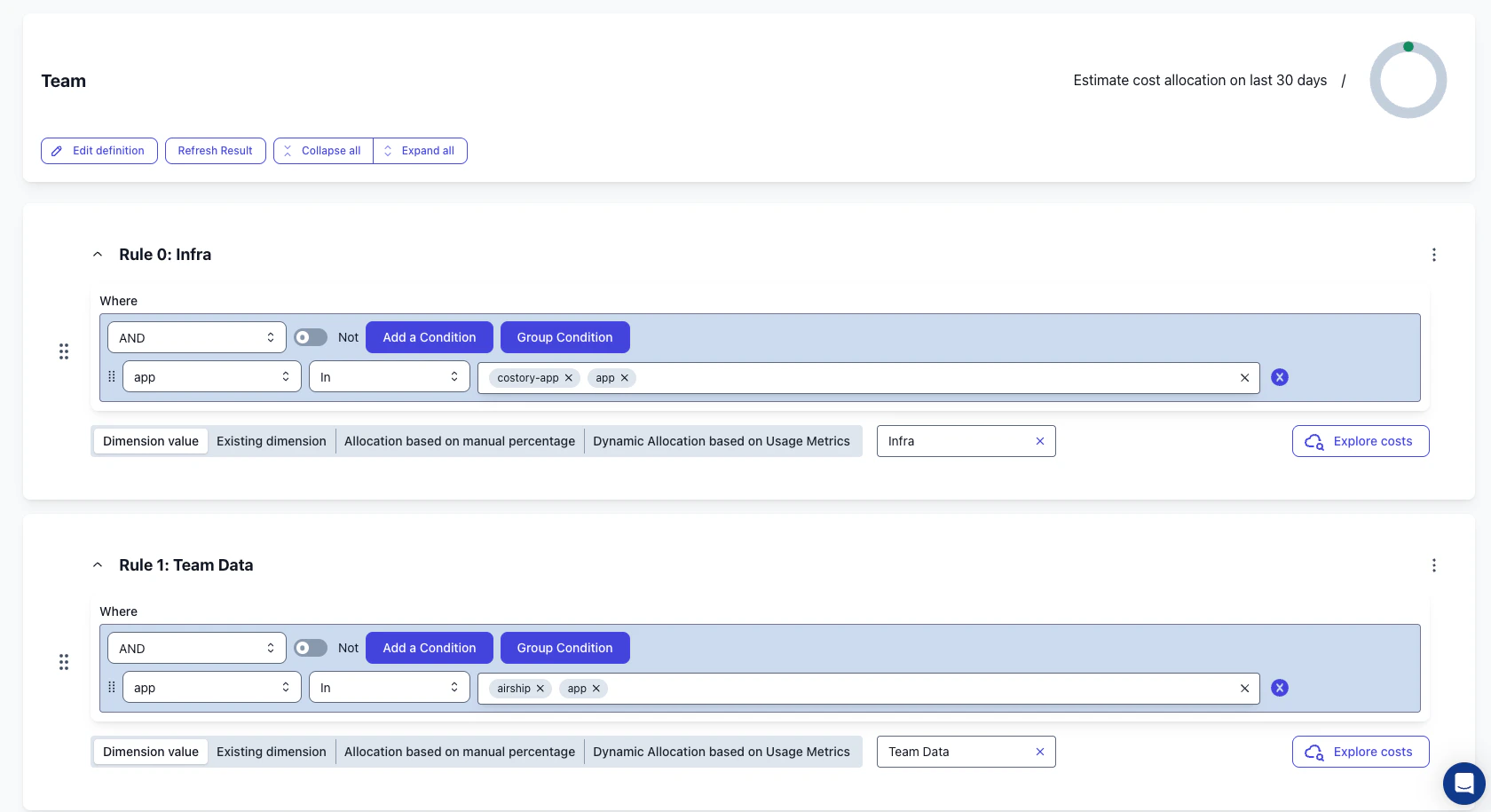 *Use EKS labels to group cluster costs by team, application, or environment in Costory.*
## Prerequisites
* You have an **AWS EKS** cluster running.
* You have an AWS provider connected to Costory with your [CUR data](/setup/billing#aws) ingested.
* You have labels or tags applied to your pod deployments, or you plan to add them.
* For Kubecost or OpenCost, you can export allocation data to a shared S3 bucket that Costory can access.
## Output
* Granular cost visibility at the Kubernetes label level, including team, app, environment, namespace, and cluster.
* A clear choice between request-based, usage-based, and OpenCost-backed allocation.
* Ability to track waste ratio per node pool and identify over-provisioned clusters.
* Foundation for cost allocation and chargeback across teams.
* Stable cost data using [Contracted Cost](/docs/savings-plan-cost-fluctuation), so Savings Plan reassignments between clusters do not create false cost spikes.
## Choose an EKS cost allocation method
Pick the method that matches the allocation signal you trust most: Kubernetes requests, measured CPU and memory usage, or OpenCost allocation data.
| Option | How it works | Best for | Limitations |
| ----------------------------------------------------------------------------------------------------------------------------------------------------------------------------------------------------------------------------- | ----------------------------------------------------------------------------------------------------------------------------------------------------------------------------------------------------------------------------------------------------------------------------------------------------------------------------------------------------------------------------------------------------------------------------------------------------------- | --------------------------------------------------------------------------------------------------------------- | -------------------------------------------------------------------------------------------------------------------- |
| AWS Split Cost Allocation with Kubernetes labels | AWS adds pod-level cost records to your CUR based on requested CPU and memory. EKS Kubernetes labels can be activated as Cost Allocation Tags. | Fast setup when you want agentless EKS cost allocation in billing data. | Costs follow requests, not actual usage. Over-requesting workloads can receive more cost than they consume. |
| AWS-managed usage metrics | AWS reads CPU and memory usage metrics from CloudWatch or Amazon Managed Service for Prometheus, then uses those metrics for split cost allocation. | Teams that want allocation closer to actual CPU and memory consumption while keeping AWS billing as the source. | Requires a metrics collector or agent in the cluster. Direct outbound network costs are not split at workload level. |
| Kubecost or OpenCost | You install the Kubecost or OpenCost agent on each cluster, then export allocation data to a shared S3 bucket that Costory can access. | Clusters where outbound network costs or Kubernetes-native allocation reports are material. | Requires agent management, export jobs, and access to a shared storage location. |
If you are starting from scratch, start with AWS Split Cost Allocation. Add usage metrics or OpenCost data only when requests are too coarse or network allocation is material.
## Recommended labels for EKS chargeback
Start with a small label set that answers who owns the workload, what it runs, and where it runs. You can add more labels later, but these fields cover most EKS cost allocation workflows.
| Label | Example values | Use it to |
| ------------------ | ------------------------------ | ----------------------------------------------------------- |
| `team` | `platform`, `data`, `payments` | Route costs to the right engineering or product team. |
| `app` or `service` | `api`, `worker`, `checkout` | Find which service drives spend inside a team. |
| `env` | `production`, `staging`, `dev` | Separate production costs from non-production usage. |
| `cluster` | `prod-eu`, `shared-us` | Compare clusters and find placement issues. |
| `namespace` | `payments`, `observability` | Allocate shared cluster costs when teams map to namespaces. |
Use consistent lowercase values. Avoid aliases like `prod`, `prd`, and `production` unless you plan to normalize them in Dimensions.
## Set up your chosen EKS cost allocation method
AWS Split Cost Allocation adds pod-level cost records to your CUR. Kubernetes custom labels for EKS became available as cost allocation tags in October 2025, so you can attribute EKS costs by business labels such as team, application, and environment.
1. Go to the [AWS Cost and Usage Report settings](https://console.aws.amazon.com/billing/home#/tags).
2. Follow the [AWS guide for enabling split cost allocation data](https://docs.aws.amazon.com/cur/latest/userguide/enabling-split-cost-allocation-data.html).
3. Include resource IDs and use hourly reports when you need the most granular data.
4. Activate the relevant Cost Allocation Tags in the Billing console.
AWS can read CPU and memory usage metrics from CloudWatch or Amazon Managed Service for Prometheus. With Amazon Managed Service for Prometheus, AWS expects these metrics:
* `container_cpu_usage_seconds_total`
* `container_memory_working_set_bytes`
Follow the [AWS guide for split cost allocation with Amazon Managed Service for Prometheus](https://docs.aws.amazon.com/cur/latest/userguide/split-cost-allocation-data-resource-amp.html). AWS provides a managed collector option, but the cluster still needs collector access so metrics can flow from EKS to the managed Prometheus workspace.
If you customize the scrape configuration, keep the `name`, `namespace`, and `pod` labels on the required metrics. AWS uses those labels to match usage metrics back to EKS workloads.
Use Kubecost or OpenCost when you need to split direct outbound network costs by workload.
1. Install the Kubecost or OpenCost agent on each EKS cluster.
2. Configure the agent to collect workload allocation data.
3. Run a cron job that exports OpenCost data to a shared S3 bucket.
4. Grant Costory access to that S3 bucket so the exported allocation data can be ingested.
Add labels that reflect ownership and purpose to each Kubernetes workload:
```yaml theme={null}
metadata:
labels:
app: my-service
team: platform
env: production
```
Use the same label keys across clusters. If teams already use different names, such as `owner`, `team`, and `cost_center`, keep them for now and merge them later in Costory.
After configuring AWS Split Cost Allocation, **wait 2-3 days** for the data to appear in your Cost and Usage Report and flow into Costory.
For Kubecost or OpenCost, the delay depends on your export schedule and the Costory ingestion cadence for the shared S3 bucket.
Before you build dashboards or chargeback views, check that your labels are present and populated:
1. Open Explorer.
2. Filter to your AWS account and EKS services.
3. Group by one label, such as `team` or `app`.
4. Check the `null` or unallocated bucket.
5. Fix missing labels at the deployment level, then wait for the next billing export or OpenCost export.
If labels are present under different names, merge them with Dimensions. For example, merge `k8s_label_team`, `team`, and `owner` into one reporting field.
## Analyze EKS costs in Costory
Once EKS labels appear in Costory, use them to find waste, build team reporting, and share cost changes.
You can investigate EKS spend straight from chat with the [Costory MCP](/features/mcp). Ask "split last month's EKS cost by `team` and show the node pools with the highest waste ratio" and read the answer without opening Explorer.
### Find waste by node pool
Use Explorer to group by node pool and spot clusters with unusually high waste.
*Use EKS labels to group cluster costs by team, application, or environment in Costory.*
## Prerequisites
* You have an **AWS EKS** cluster running.
* You have an AWS provider connected to Costory with your [CUR data](/setup/billing#aws) ingested.
* You have labels or tags applied to your pod deployments, or you plan to add them.
* For Kubecost or OpenCost, you can export allocation data to a shared S3 bucket that Costory can access.
## Output
* Granular cost visibility at the Kubernetes label level, including team, app, environment, namespace, and cluster.
* A clear choice between request-based, usage-based, and OpenCost-backed allocation.
* Ability to track waste ratio per node pool and identify over-provisioned clusters.
* Foundation for cost allocation and chargeback across teams.
* Stable cost data using [Contracted Cost](/docs/savings-plan-cost-fluctuation), so Savings Plan reassignments between clusters do not create false cost spikes.
## Choose an EKS cost allocation method
Pick the method that matches the allocation signal you trust most: Kubernetes requests, measured CPU and memory usage, or OpenCost allocation data.
| Option | How it works | Best for | Limitations |
| ----------------------------------------------------------------------------------------------------------------------------------------------------------------------------------------------------------------------------- | ----------------------------------------------------------------------------------------------------------------------------------------------------------------------------------------------------------------------------------------------------------------------------------------------------------------------------------------------------------------------------------------------------------------------------------------------------------- | --------------------------------------------------------------------------------------------------------------- | -------------------------------------------------------------------------------------------------------------------- |
| AWS Split Cost Allocation with Kubernetes labels | AWS adds pod-level cost records to your CUR based on requested CPU and memory. EKS Kubernetes labels can be activated as Cost Allocation Tags. | Fast setup when you want agentless EKS cost allocation in billing data. | Costs follow requests, not actual usage. Over-requesting workloads can receive more cost than they consume. |
| AWS-managed usage metrics | AWS reads CPU and memory usage metrics from CloudWatch or Amazon Managed Service for Prometheus, then uses those metrics for split cost allocation. | Teams that want allocation closer to actual CPU and memory consumption while keeping AWS billing as the source. | Requires a metrics collector or agent in the cluster. Direct outbound network costs are not split at workload level. |
| Kubecost or OpenCost | You install the Kubecost or OpenCost agent on each cluster, then export allocation data to a shared S3 bucket that Costory can access. | Clusters where outbound network costs or Kubernetes-native allocation reports are material. | Requires agent management, export jobs, and access to a shared storage location. |
If you are starting from scratch, start with AWS Split Cost Allocation. Add usage metrics or OpenCost data only when requests are too coarse or network allocation is material.
## Recommended labels for EKS chargeback
Start with a small label set that answers who owns the workload, what it runs, and where it runs. You can add more labels later, but these fields cover most EKS cost allocation workflows.
| Label | Example values | Use it to |
| ------------------ | ------------------------------ | ----------------------------------------------------------- |
| `team` | `platform`, `data`, `payments` | Route costs to the right engineering or product team. |
| `app` or `service` | `api`, `worker`, `checkout` | Find which service drives spend inside a team. |
| `env` | `production`, `staging`, `dev` | Separate production costs from non-production usage. |
| `cluster` | `prod-eu`, `shared-us` | Compare clusters and find placement issues. |
| `namespace` | `payments`, `observability` | Allocate shared cluster costs when teams map to namespaces. |
Use consistent lowercase values. Avoid aliases like `prod`, `prd`, and `production` unless you plan to normalize them in Dimensions.
## Set up your chosen EKS cost allocation method
AWS Split Cost Allocation adds pod-level cost records to your CUR. Kubernetes custom labels for EKS became available as cost allocation tags in October 2025, so you can attribute EKS costs by business labels such as team, application, and environment.
1. Go to the [AWS Cost and Usage Report settings](https://console.aws.amazon.com/billing/home#/tags).
2. Follow the [AWS guide for enabling split cost allocation data](https://docs.aws.amazon.com/cur/latest/userguide/enabling-split-cost-allocation-data.html).
3. Include resource IDs and use hourly reports when you need the most granular data.
4. Activate the relevant Cost Allocation Tags in the Billing console.
AWS can read CPU and memory usage metrics from CloudWatch or Amazon Managed Service for Prometheus. With Amazon Managed Service for Prometheus, AWS expects these metrics:
* `container_cpu_usage_seconds_total`
* `container_memory_working_set_bytes`
Follow the [AWS guide for split cost allocation with Amazon Managed Service for Prometheus](https://docs.aws.amazon.com/cur/latest/userguide/split-cost-allocation-data-resource-amp.html). AWS provides a managed collector option, but the cluster still needs collector access so metrics can flow from EKS to the managed Prometheus workspace.
If you customize the scrape configuration, keep the `name`, `namespace`, and `pod` labels on the required metrics. AWS uses those labels to match usage metrics back to EKS workloads.
Use Kubecost or OpenCost when you need to split direct outbound network costs by workload.
1. Install the Kubecost or OpenCost agent on each EKS cluster.
2. Configure the agent to collect workload allocation data.
3. Run a cron job that exports OpenCost data to a shared S3 bucket.
4. Grant Costory access to that S3 bucket so the exported allocation data can be ingested.
Add labels that reflect ownership and purpose to each Kubernetes workload:
```yaml theme={null}
metadata:
labels:
app: my-service
team: platform
env: production
```
Use the same label keys across clusters. If teams already use different names, such as `owner`, `team`, and `cost_center`, keep them for now and merge them later in Costory.
After configuring AWS Split Cost Allocation, **wait 2-3 days** for the data to appear in your Cost and Usage Report and flow into Costory.
For Kubecost or OpenCost, the delay depends on your export schedule and the Costory ingestion cadence for the shared S3 bucket.
Before you build dashboards or chargeback views, check that your labels are present and populated:
1. Open Explorer.
2. Filter to your AWS account and EKS services.
3. Group by one label, such as `team` or `app`.
4. Check the `null` or unallocated bucket.
5. Fix missing labels at the deployment level, then wait for the next billing export or OpenCost export.
If labels are present under different names, merge them with Dimensions. For example, merge `k8s_label_team`, `team`, and `owner` into one reporting field.
## Analyze EKS costs in Costory
Once EKS labels appear in Costory, use them to find waste, build team reporting, and share cost changes.
You can investigate EKS spend straight from chat with the [Costory MCP](/features/mcp). Ask "split last month's EKS cost by `team` and show the node pools with the highest waste ratio" and read the answer without opening Explorer.
### Find waste by node pool
Use Explorer to group by node pool and spot clusters with unusually high waste.
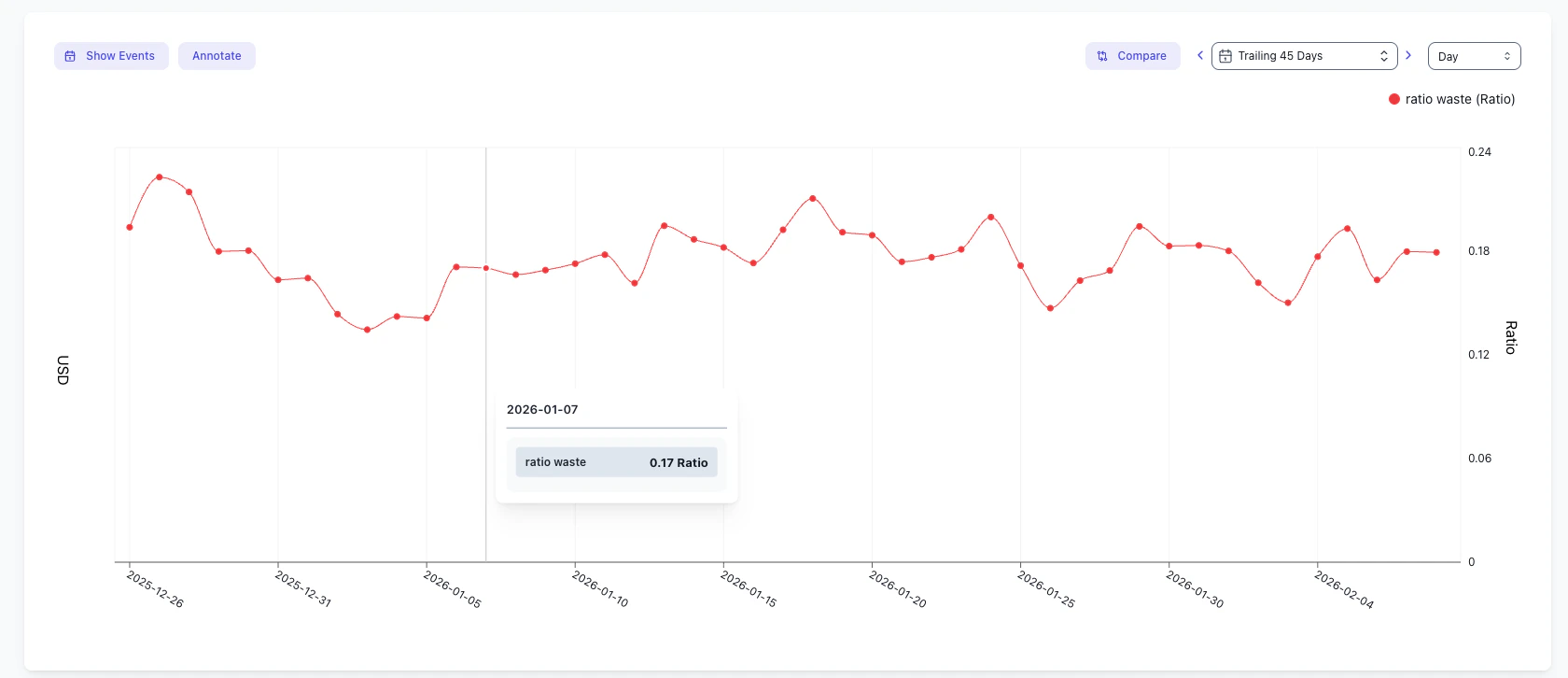 *Explorer can show waste ratio by node pool so you can find over-provisioned cluster capacity.*
See the [Kubernetes waste guide](/use-cases/k8s_waste/visibility) for detailed waste analysis steps.
### Identify over-requesting deployments
For native split allocation, sort by requested CPU or memory to find workloads that reserve more capacity than they use.
*Explorer can show waste ratio by node pool so you can find over-provisioned cluster capacity.*
See the [Kubernetes waste guide](/use-cases/k8s_waste/visibility) for detailed waste analysis steps.
### Identify over-requesting deployments
For native split allocation, sort by requested CPU or memory to find workloads that reserve more capacity than they use.
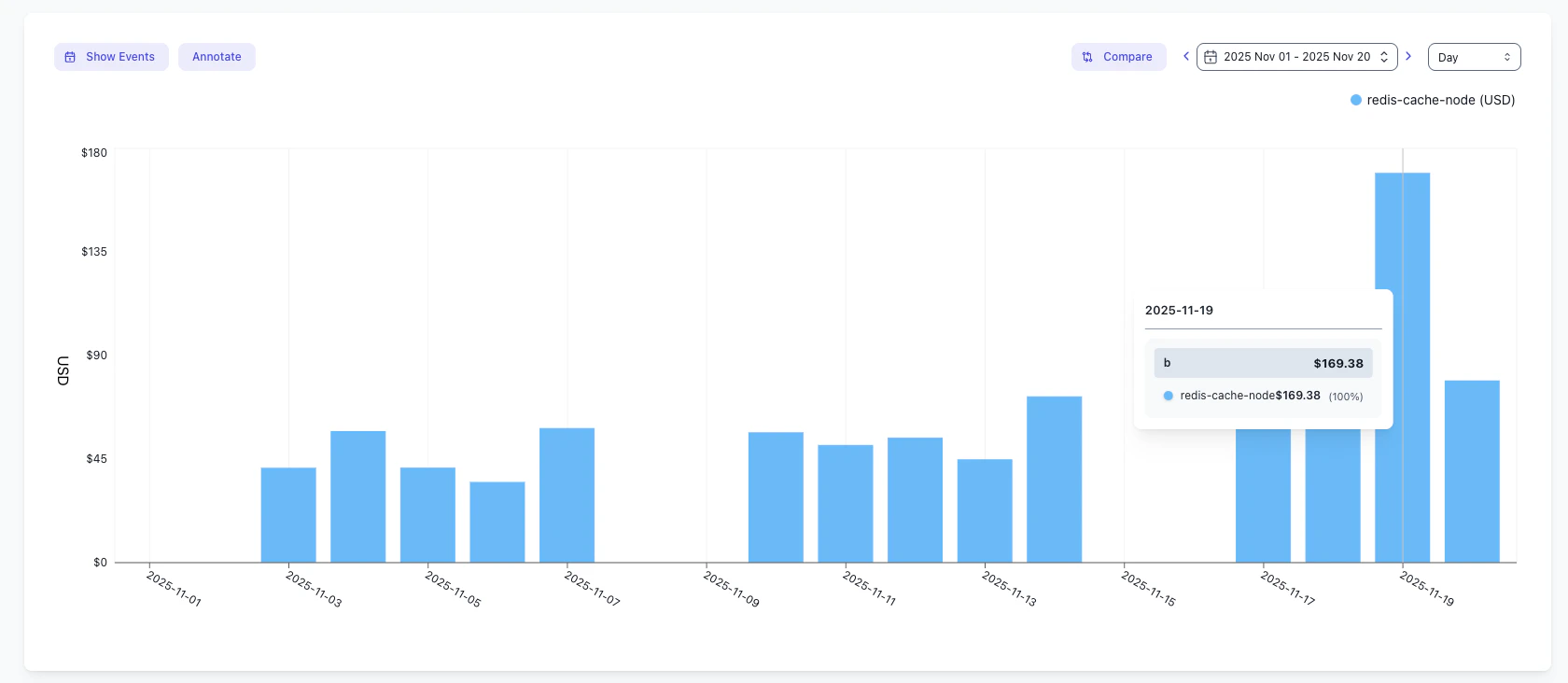 *Deployment-level views help you find workloads that drive EKS waste through high resource requests.*
### Share recurring updates
Turn any saved view into a Scheduled Report and send it to your team.
*Deployment-level views help you find workloads that drive EKS waste through high resource requests.*
### Share recurring updates
Turn any saved view into a Scheduled Report and send it to your team.
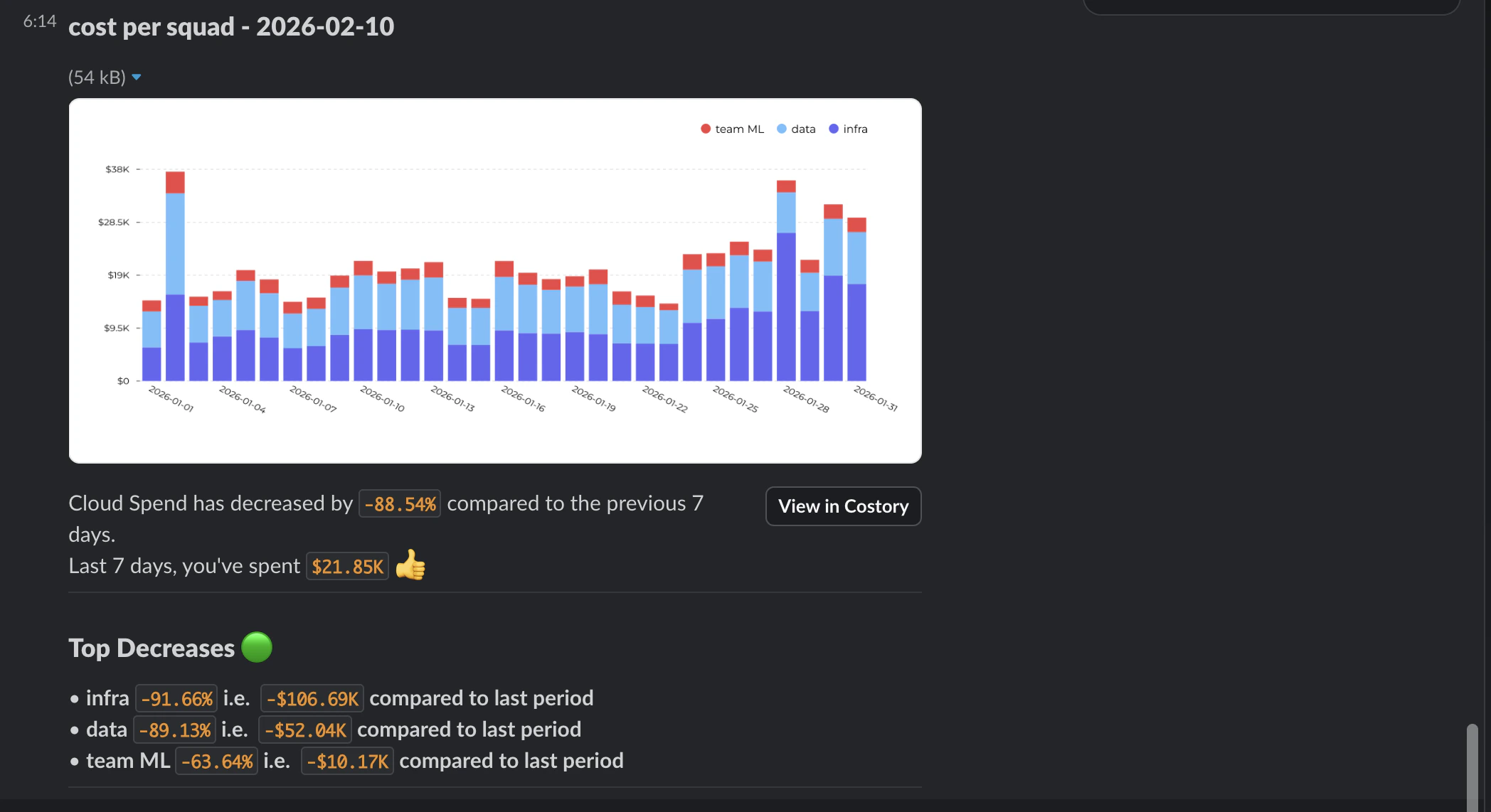 *Cost Reports send saved EKS cost views to the teams that own the workloads.*
### Surface cost changes in Digest
Add your Kubernetes labels to the Cost Breakdown Tree so Digest highlights what changed.
*Cost Reports send saved EKS cost views to the teams that own the workloads.*
### Surface cost changes in Digest
Add your Kubernetes labels to the Cost Breakdown Tree so Digest highlights what changed.
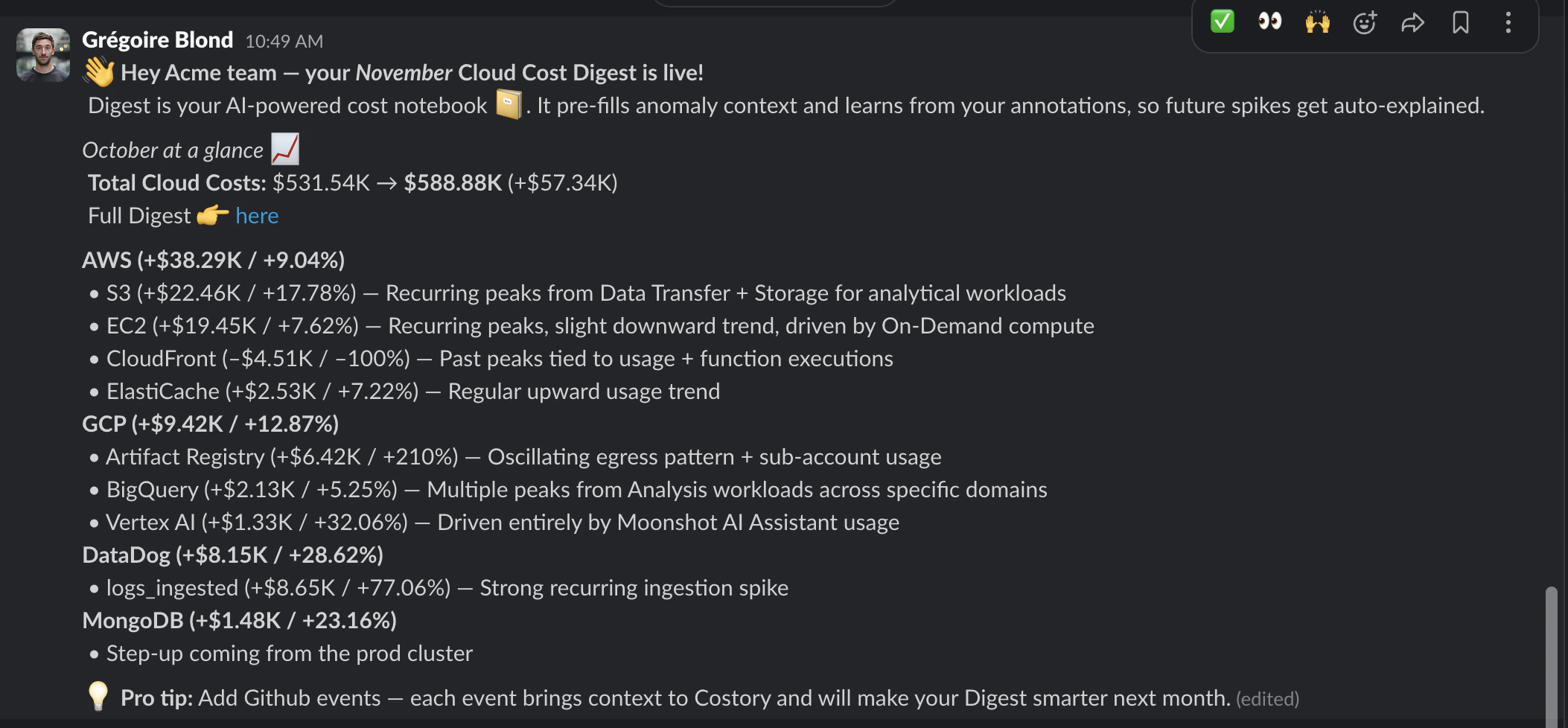 *Digest can use EKS labels in its cost breakdown tree to explain workload-level cost changes.*
## Create a chargeback-ready EKS view
Use one saved view as the source of truth for team reporting:
1. Filter to container infrastructure costs, then group by the normalized team label.
2. Add a secondary group-by for `app`, `service`, or `namespace` so teams can see their main cost drivers.
3. Use [Contracted Cost](/docs/savings-plan-cost-fluctuation) when you want stable team-level reporting across Savings Plan movements.
4. Save the view with a name like `EKS chargeback by team`.
5. Schedule the view through [Cost Reports](/features/slack-reports) or add it to a [Dashboard](/features/dashboards).
For shared namespaces or platform services, create a virtual dimension that assigns the cost to the teams that consume the service.
## Next steps
Use Explorer to drill into EKS costs by cluster, namespace, and label.
Turn saved views into a Scheduled Report and share weekly or monthly updates.
Tune the Cost Breakdown Tree so Digest highlights what changed.
Quantify waste ratio and track over-provisioned clusters.
## FAQ
The option you choose determines agent requirements. AWS Split Cost Allocation does not require an agent in your cluster. AWS-managed usage metrics require a collector or agent to send metrics from the cluster. Kubecost and OpenCost require an agent on each cluster.
Expect a 2-3 day delay after enabling Split Cost Allocation and activating Cost Allocation Tags. The data must first appear in your CUR, then be ingested by Costory. For Kubecost or OpenCost, timing depends on the S3 export schedule.
Start with `team`, `app` or `service`, and `env`. Standardizing these labels across clusters gives you consistent cost allocation and chargeback reporting.
Unallocated costs usually mean the pod or underlying resource does not have the label you are grouping by, or the label has not appeared in the CUR yet. Check the deployment labels, confirm the relevant Cost Allocation Tags are active, then wait for the next export.
Use requests when you want simple, stable allocation that reflects Kubernetes scheduling decisions. Use actual usage when you want allocation closer to what workloads consumed. Actual usage requires CloudWatch, Amazon Managed Service for Prometheus, or another usage data source.
Keep the original workload labels for investigation, then add a virtual dimension for reporting. For example, allocate observability, ingress, or CI runner costs to consuming teams based on namespace, service ownership, or another usage metric.
*Digest can use EKS labels in its cost breakdown tree to explain workload-level cost changes.*
## Create a chargeback-ready EKS view
Use one saved view as the source of truth for team reporting:
1. Filter to container infrastructure costs, then group by the normalized team label.
2. Add a secondary group-by for `app`, `service`, or `namespace` so teams can see their main cost drivers.
3. Use [Contracted Cost](/docs/savings-plan-cost-fluctuation) when you want stable team-level reporting across Savings Plan movements.
4. Save the view with a name like `EKS chargeback by team`.
5. Schedule the view through [Cost Reports](/features/slack-reports) or add it to a [Dashboard](/features/dashboards).
For shared namespaces or platform services, create a virtual dimension that assigns the cost to the teams that consume the service.
## Next steps
Use Explorer to drill into EKS costs by cluster, namespace, and label.
Turn saved views into a Scheduled Report and share weekly or monthly updates.
Tune the Cost Breakdown Tree so Digest highlights what changed.
Quantify waste ratio and track over-provisioned clusters.
## FAQ
The option you choose determines agent requirements. AWS Split Cost Allocation does not require an agent in your cluster. AWS-managed usage metrics require a collector or agent to send metrics from the cluster. Kubecost and OpenCost require an agent on each cluster.
Expect a 2-3 day delay after enabling Split Cost Allocation and activating Cost Allocation Tags. The data must first appear in your CUR, then be ingested by Costory. For Kubecost or OpenCost, timing depends on the S3 export schedule.
Start with `team`, `app` or `service`, and `env`. Standardizing these labels across clusters gives you consistent cost allocation and chargeback reporting.
Unallocated costs usually mean the pod or underlying resource does not have the label you are grouping by, or the label has not appeared in the CUR yet. Check the deployment labels, confirm the relevant Cost Allocation Tags are active, then wait for the next export.
Use requests when you want simple, stable allocation that reflects Kubernetes scheduling decisions. Use actual usage when you want allocation closer to what workloads consumed. Actual usage requires CloudWatch, Amazon Managed Service for Prometheus, or another usage data source.
Keep the original workload labels for investigation, then add a virtual dimension for reporting. For example, allocate observability, ingress, or CI runner costs to consuming teams based on namespace, service ownership, or another usage metric.