> ## Documentation Index
> Fetch the complete documentation index at: https://docs.costory.io/llms.txt
> Use this file to discover all available pages before exploring further.
# Split Shared API Costs Across Teams Using Usage Metrics
> Allocate untagged or shared API costs to the right teams based on actual usage data. This guide walks you through usage-based shared cost allocation with Costory, from importing an external metric to building a reusable chargeback model.
When part of your cloud bill is **untagged** (for example, a shared API gateway or a platform service used by multiple teams) you can't attribute costs using tags alone. Without proper cost allocation, these shared costs end up in an "other" bucket, making chargeback or showback impossible.
This guide shows you how to **split shared API costs proportionally** by importing an external usage metric, such as API call counts per team, into Costory and using it to build a reusable virtual dimension that automatically attributes the right share of cost to each team.
## Prerequisites
* You have identified the total cost of this API in your billing data.
* You have a usage metric from your internal monitoring tool (e.g., API call counts per team) that can serve as an allocation key to split costs across callers.
In this example, you will use an AWS S3 Parquet file that looks like:
| date | team | region | api\_call\_count |
| :------------------ | :------ | :----- | ---------------: |
| 2025-12-01 00:00:00 | Team\_A | North | 1081 |
| 2025-12-01 00:00:00 | Team\_A | South | 1330 |
| 2025-12-01 00:00:00 | Team\_A | East | 1201 |
| 2025-12-01 00:00:00 | Team\_A | West | 505 |
| 2025-12-01 00:00:00 | Team\_B | North | 983 |
For each team and region, you know how many API calls were made.
This use case uses an AWS S3 Parquet file, but you can use other sources:
* Datadog
* Google Sheets (if you're using Zapier to automate the ingestion)
## What you get: per-team cost attribution
* A per-team cost view based on actual API usage, ready for chargeback or showback.
* A reusable virtual dimension that automatically allocates the shared cost going forward, with no manual updates needed.
## How it works
The overall flow is: export a usage metric from your monitoring system, import it into Costory, preview the proportional split, then lock it in with a Virtual Dimension.
```mermaid theme={null}
graph LR
A["Usage metric (S3 Parquet)"] --> B["Costory Metric"]
B --> C["Explorer preview"]
C --> D["Virtual Dimension"]
D --> E["Per-team cost view"]
```
## How to split shared API costs step by step
```hcl theme={null}
terraform {
required_providers {
aws = {
source = "hashicorp/aws"
version = ">= 5.0"
}
costory = {
source = "costory-io/costory"
version = ">= 0.1.0"
}
}
}
variable "costory_token" {
type = string
description = "Costory API token."
sensitive = true
}
variable "s3_name" {
type = string
description = "Base name for the S3 bucket."
default = "costory-allocation-data"
}
provider "aws" {
}
provider "costory" {
token = var.costory_token
}
data "aws_caller_identity" "current" {}
data "costory_service_account" "current" {}
locals {
account_id = data.aws_caller_identity.current.account_id
bucket_name = "${var.s3_name}-${local.account_id}"
}
# --- S3 bucket ---
resource "aws_s3_bucket" "allocation" {
bucket = local.bucket_name
}
resource "aws_s3_bucket_public_access_block" "allocation" {
bucket = aws_s3_bucket.allocation.id
block_public_acls = true
block_public_policy = true
ignore_public_acls = true
restrict_public_buckets = true
}
# --- IAM policy: allow read on the bucket ---
data "aws_iam_policy_document" "read_s3" {
statement {
sid = "AllowReadAllocation"
effect = "Allow"
actions = [
"s3:ListBucket",
"s3:GetObject",
]
resources = [
aws_s3_bucket.allocation.arn,
"${aws_s3_bucket.allocation.arn}/*",
]
}
}
resource "aws_iam_policy" "read_s3" {
name = "costory-read-s3-${var.s3_name}"
description = "Allows Costory to read the allocation S3 bucket."
policy = data.aws_iam_policy_document.read_s3.json
}
data "aws_iam_policy_document" "federated_assume" {
statement {
effect = "Allow"
actions = ["sts:AssumeRoleWithWebIdentity"]
principals {
type = "Federated"
identifiers = ["accounts.google.com"]
}
condition {
test = "StringEquals"
variable = "accounts.google.com:sub"
values = data.costory_service_account.current.sub_ids
}
}
}
resource "aws_iam_role" "federated" {
name = "costory-trust-link-${var.s3_name}"
assume_role_policy = data.aws_iam_policy_document.federated_assume.json
}
resource "aws_iam_role_policy_attachment" "read_s3" {
role = aws_iam_role.federated.name
policy_arn = aws_iam_policy.read_s3.arn
}
```
1. Create an S3 bucket
2. Create an IAM role with READ and LIST permissions on this bucket
3. Add a federated trust policy so the Costory service account can assume the role
4. Attach the read policy to the role
Create a scheduled job (cron, Airflow, GitHub Actions, or any orchestrator) that writes the metric file to the bucket every day. The job should:
* **Output format**: A Parquet file with one row per combination of dimensions per day. At minimum, include a `date` column, one or more dimension columns (e.g., `team`, `region`), and a numeric value column (e.g., `api_call_count`).
* **S3 prefix**: Write files under a consistent prefix, for example `s3:///api_cost_allocations/`. Costory scans this prefix for new files.
* **Overwrite strategy**: You can safely write a new file each day. Costory applies an incremental overwrite strategy: for a given day, the last data received wins, and existing data for other days is preserved.
You can force a re-import on demand from the Metrics DataSource page. Otherwise, files are imported automatically every day at 06:00 UTC.
```hcl theme={null}
# Add this to the same Terraform configuration as the previous step.
resource "costory_metrics_datasource_s3_parquet" "single_dims" {
name = "API Usage"
bucket_name = local.bucket_name
prefix = "api_cost_allocations"
role_arn = aws_iam_role.federated.arn
metrics_definition = [
{
metric_name = "API Usage"
gap_filling = "ZERO" // How to handle missing values for a day
aggregation = "SUM" // How to aggregate the metric across multiple days
value_column = "api_call_count"
date_column = "date"
dimensions = ["region", "team"]
unit = "calls"
}
]
}
```
1. Go to the Metrics DataSource Page and create a new metric.
2. Select the S3 bucket and the file name.
3. Select the column that contains the date.
4. Select the column that contains the team.
5. Select the column that contains the region.
6. Select the column that contains the API call count.
7. Save the metric.
The metric will take a few minutes to be ingested. Once ready, you can see it and its values in Costory.
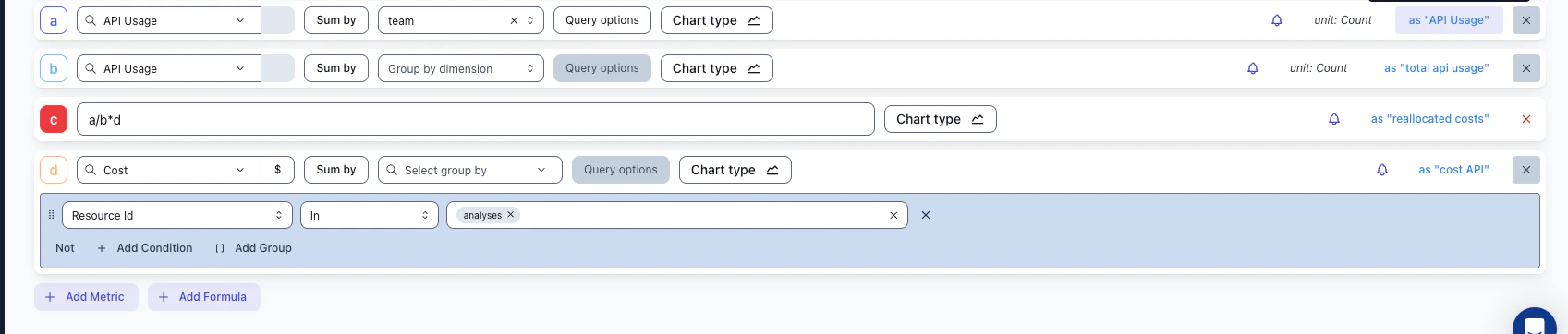
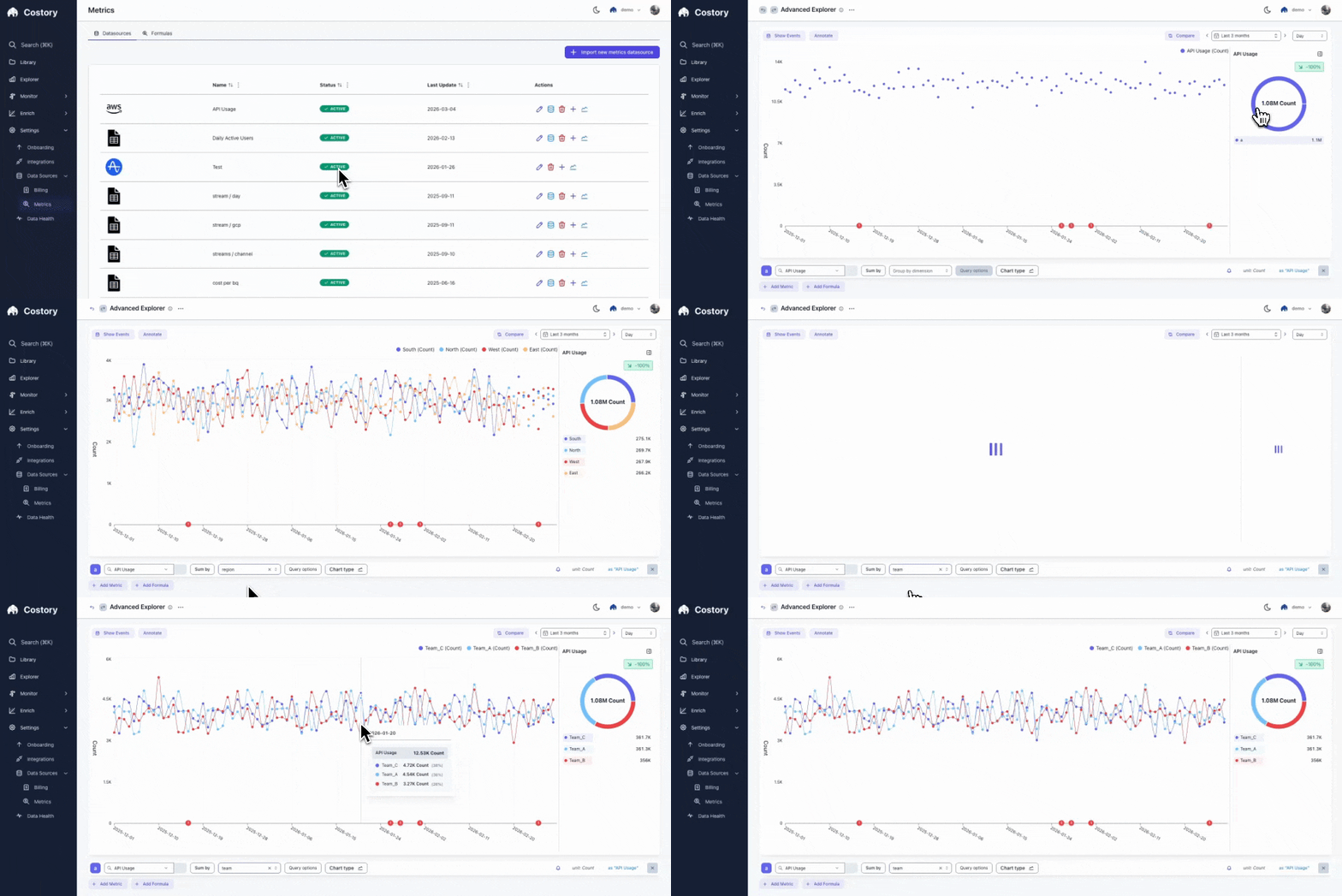 Use [Explorer](/features/cost-explorer) to preview how the reallocated costs would look before committing to a virtual dimension.
The idea is to build a formula that computes each team's proportional share of the total API cost:
| Row | What it represents | Example |
| ----- | ------------------------------------- | -------------------------------------- |
| **a** | API Usage metric, grouped by team | Team A: 4 117 calls, Team B: 983 calls |
| **b** | Total API usage across all teams | 5 100 calls |
| **c** | The reallocation formula: `a / b * d` | Team A gets 80.7% of the cost |
| **d** | Total cost of the shared API resource | \$1 000 |
The formula `a / b * d` gives you: **(team's calls / total calls) \* total cost = team's share**.
Use [Explorer](/features/cost-explorer) to preview how the reallocated costs would look before committing to a virtual dimension.
The idea is to build a formula that computes each team's proportional share of the total API cost:
| Row | What it represents | Example |
| ----- | ------------------------------------- | -------------------------------------- |
| **a** | API Usage metric, grouped by team | Team A: 4 117 calls, Team B: 983 calls |
| **b** | Total API usage across all teams | 5 100 calls |
| **c** | The reallocation formula: `a / b * d` | Team A gets 80.7% of the cost |
| **d** | Total cost of the shared API resource | \$1 000 |
The formula `a / b * d` gives you: **(team's calls / total calls) \* total cost = team's share**.
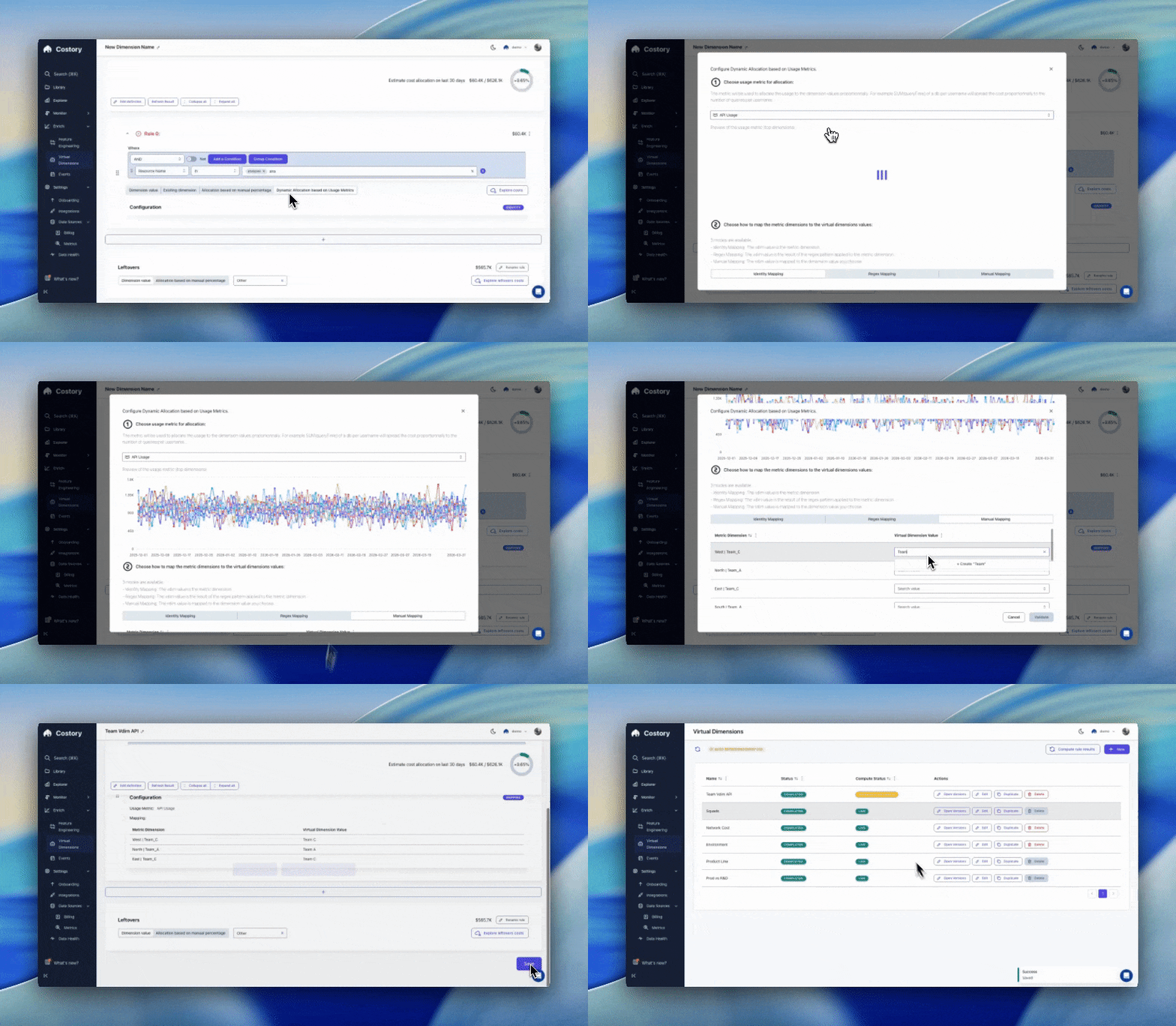
 Create a [virtual dimension](/features/tagging/dimensions#virtual-dimensions) that automatically allocates the shared cost going forward.
* Add a new rule for those API costs:
* Rely on reallocation based on usage metrics
* Use the metric you just imported
* Choose an allocation strategy:
* Identity mapping: The new label value is the team name
* Regex mapping: The API name contains the team name (extract it with a regex)
* Manual mapping: The API name has no relation to the team name; map each name manually
* Save the virtual dimension
Watch how a Virtual Dimension rule is configured with dynamic allocation based on the imported usage metric:
Create a [virtual dimension](/features/tagging/dimensions#virtual-dimensions) that automatically allocates the shared cost going forward.
* Add a new rule for those API costs:
* Rely on reallocation based on usage metrics
* Use the metric you just imported
* Choose an allocation strategy:
* Identity mapping: The new label value is the team name
* Regex mapping: The API name contains the team name (extract it with a regex)
* Manual mapping: The API name has no relation to the team name; map each name manually
* Save the virtual dimension
Watch how a Virtual Dimension rule is configured with dynamic allocation based on the imported usage metric:
 ## Next steps: automate and share
* Set up a [weekly Slack report](/features/slack-reports) to share the reallocated costs with each team automatically.
* Explore the results in [Explorer](/features/cost-explorer) to validate cost attribution per team.
* Build on this allocation to create a [budget tracking](/use-cases/automate_budget) workflow per team.
## Next steps: automate and share
* Set up a [weekly Slack report](/features/slack-reports) to share the reallocated costs with each team automatically.
* Explore the results in [Explorer](/features/cost-explorer) to validate cost attribution per team.
* Build on this allocation to create a [budget tracking](/use-cases/automate_budget) workflow per team.