
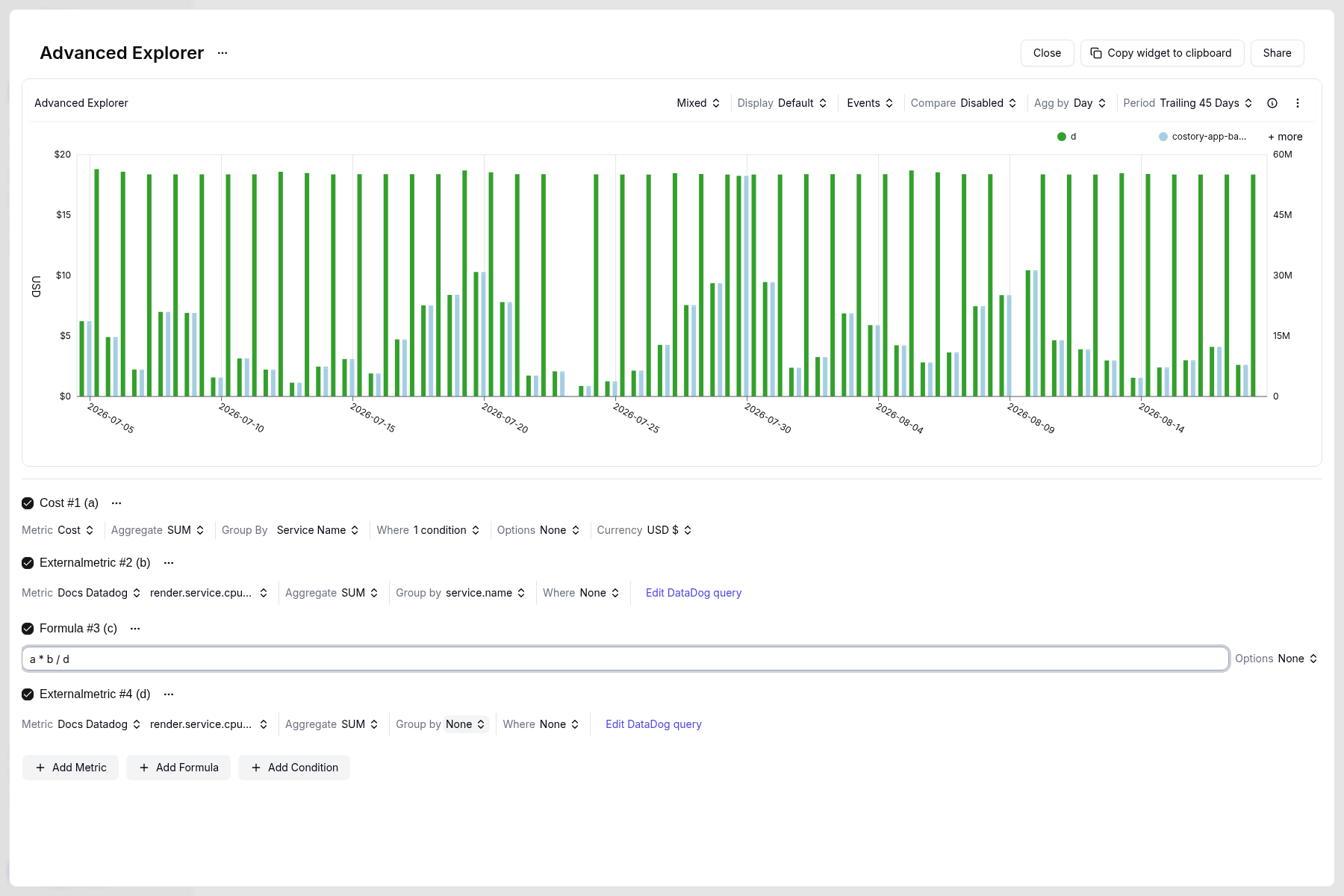
Advanced Explorer preview of shared Cloud SQL cost split with formula a * b / d
Prerequisites
- Know what drove the last database cost increase. Use a storage-size metric if storage grew. Use a compute metric if CPU or memory was the constraint.
- Know where that usage metric lives, for example Datadog or Google Cloud Monitoring.
-
Have a Datadog connection under Integrations. This walkthrough uses the demo connection Docs Datadog. To split on a native GCP series instead, connect GCP Cloud Monitoring and pick a Cloud SQL metric such as
cloudsql.googleapis.com/database/postgresql/insights/aggregate/execution_time.
What you get
- Each service’s share of the shared Cloud SQL cost.
- Recurring reports so stakeholders see the allocated split.
- Alerts when a service’s share grows unexpectedly.
Steps
Choose the usage metric
render.service.cpu.time) as the compute-style driver, grouped by service.name.Storage-size example queries:- Datadog
- Google Cloud SQL
- Datadog
- Google Cloud SQL
Connect the metric as an External metric
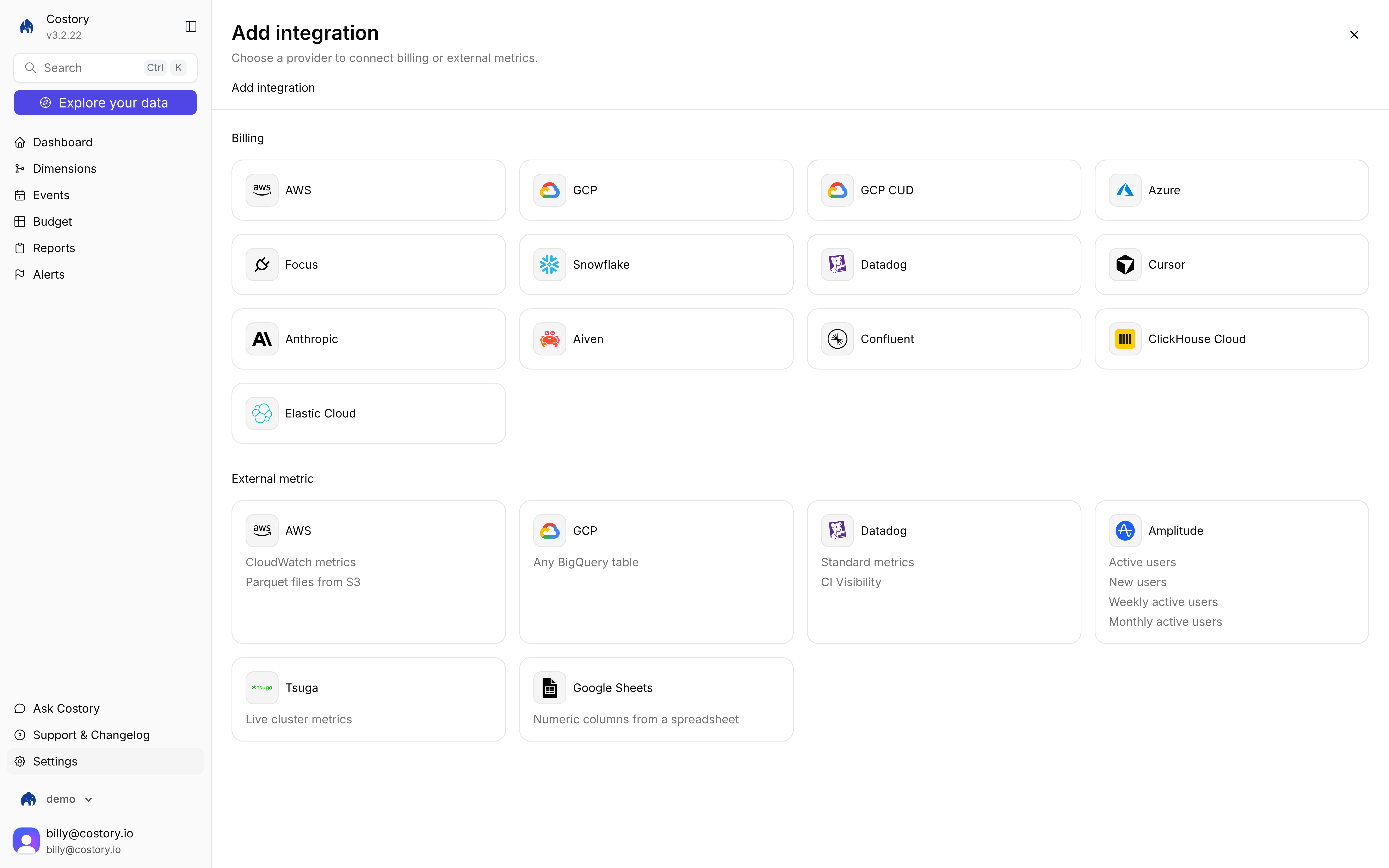
Add integration page with the External metric grid, including Datadog
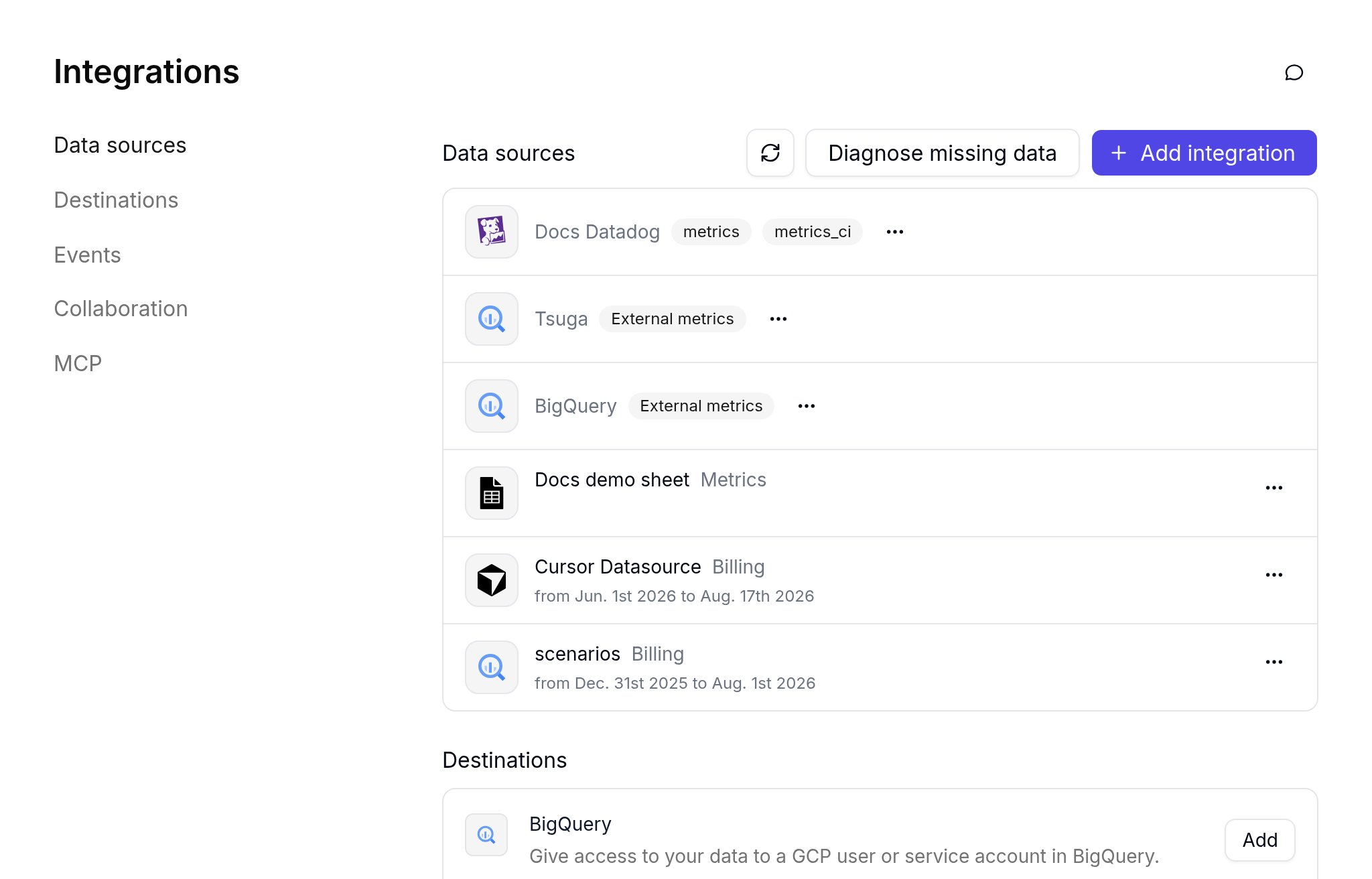
Integrations Data sources list with Docs Datadog already connected
Add Cloud SQL cost and per-service usage
SUM(), so the all-services total is its own series. Add cost and per-service usage here. The next step adds the denominator and the formula.a * b / d is shared Cloud SQL cost times this service’s cpu.time, divided by all services’ cpu.time.Configure Cost #1 (a) as in the table. Open Where and set Service Name In Cloud SQL.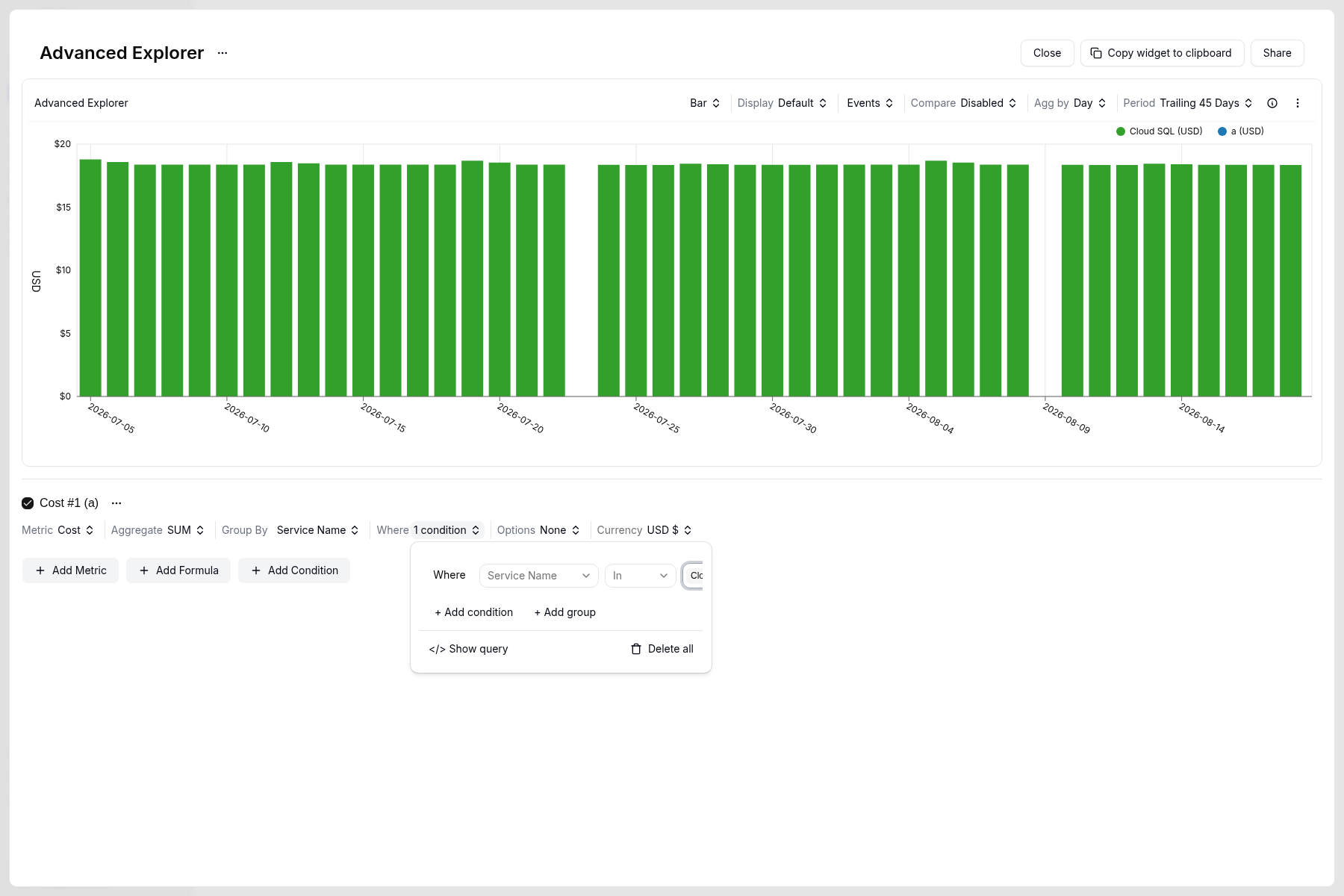
Cost #1 (a) in Advanced Explorer, Where Service Name In Cloud SQL
render, then pick render.service.cpu.time. Set Aggregate to SUM and Group by to service.name.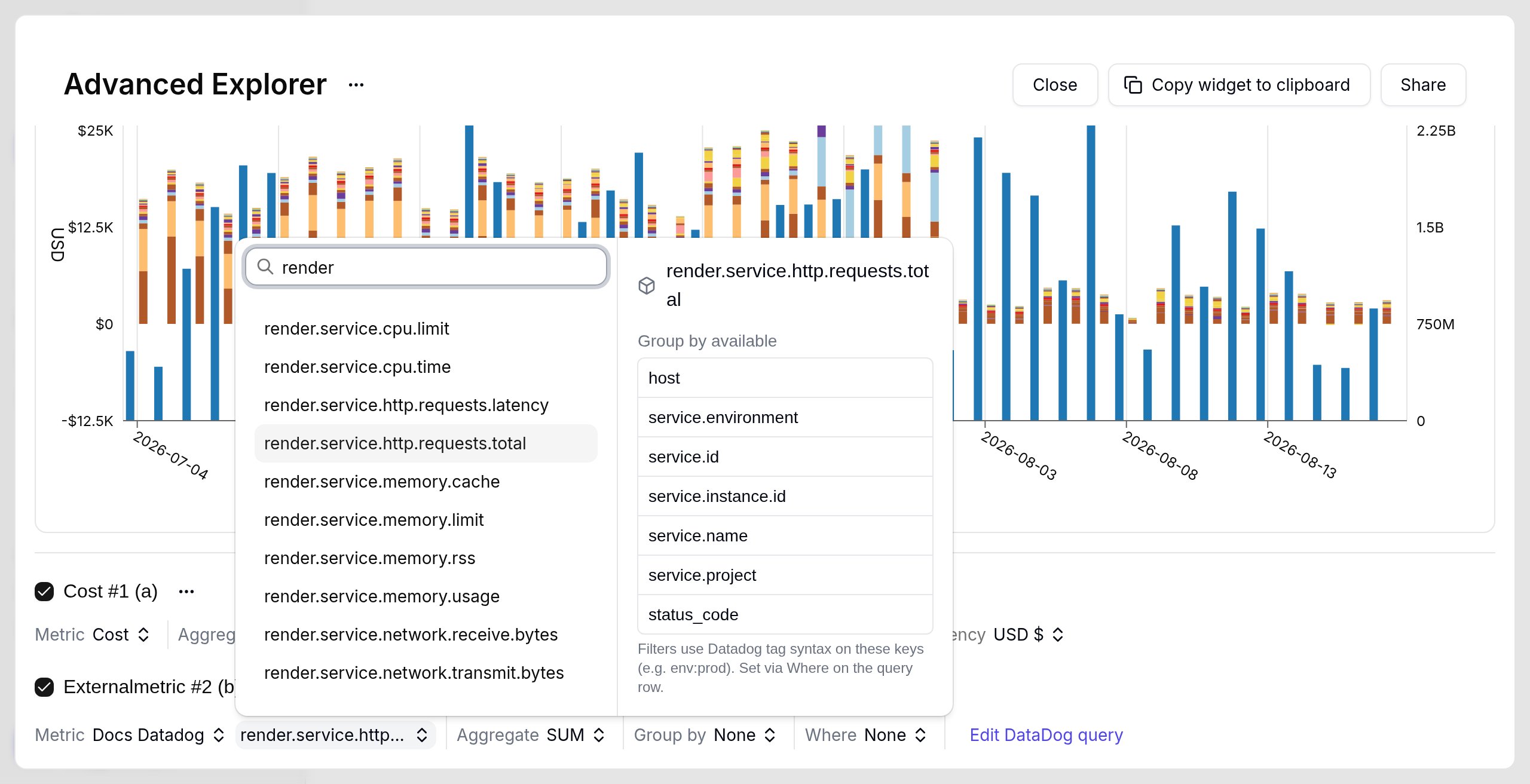
Docs Datadog metric picker searching render, with render.service.cpu.time in the list
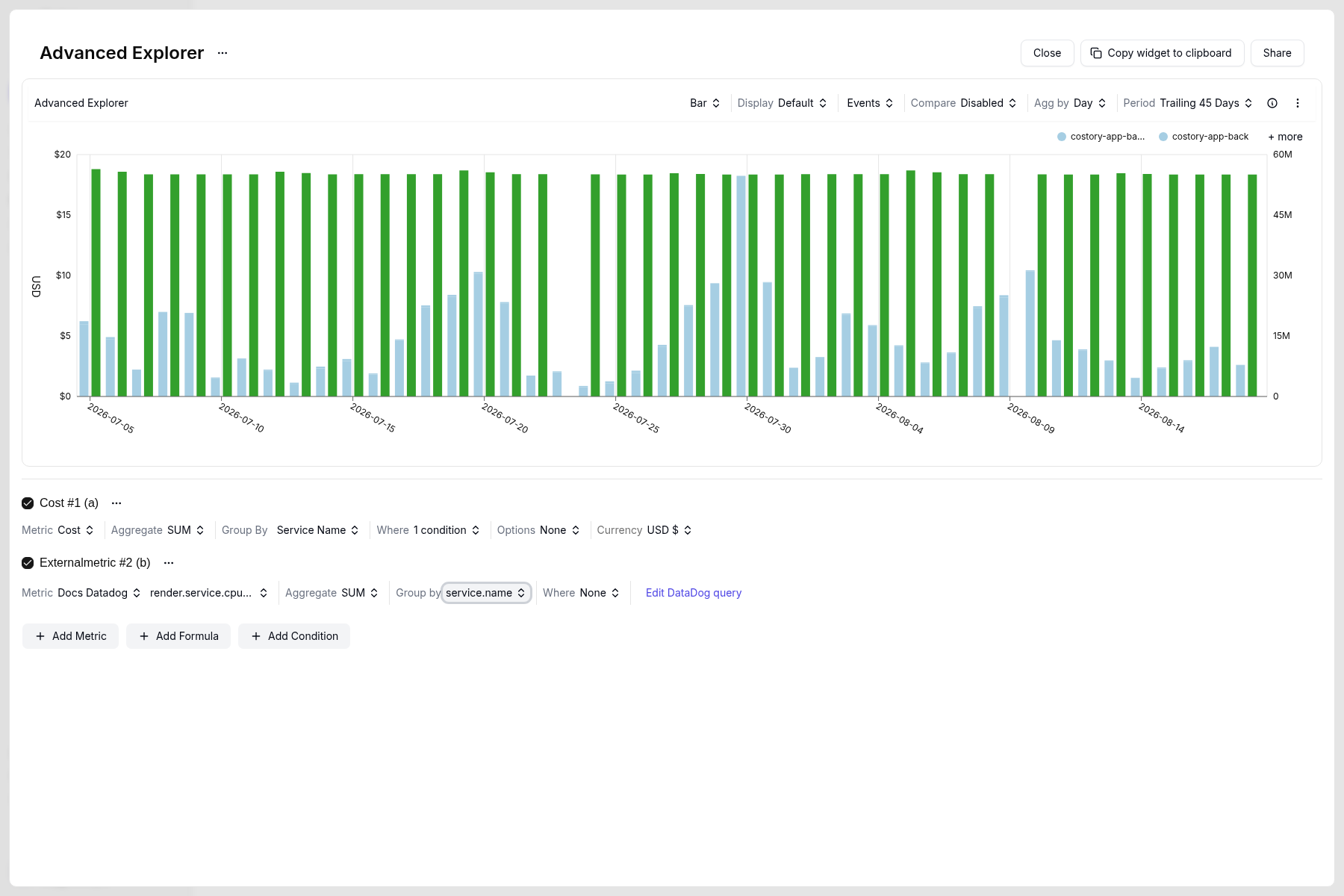
Cost next to render.service.cpu.time grouped by service.name
Add the usage total and the allocation formula
render.service.cpu.time, Aggregate SUM, Group by None. That series is Externalmetric #4 (d), the denominator.Set Formula #3 (c) to a * b / d. Toggle the checkboxes on each series so you can inspect the allocated series on its own.Working allocation formula a * b / d with Externalmetric #4 grouped by None
Create a virtual dimension scoped to Cloud SQL
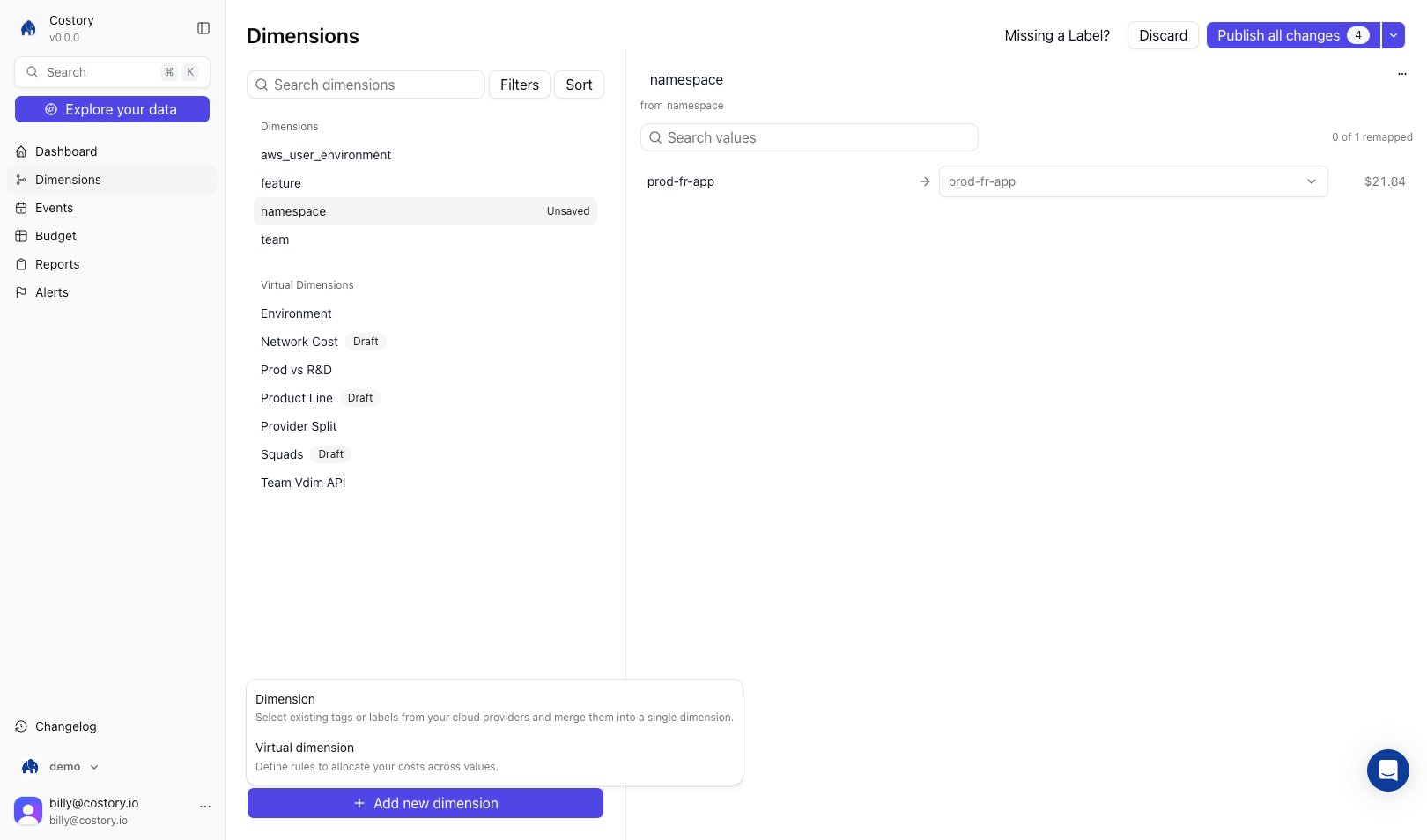
Dimensions page with Add new dimension open on Virtual dimension
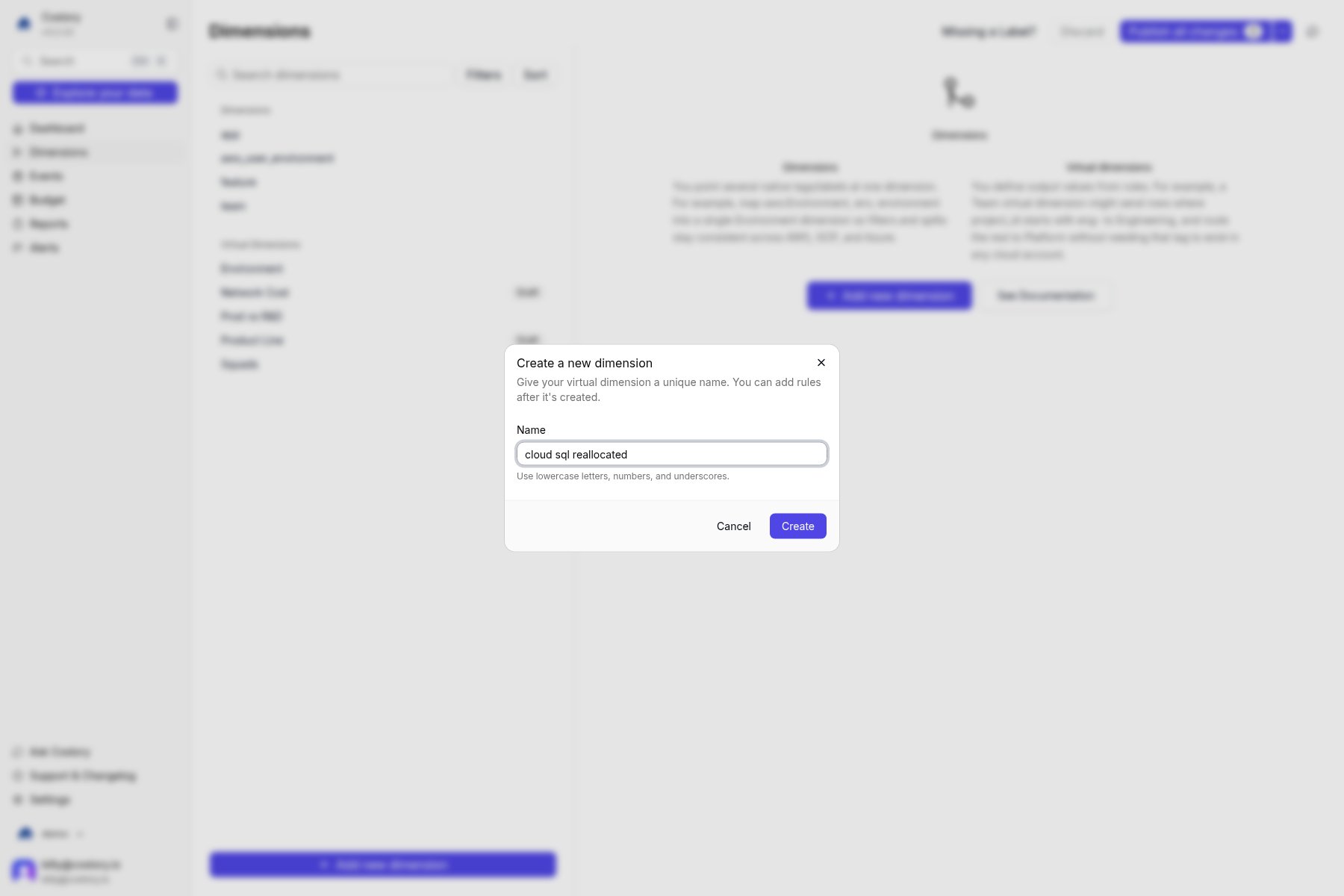
Create a new dimension modal with name cloud sql reallocated
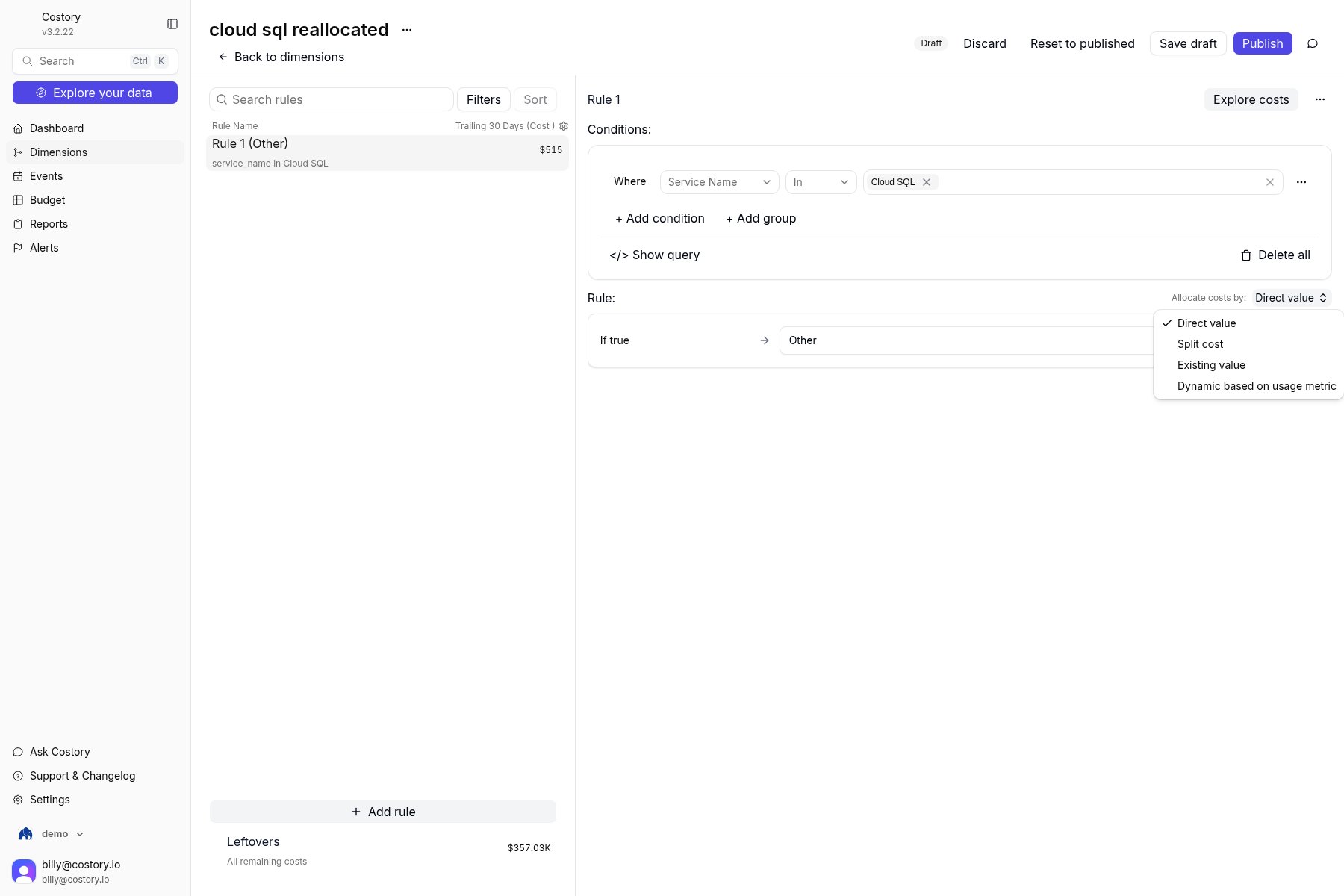
Allocate costs by dropdown with Dynamic based on usage metric
render.service.cpu.time, and Split by to service.name. Aggregate stays SUM.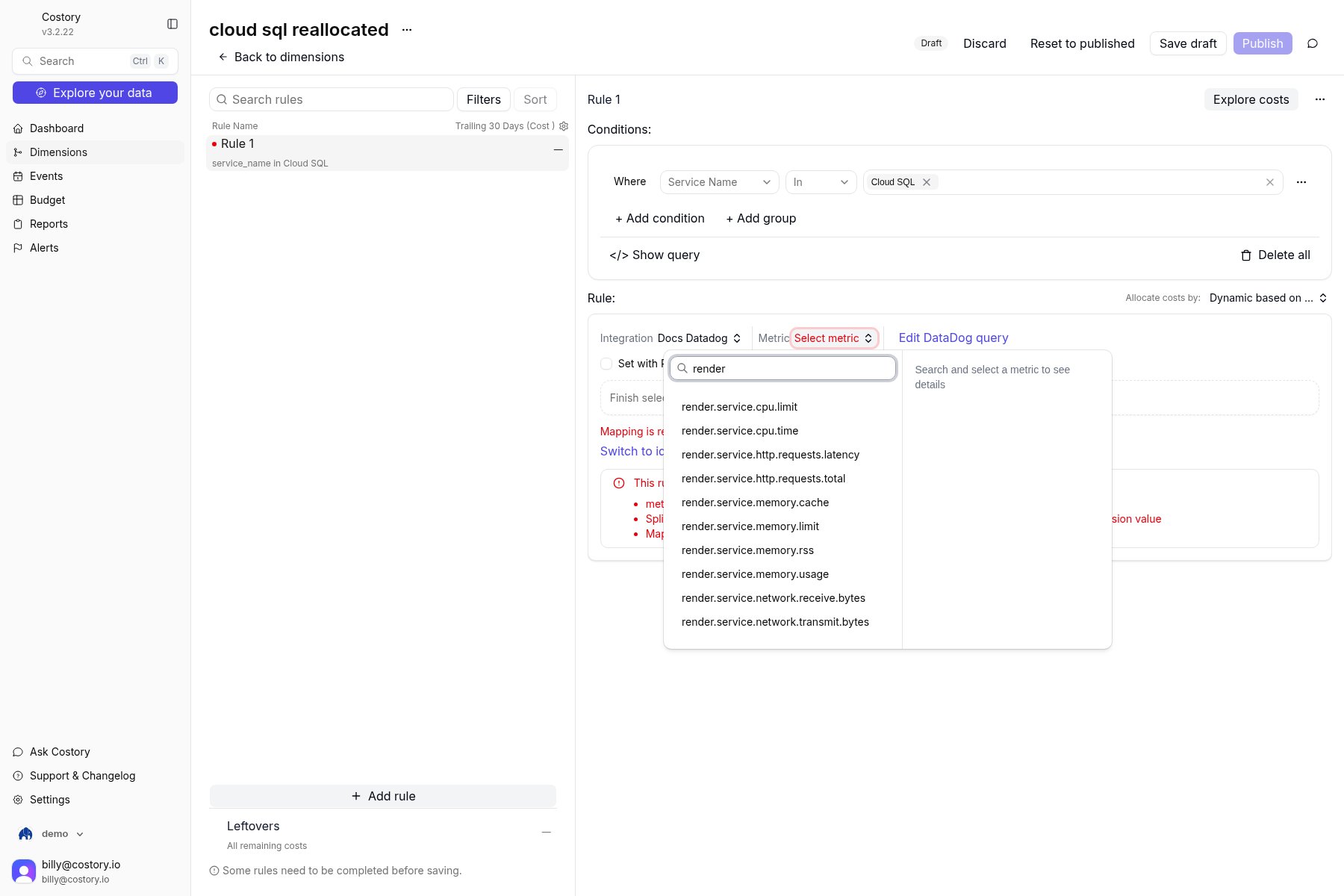
Rule metric picker on Docs Datadog searching render.service.cpu.time
Map metric values and save a draft
service.name values to dimension values. You can use identity pass-through, a regex, or a manual map.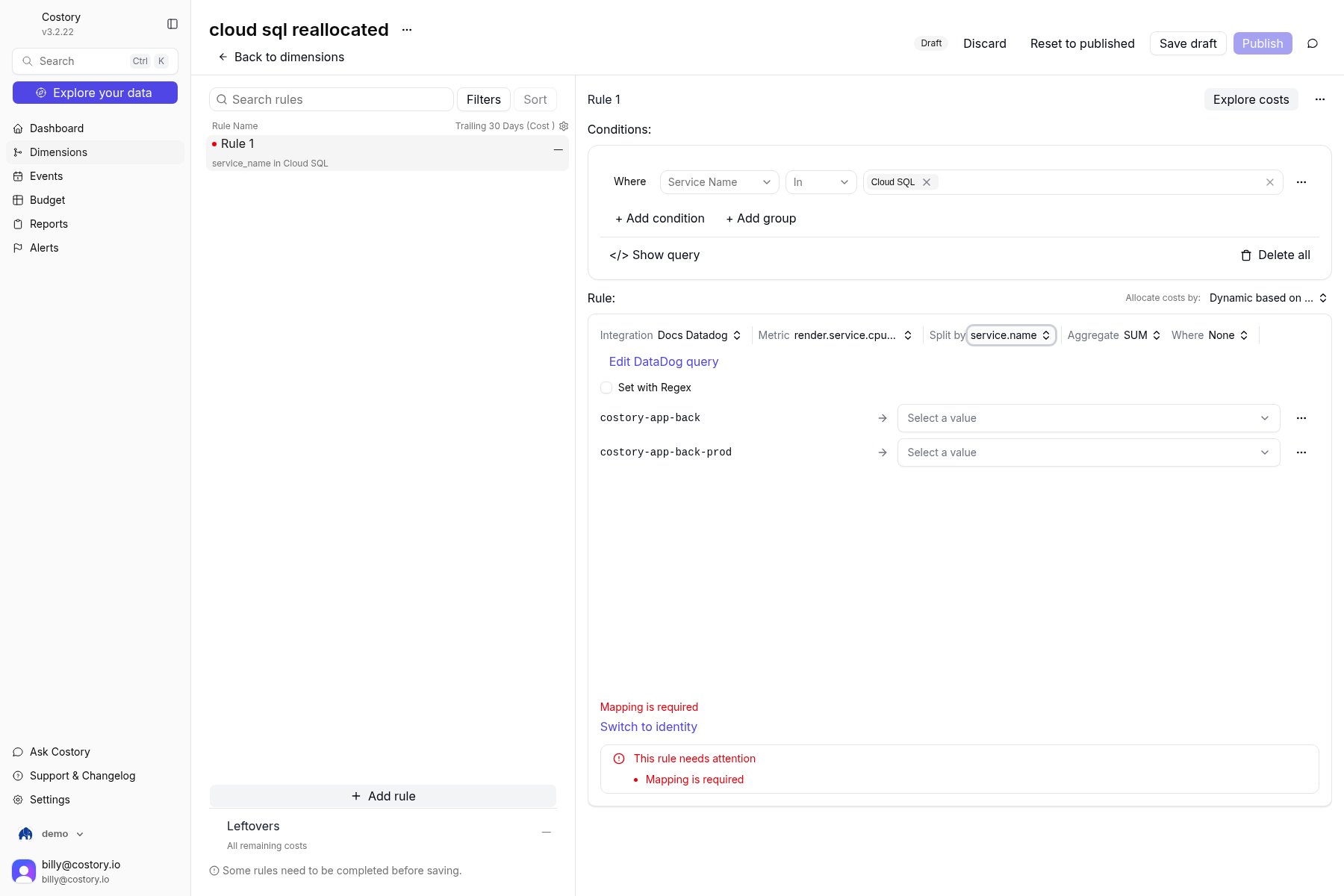
Manual mapping with Select a value for each Datadog service.name
[\s\S]*. The helper text reads Identity pass-through: metric values are used as dimension values (regex [\s\S]*).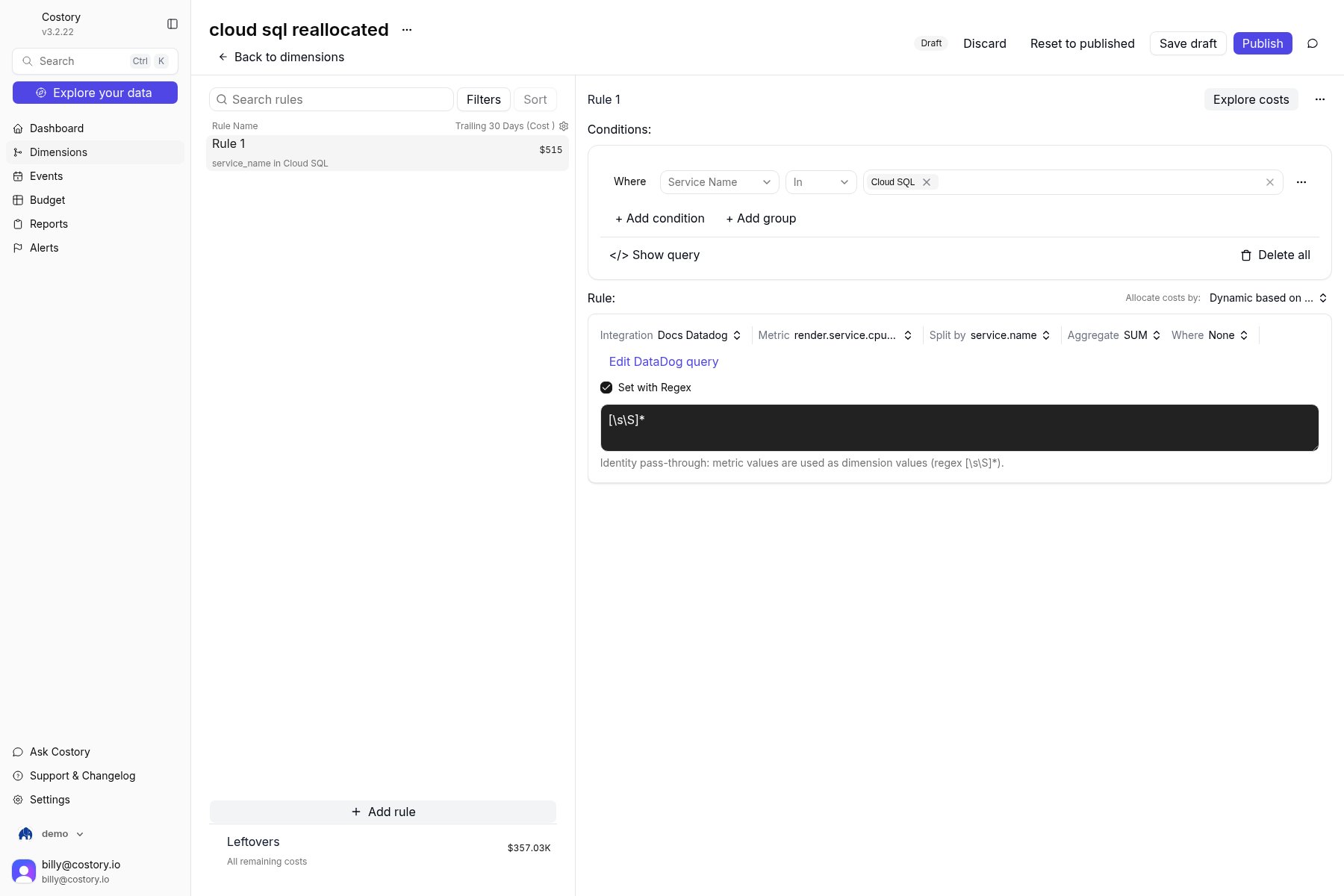
Set with Regex checked, identity pass-through pattern
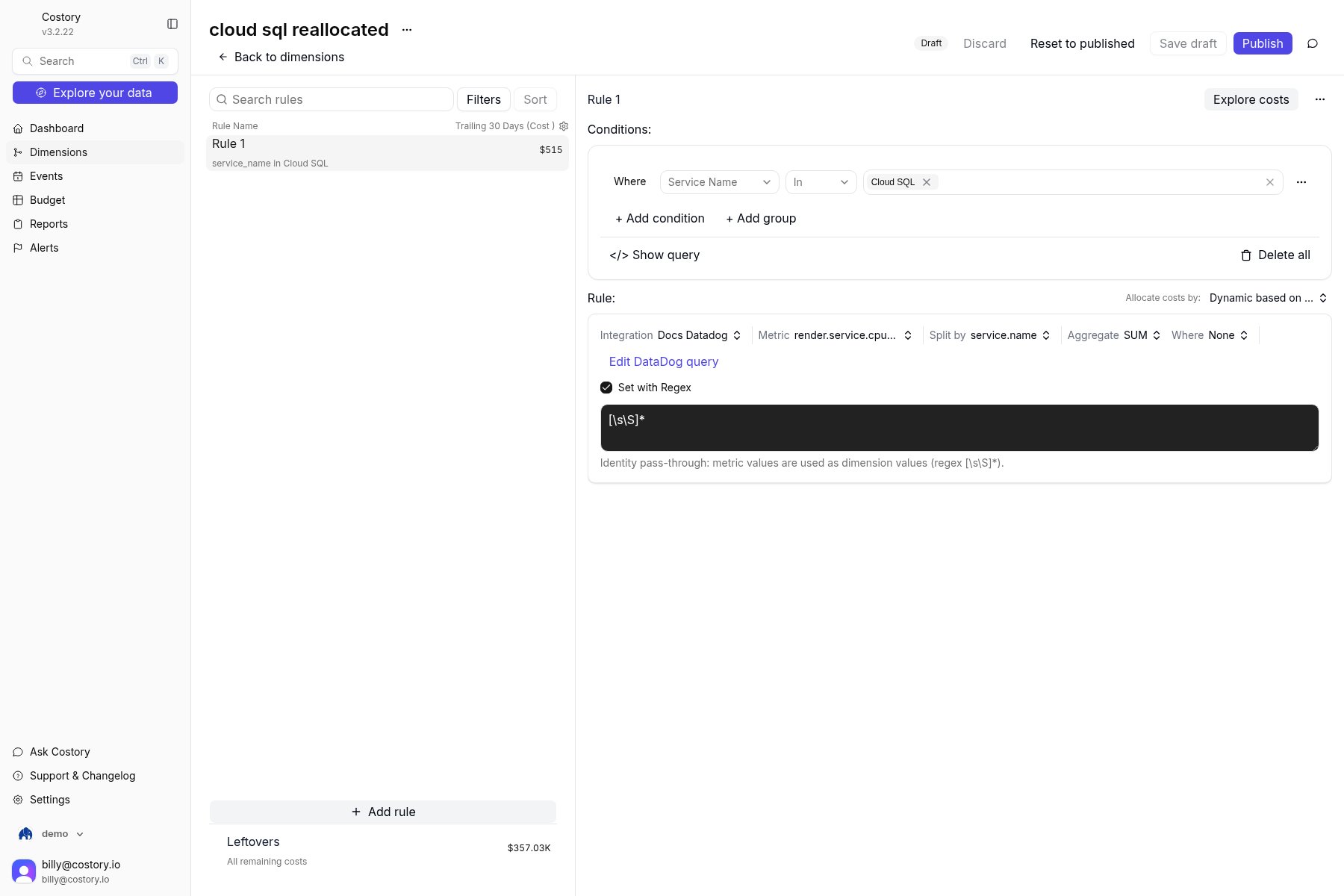
Draft rule for cloud sql reallocated using Dynamic based on usage metric
Publish and create a report
Troubleshooting
The dimension does not appear in Explorer group-by
The dimension does not appear in Explorer group-by
The formula editor rejects SUM()
The formula editor rejects SUM()
SUM() inside a formula. Add the all-services total as its own series (Externalmetric #4) with Group by None, then divide by that series (d).A new service appears after you save
A new service appears after you save
service.name values on the next run. Manual mapping does not. Edit the virtual dimension and map the new label.Related
- To allocate a shared API instead of a database, see Split Shared API Costs Across Teams. That guide uses an external usage metric such as API call counts.
- Connect Datadog or another usage source from usage metrics.
- See Shared Cost Allocation for mapping types and other shared infrastructure patterns.
- Virtual dimension rules live in Dimensions.