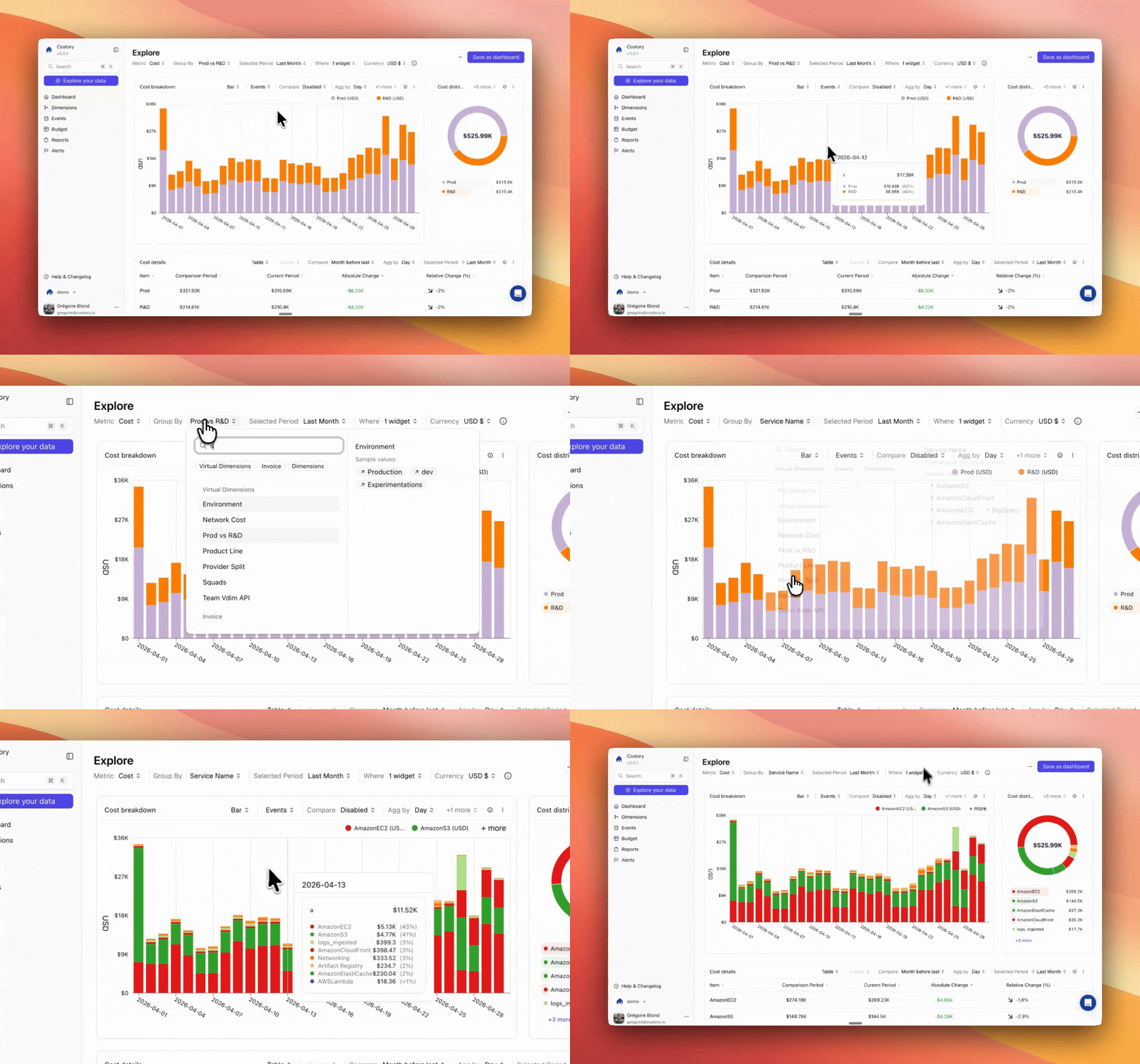
Overview
You can group costs by any dimension (provider, service, account, region, team), compare periods, and drill down to the exact resource driving a cost change. Most teams use it for:- Drill from the top-level view to the specific EC2 instance or BigQuery job responsible for a cost spike
- Compare how spend shifted across teams and services month-over-month
- Run pre-built analyses for coverage, Kubernetes waste, or network egress
- Export to dashboards, Slack reports, or CSV for stakeholder reporting
Get started
Connect your cloud providers
Link your AWS, GCP, or Azure billing data to Costory.
Open Cost Explorer
Navigate to Explorer from the left sidebar. You’ll see your aggregated spend across all connected providers.
Group and filter
Use the Group by dropdown to break costs down by provider, service, account, region, or any Virtual Dimension. Add filters to scope the view to a specific team or environment.
Drill down into a cost change
Click any segment in the chart to drill deeper. Costory suggests the most relevant dimensions to explore next.
Save and share
Save your configuration as a View. From there you can export it to a dashboard, share a link, or schedule it as a report.
Query your cost data
The query bar at the top of the Explorer controls what data you see. It has five main components:
- Metric: Select which cost metric to display (total cost, , list cost, or a usage metric). You can add multiple metrics and combine them in formulas.
- Group by: Break costs down by any dimension: provider, service, account, region, tag, or .
- Date range: Set the analysis period (day, week, month, or custom range) and the aggregation granularity.
- Reference period: Enable Compare to see a reference period side-by-side. Costory shows absolute and percentage changes between the two periods.
- Filters (
Whereclause): Scope the query to specific providers, services, accounts, tags, or any other dimension. Combine conditions withAND/ORlogic, or negate withNot.
Refine your results
Use filter conditions to narrow your results:- Add a
Wherecondition to scope costs to a specific team, environment, account, or region. Combine multiple conditions withAND/OR. - Use the
Nottoggle to exclude specific services, accounts, or tags from the results (e.g., $0 line items or sandbox accounts). - Filter to a single cloud provider to access provider-specific dimensions and tags that are not available in cross-provider queries.
When querying costs across multiple providers, resource-level tags are not available. Filter to a single provider to access provider-specific tags.
Drill down to root cause
Start from a high-level cost breakdown and click into any segment to drill down. You can go from a cross-provider view all the way to the specific EC2 instance or GCP project driving a cost change.
- : Normalized billing data from AWS, GCP, Azure, and Datadog unified into a consistent schema (provider, service, account, region, etc.)
- Your for business context: Consolidated label groupings that align legacy naming conventions (like “env” to “environment”)
- Your : Custom business groupings (by team, product, and more)
AI-Suggested drill-down dimensions
Costory suggests the most relevant dimensions to group by based on your current filters. Instead of guessing which grouping to try next, you get a ranked list of the dimensions most likely to explain what you’re seeing.
Investigate a cost change
Click any row in the table or any segment in the chart to open the cost change investigation panel.
- The Summary shows total cost for the selected item, dollar and percentage change versus the reference period, and cost per day. (Costory’s AI) generates a one-line summary of what drove the change.
- Suggested Analysis cards give you quick access to common investigation patterns: cost trend with event overlay, cost contribution by sub-segment, marginal cost over time, and event correlation counts.
- The Technical Analysis section is where Billy breaks down the change by SKU, region, and pricing model. Each driver is numbered, and you can click a reference to drill into it.

Want this analysis delivered automatically? Digest runs it across your full cloud spend on a schedule and sends the results to Slack or email.
Pre-built FinOps templates
Costory ships templates for common analyses. Select one and it loads with the right filters and group-bys for your connected providers:- and CUD coverage: track reservation utilization across AWS and GCP
- Network cost analysis: identify cross-AZ and egress cost drivers
- Kubernetes waste detection: find over-provisioned pods and idle workloads. See the K8s waste and EKS/ECS visibility guides.
- BigQuery cost attribution: break down BigQuery spend by dbt model, team, or package. See BigQuery + dbt visibility.
- EBS and storage cost optimization: spot unattached volumes and underused disks

Cost waterfall
The waterfall chart shows which services, accounts, or teams drove a cost increase or decrease between two periods. It answers “where did the extra $10k come from?” at a glance.
Customize your view
Chart types
Switch between visualization types using the Chart type selector in the toolbar. Available types:
| Type | Description |
|---|---|
| Bar (default) | Stacked bars, best for seeing how groups contribute to total spend over time |
| Line | Trend lines, best for comparing how groups move relative to each other |
| Donut | Proportional split of total cost by group for the selected period |
| Waterfall | Which groups drove the cost increase or decrease between two periods |
| Table | Raw data, sortable and exportable, useful when you need exact numbers |
Donut summary
Next to the bar chart, a donut shows the proportional split with total spend in the center and the period-over-period change badge.
Table view
Below the chart, the data table shows costs broken down by your selected grouping. The table includes:- Selected Period: Total cost for the current date range
- Reference Period: Total cost for the comparison period (when Compare is enabled)
- Absolute Change: Dollar difference between the two periods
- Relative Change (%): Percentage difference between the two periods
Export and share
Once your query is ready, there are several ways to get it out of the Explorer:Quick Share
Press CMD+K to generate a shareable link that captures your entire query configuration: filters, group-bys, date range, and event overlays. Paste the link in Slack, a PR, or an incident thread. See Quick Share for details.Save a view
Click Save View to save the current query as a named view. Saved views appear in the Library and can be opened by any team member.
Schedule a report
Click Schedule Report in the toolbar to send a recurring snapshot of this view to Slack, Microsoft Teams, or email. See Cost Reports for scheduling options.Create an alert
Click Create Alert in the toolbar to set up a threshold or anomaly alert on this query. You’ll be notified via Slack or email when costs exceed a target or change unexpectedly. See Alerts for configuration details.Export to CSV
Click the export icon in the table toolbar to download the current data as a CSV file for offline analysis or stakeholder reporting.Frequently Asked Questions
Which cloud providers does Costory support?
Costory supports AWS, Google Cloud (GCP), and Microsoft Azure. You can analyze costs across all three providers in a single view.
Can I query across multiple providers at once?
Yes. Costory normalizes billing data into Standard Columns (
cos_* prefix) so you can group and filter across AWS, GCP, and Azure using the same field names. Resource-level tags are only available when filtering to a single provider.How fresh is the data?
How fresh is the data?
Costory processes your cloud billing data daily, typically within 24 hours of your cloud provider publishing it. You can query as far back as your billing export history goes. See Data Refresh for details.
What cost metrics are available?
Costory supports multiple cost metrics: total cost, list cost, , and usage quantity. You can also define custom formulas that combine cost data with external metrics. For guidance on which metric to show each audience, see Cost Metrics Per Persona.
Next Steps
Quick Share
Share any query with your team in one click
Events & Unit Economics
Correlate costs with deploys and track cost-per-user
Dashboards
Combine multiple cost views into persistent, shareable dashboards
Automated Slack Reports
Send cost digests to your team automatically
Kubernetes Cost Visibility
Break down costs by namespace, workload, and pod
Teams
Scope costs, default metrics, and dashboards per team