
- Manual setup
- Terraform
In Costory, go to Billing > Import new billing datasource > AWS and follow the stepper. First prepare your AWS account using CloudFormation or a manual setup. Both produce the same result: an S3 bucket with data and an IAM role Costory can assume.Option A: CloudFormation (recommended)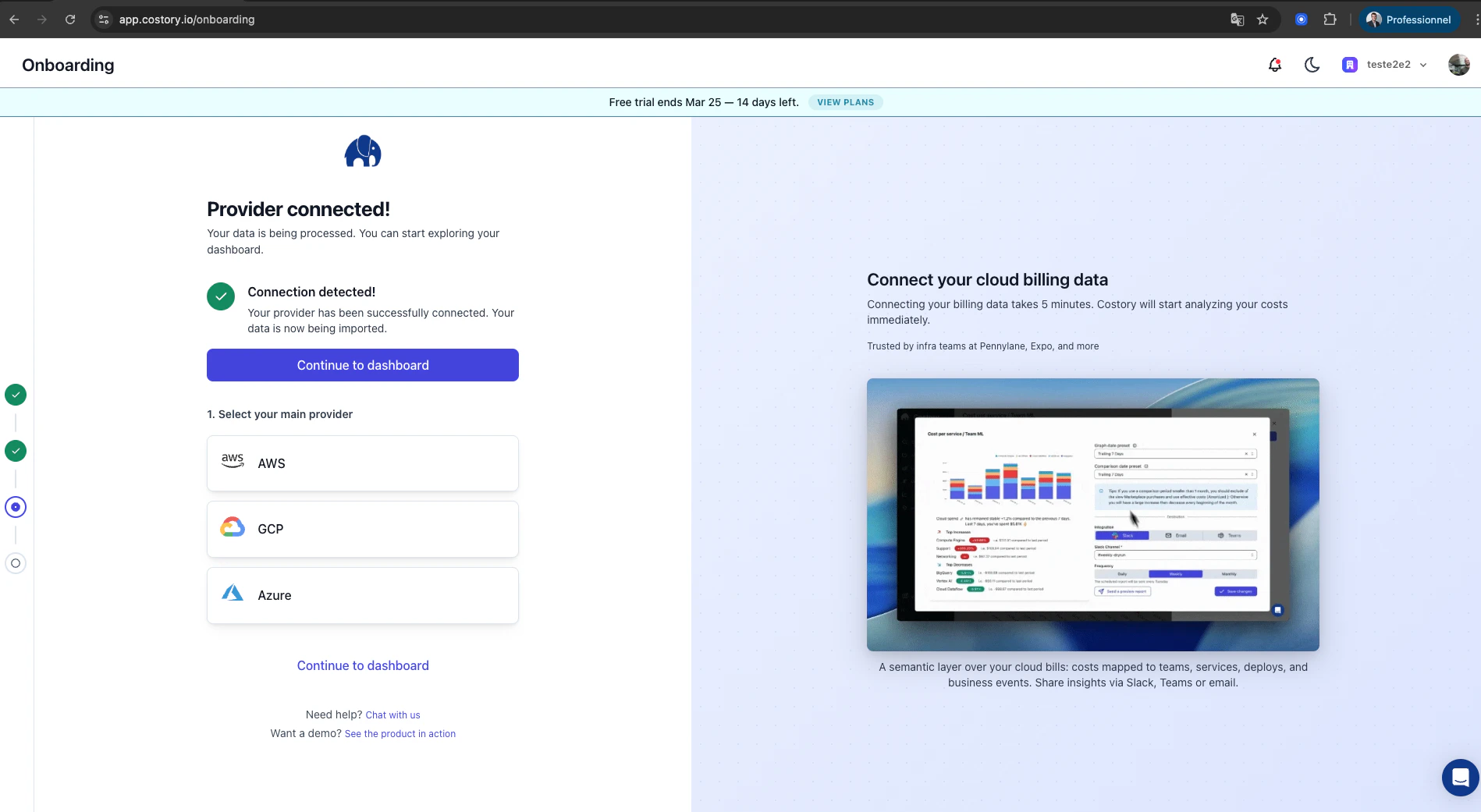
- Open the CloudFormation template in us-east-1.
- Deploy the stack and note the Bucket Name, Role ARN, and Prefix from the stack outputs.
- Create a CUR 2.0 data export in the AWS Billing console (Parquet format, overwrite enabled). Use hourly granularity if you run EKS or ECS. Enable all checkboxes under Additional Content (Include ID resources, Include Split cost allocation data, etc…).
- Create an S3 read-only IAM policy scoped to the export bucket.
- Create a web identity IAM role trusted by Costory’s GCP service account.
- Go to Billing > Import new billing datasource > AWS.
- Enter the S3 bucket name, Role ARN, and Prefix.
- If you run EKS or ECS, enable and activate the relevant cost allocation tags (
aws:eks:*,aws:ecs:*). This gives you pod-level (EKS) and job-level (ECS) cost granularity. See Kubernetes cost visibility for details.
Cost allocation tags: Activate as many cost allocation tags as you can in the AWS Billing console. Costory Dimensions automatically detect and merge meaningful tags so you can filter by team, environment, project, etc.
The first AWS export can take up to 12 hours. Costory sends you an email when data is received. Backfill covers up to 12 months via
aws:createdBy tag backfill. For longer periods, open an AWS Support request.Successful datasource import in Costory.
Full Terraform configuration
Full Terraform configuration
terraform {
  required_providers {
    aws = {
      source  = "hashicorp/aws"
      version = ">= 5.0"
    }
    costory = {
      source  = "costory-io/costory"
      version = ">= 0.1.0"
    }
  }
}
variable "s3_name" {
  type        = string
  description = "Base name for the CUR bucket."
  default     = "billing-data-exports"
}

variable "s3_prefix" {
  type        = string
  description = "The S3 prefix for the CUR exports."
  default     = "costory-cur"
}

variable "aws_region" {
  type        = string
  description = "AWS region used by this Terraform stack."
  default     = "us-east-1"
}

variable "costory_api_token" {
  type        = string
  description = "Costory API token."
  sensitive   = true
}

provider "costory" {
  token = var.costory_api_token
}

provider "aws" {
  region = var.aws_region
}

data "aws_caller_identity" "current" {}
data "aws_partition" "current" {}
data "costory_service_account" "current" {}


locals {
  account_id = data.aws_caller_identity.current.account_id

  cur_bucket_name = "${var.s3_name}-${local.account_id}"
  cur_export_name = "${var.s3_name}-costory-data-exports"
  # Issue with AWS provider see https://github.com/hashicorp/terraform-provider-aws/issues/43978
  cur_definition_source_arn = "arn:${data.aws_partition.current.partition}:cur:us-east-1:${local.account_id}:definition/*"
  bcm_export_source_arn     = "arn:${data.aws_partition.current.partition}:bcm-data-exports:us-east-1:${local.account_id}:export/*"

  cur_table_configurations = {
    COST_AND_USAGE_REPORT = {
      INCLUDE_RESOURCES                     = "TRUE"
      INCLUDE_SPLIT_COST_ALLOCATION_DATA    = "TRUE"
      TIME_GRANULARITY                      = "HOURLY"
      INCLUDE_MANUAL_DISCOUNT_COMPATIBILITY = "FALSE"
      INCLUDE_CAPACITY_RESERVATION_DATA     = "TRUE"
      BILLING_VIEW_ARN                      = "arn:${data.aws_partition.current.partition}:billing::${data.aws_caller_identity.current.account_id}:billingview/primary"
      INCLUDE_IAM_PRINCIPAL_DATA            = "TRUE"
    }
  }
  // SQL Query to get all columns
  cur_query_statement = <<-EOT
SELECT bill_bill_type, bill_billing_entity, bill_billing_period_end_date, bill_billing_period_start_date, bill_invoice_id, bill_invoicing_entity, bill_payer_account_id, bill_payer_account_name, capacity_reservation_capacity_reservation_arn, capacity_reservation_capacity_reservation_status, capacity_reservation_capacity_reservation_type, cost_category, discount, discount_bundled_discount, discount_total_discount, identity_line_item_id, identity_time_interval, line_item_availability_zone, line_item_blended_cost, line_item_blended_rate, line_item_currency_code, line_item_iam_principal, line_item_legal_entity, line_item_line_item_description, line_item_line_item_type, line_item_net_unblended_cost, line_item_net_unblended_rate, line_item_normalization_factor, line_item_normalized_usage_amount, line_item_operation, line_item_product_code, line_item_resource_id, line_item_tax_type, line_item_unblended_cost, line_item_unblended_rate, line_item_usage_account_id, line_item_usage_account_name, line_item_usage_amount, line_item_usage_end_date, line_item_usage_start_date, line_item_usage_type, line_item_user_identifier, pricing_currency, pricing_lease_contract_length, pricing_offering_class, pricing_public_on_demand_cost, pricing_public_on_demand_rate, pricing_purchase_option, pricing_rate_code, pricing_rate_id, pricing_term, pricing_unit, product, product_comment, product_fee_code, product_fee_description, product_from_location, product_from_location_type, product_from_region_code, product_instance_family, product_instance_type, product_instancesku, product_location, product_location_type, product_operation, product_pricing_unit, product_product_family, product_region_code, product_servicecode, product_sku, product_to_location, product_to_location_type, product_to_region_code, product_usagetype, reservation_amortized_upfront_cost_for_usage, reservation_amortized_upfront_fee_for_billing_period, reservation_availability_zone, reservation_effective_cost, reservation_end_time, reservation_modification_status, reservation_net_amortized_upfront_cost_for_usage, reservation_net_amortized_upfront_fee_for_billing_period, reservation_net_effective_cost, reservation_net_recurring_fee_for_usage, reservation_net_unused_amortized_upfront_fee_for_billing_period, reservation_net_unused_recurring_fee, reservation_net_upfront_value, reservation_normalized_units_per_reservation, reservation_number_of_reservations, reservation_recurring_fee_for_usage, reservation_reservation_a_r_n, reservation_start_time, reservation_subscription_id, reservation_total_reserved_normalized_units, reservation_total_reserved_units, reservation_units_per_reservation, reservation_unused_amortized_upfront_fee_for_billing_period, reservation_unused_normalized_unit_quantity, reservation_unused_quantity, reservation_unused_recurring_fee, reservation_upfront_value, resource_tags, savings_plan_amortized_upfront_commitment_for_billing_period, savings_plan_end_time, savings_plan_instance_type_family, savings_plan_net_amortized_upfront_commitment_for_billing_period, savings_plan_net_recurring_commitment_for_billing_period, savings_plan_net_savings_plan_effective_cost, savings_plan_offering_type, savings_plan_payment_option, savings_plan_purchase_term, savings_plan_recurring_commitment_for_billing_period, savings_plan_region, savings_plan_savings_plan_a_r_n, savings_plan_savings_plan_effective_cost, savings_plan_savings_plan_rate, savings_plan_start_time, savings_plan_total_commitment_to_date, savings_plan_used_commitment, split_line_item_actual_usage, split_line_item_net_split_cost, split_line_item_net_unused_cost, split_line_item_parent_resource_id, split_line_item_public_on_demand_split_cost, split_line_item_public_on_demand_unused_cost, split_line_item_reserved_usage, split_line_item_split_cost, split_line_item_split_usage, split_line_item_split_usage_ratio, split_line_item_unused_cost, tags FROM COST_AND_USAGE_REPORT
EOT
}
# Creates AWS Billing Data Export:

resource "aws_s3_bucket" "s3_client_bucket" {
  bucket = local.cur_bucket_name
}

resource "aws_s3_bucket_public_access_block" "s3_client_bucket" {
  bucket = aws_s3_bucket.s3_client_bucket.id

  ignore_public_acls      = true
  restrict_public_buckets = true
}

data "aws_iam_policy_document" "s3_client_bucket_access_policy" {
  statement {
    effect = "Allow"
    principals {
      type = "Service"
      identifiers = [
        "billingreports.amazonaws.com",
        "bcm-data-exports.amazonaws.com",
      ]
    }
    actions = [
      "s3:PutObject",
      "s3:GetBucketPolicy",
    ]
    resources = [
      aws_s3_bucket.s3_client_bucket.arn,
      "${aws_s3_bucket.s3_client_bucket.arn}/*",
    ]
    condition {
      test     = "StringLike"
      variable = "aws:SourceArn"
      values = [
        local.cur_definition_source_arn,
        local.bcm_export_source_arn,
      ]
    }
    condition {
      test     = "StringLike"
      variable = "aws:SourceAccount"
      values   = [local.account_id]
    }
  }
}

resource "aws_s3_bucket_policy" "s3_client_bucket_access_policy" {
  bucket = aws_s3_bucket.s3_client_bucket.id
  policy = data.aws_iam_policy_document.s3_client_bucket_access_policy.json
}

resource "aws_bcmdataexports_export" "cur_report_definition" {
  depends_on = [aws_s3_bucket_policy.s3_client_bucket_access_policy]
  export {
    name = local.cur_export_name
    data_query {
      query_statement      = local.cur_query_statement
      table_configurations = local.cur_table_configurations
    }
    destination_configurations {
      s3_destination {
        s3_bucket = aws_s3_bucket.s3_client_bucket.bucket
        s3_region = var.aws_region
        s3_prefix = var.s3_prefix

        s3_output_configurations {
          compression = "PARQUET"
          format      = "PARQUET"
          output_type = "CUSTOM"
          overwrite   = "OVERWRITE_REPORT"
        }
      }
    }
    refresh_cadence {
      frequency = "SYNCHRONOUS"
    }
  }
}
# Give Costory permission to read the S3 bucket:

data "aws_iam_policy_document" "costory_read_s3_policy" {
  statement {
    sid    = "Statement1"
    effect = "Allow"
    actions = [
      "s3:ListBucket",
      "s3:GetObject",
    ]
    resources = [
      aws_s3_bucket.s3_client_bucket.arn,
      "${aws_s3_bucket.s3_client_bucket.arn}/*",
    ]
  }
}
resource "aws_iam_policy" "costory_read_s3_policy" {
  name        = "Costory-read-s3-${var.s3_name}"
  description = "Allows Costory to read the CUR S3 bucket."
  policy      = data.aws_iam_policy_document.costory_read_s3_policy.json
}
# Costory is hosted on GCP we rely on a federated role on your organization service account to access the AWS billing data export.
data "aws_iam_policy_document" "costory_federated_role_assume" {
  statement {
    effect = "Allow"
    actions = [
      "sts:AssumeRoleWithWebIdentity",
    ]
    principals {
      type        = "Federated"
      identifiers = ["accounts.google.com"]
    }
    condition {
      test     = "StringEquals"
      variable = "accounts.google.com:sub"
      values   = data.costory_service_account.current.sub_ids
    }
  }
}
resource "aws_iam_role" "costory_federated_role" {
  name               = "costory-trust-link-${var.s3_name}"
  assume_role_policy = data.aws_iam_policy_document.costory_federated_role_assume.json
}
resource "aws_iam_role_policy_attachment" "costory_read_s3_policy_attachment" {
  role       = aws_iam_role.costory_federated_role.name
  policy_arn = aws_iam_policy.costory_read_s3_policy.arn
}
# Create the Costory AWS billing datasource in Costory:
resource "costory_billing_datasource_aws" "main" {
  name                   = "AWS CUR ${var.s3_name}"
  bucket_name            = aws_s3_bucket.s3_client_bucket.bucket
  role_arn               = aws_iam_role.costory_federated_role.arn
  prefix                 = var.s3_prefix
  eks_split_data_enabled = true
  depends_on             = [aws_bcmdataexports_export.cur_report_definition]
}
If required, you can import an AWS CUR V1 datasource in Costory: follow the same path as manual import of existing CUR V1 datasource. We don’t recommend this approach as the data is less detailed than CUR 2.0.