Monitor cloud spend and custom formulas against a single trigger condition. Build alerts in the UI or through the Costory MCP with the same condition string, then get notified in Slack, Teams, or email.
Alerts watch your cost or usage data against one trigger condition and notify you in Slack, Microsoft Teams, or email when it is met.The alert engine runs on the same query layer as Explorer. You define metric rows, write a condition expression, and Costory evaluates it on a fixed schedule. The UI and the Costory MCP use the same fields: anything you build in the app, an agent can create with create_alert, backtest with preview_alert, or list with list_alerts.
Each alert has exactly one condition. That keeps evaluation predictable: the same expression you see in the builder is what runs in BigQuery and what the MCP tools accept.Common uses:
Catch a service-level spike before it compounds over the billing period
Monitor one formula across every team or project with a single groupBy alert
Track commitment coverage, marginal cost per user, or any ratio built from multiple metrics
Get budget threshold notifications without manual spreadsheet checks
To create an alert through Claude, describe the outcome: “alert me on Slack if daily AWS spend goes over $10k.” The agent builds the queries, backtests the condition, and returns the alert URL. The steps below match what happens in the UI.
1
Open Alerts and create an alert
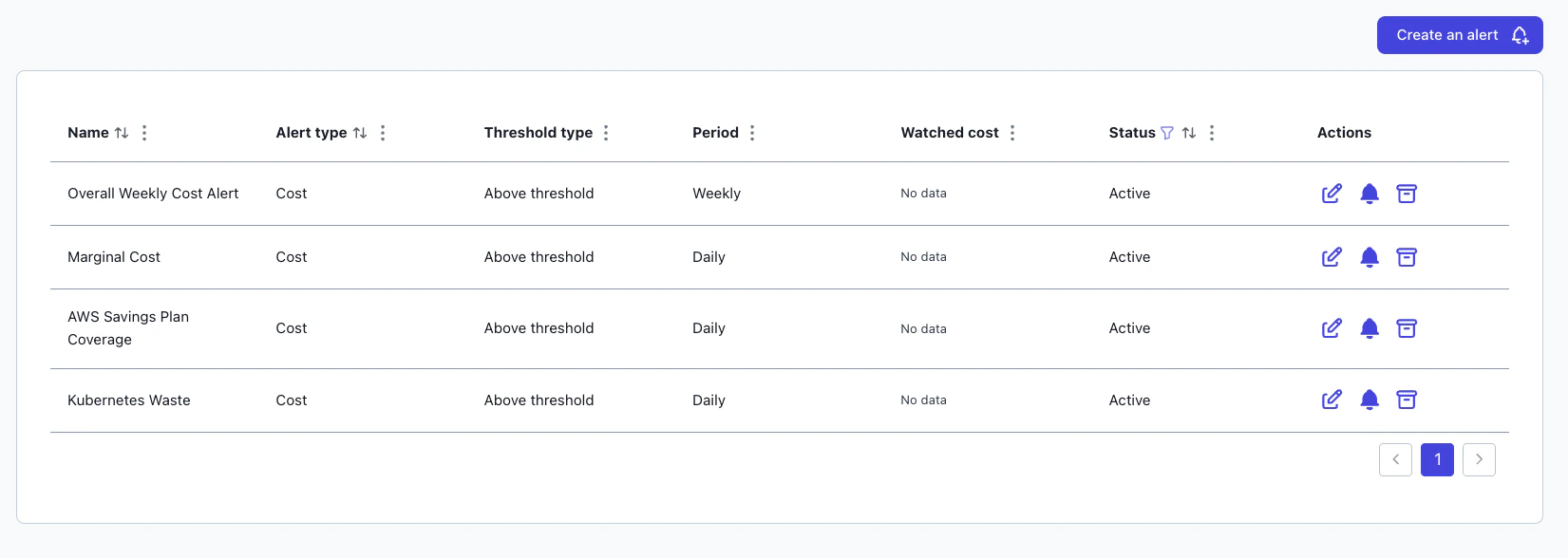
Go to Alerts in the Costory app. Click Create Alert and pick a pre-built template, or start from a view in Explorer.
Create an alert from a template or from Explorer
Common templates include Savings Plan coverage, Kubernetes waste ratio, and weekly cost change alerts.
2
Build the formula
In Formula, add one or more metric rows. Each row gets a letter (a, b, c) that you reference in the condition. Use a single row or combine several for ratios and comparisons.Pick a trigger preset or write a custom condition. The guided UI compiles presets into the formula string the engine runs.
3
Set scope and groupBy
In Configuration, set filters, grouping, aggregation, and currency. If you add a groupBy dimension, Costory evaluates the condition independently for every group value. One alert can cover all teams or projects on that dimension.When multiple groups breach on the same day, Costory batches them into one notification and keeps the largest breaches for review.
4
Review the backtest
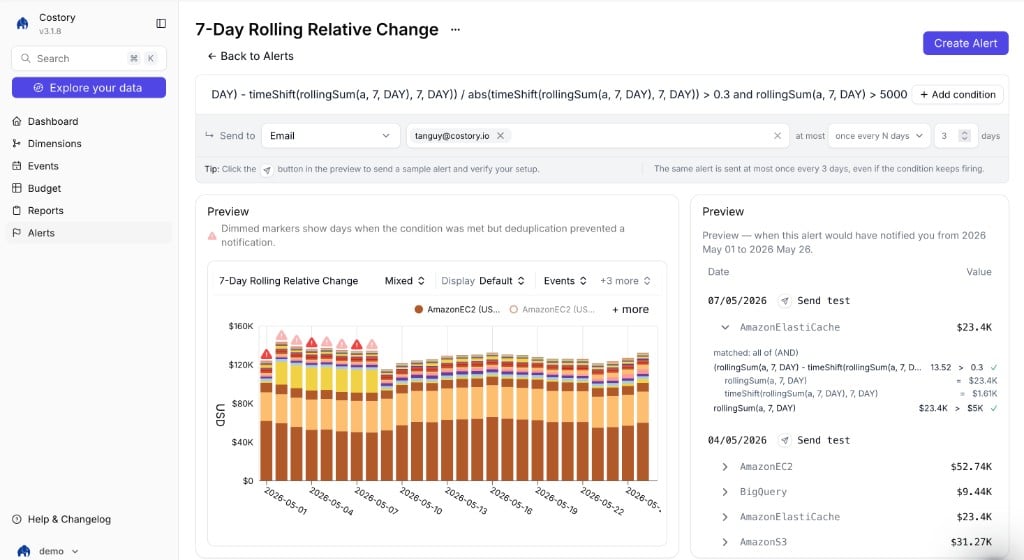
In Preview, check the chart and notification preview. The simulator shows when your formula would have fired on historical data before you save. Dimmed markers on the chart indicate days when the condition was met but deduplication prevented a notification.
Alert preview with backtest chart, notification history, and dedup markers
5
Configure notifications and save
Choose Slack, Microsoft Teams, or email recipients. Save the alert. It begins evaluating after the next data refresh.
Paste the condition formula into the alert builder, or describe the outcome to Claude and let it call preview_alert and create_alert.
Example
Description
Formula
Weekly spend spike
Row a: total cloud cost for the scope you monitor. Fires when rolling 7-day spend rises more than 15% vs the prior week. The spend floor reduces low-volume noise.
Row a: Savings Plan covered cost. Row b: Savings Plan uncovered cost. Fires when coverage drops below 80%.
a / (a + b) < 0.8
Per-team spend limit
Row a: cloud cost for the services you monitor. Set groupBy to your team dimension in Configuration. Fires when any team’s daily spend exceeds the cap.
a > 5000
Daily spend cap
Row a: total cloud cost for the scope you monitor. Fires when daily spend exceeds a fixed amount.
a > 10000
Day-over-day spike
Row a: total cloud cost for the scope you monitor. Fires when daily spend rises more than 10% vs the previous day.
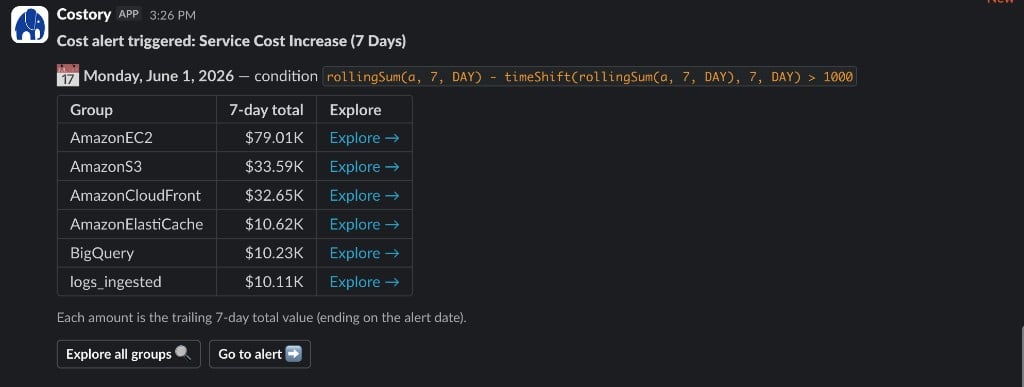
Notifications go to Slack, Microsoft Teams, or email. Each message includes a View in Explorer link pre-filtered to the alert scope, so you can investigate the cost change without rebuilding filters.
A Slack notification for a 7-day rolling relative change alert grouped by service
From the alerts list, you can delete an alert you no longer need. Deleting removes the alert and its history.
Yes. Through the Costory MCP, Claude uses create_alert, preview_alert, and list_alerts with the same fields as the UI. Describe the outcome in plain English and the agent handles the queries, condition, and dedup rule.
How often are alerts evaluated?
Costory evaluates alerts every day, or three times a day depending on your plan. Data is checked with at least a 48-hour delay so billing data from your cloud provider is finalized.
Can I set multiple thresholds on one alert?
No. Each alert has one trigger condition. Create separate alerts when you need different thresholds or notification targets.
What happens when I group by a dimension?
Costory evaluates your condition for every value in that dimension. If several groups breach on the same day, you receive one consolidated notification with the largest breaches included.
Can I alert on custom formulas or ratios?
Yes. Add multiple metric rows and write a custom condition, or start from a preset and adjust the compiled formula. Common patterns include Savings Plan coverage ratios and marginal cost per user from external usage metrics.
Which notification channels does Costory support?
Slack, Microsoft Teams, and email. Each notification includes a link to Explorer scoped to the alert.