Invite users as an Admin from the account name in the left sidebar. Find Costory settings, organization Invites, Teams, data integrations, API keys, plans, and invoices.
Costory settings are split across personal account settings, organization settings, and Costory-managed settings. Use this page when you need to invite users, update login details, allow a company email domain, connect data, manage Teams, or review your plan and invoices.Admin users invite teammates from the account name in the left sidebar, then Invites. Other Costory settings live in the menu next to your name. Some account and organization screens are hosted by Costory’s authentication provider, since it controls sign-in, email addresses, passwords, connected accounts, and organization membership.
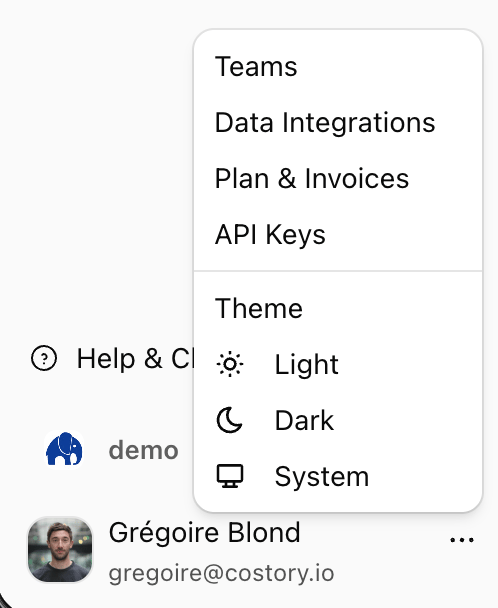
Open the menu next to your name to access Teams, Data Integrations, Plan and Invoices, API Keys, and theme settings.
Change your profile, email address, password, and connected login accounts
User menu next to your name, then Profile or Account
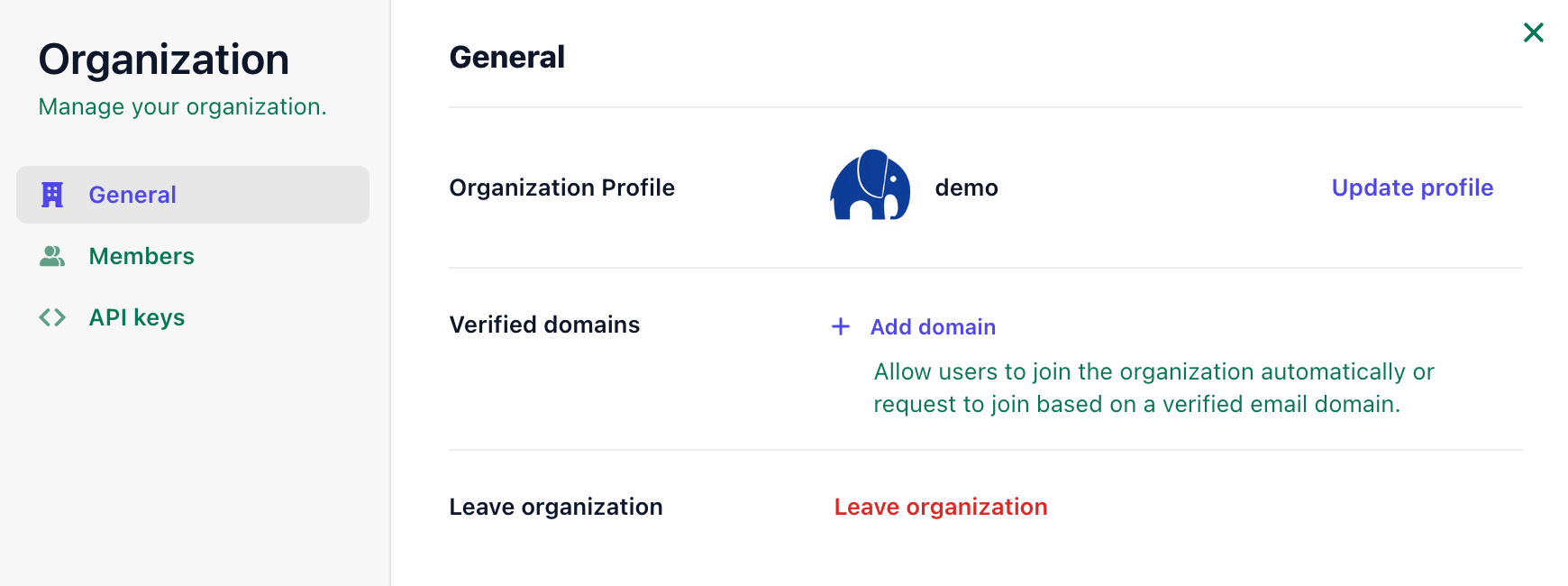
Organization identity settings
Authentication provider
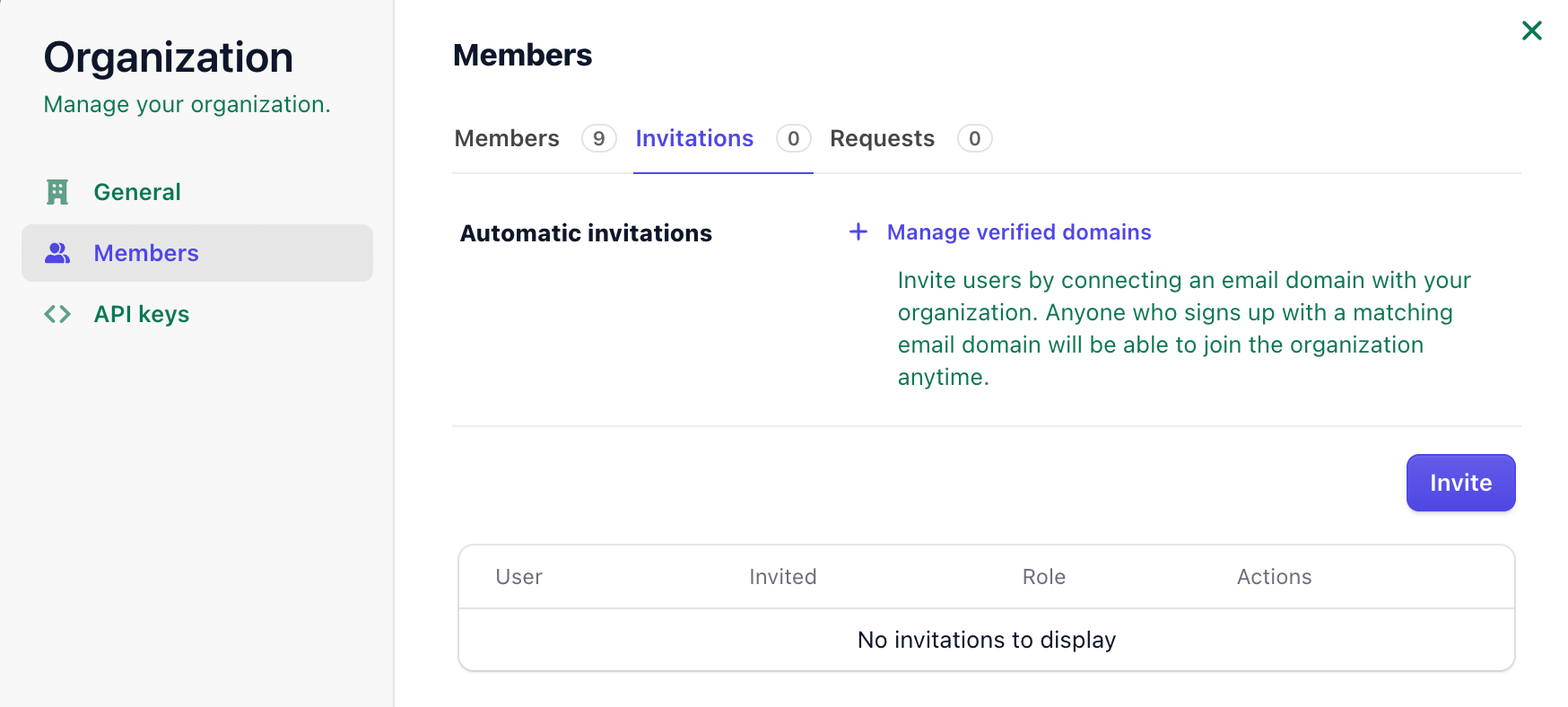
Invite users and allow a verified company domain for automatic joining
Account name in the left sidebar, then Invites
Costory-managed settings
Costory
Manage Teams, Data Integrations, API Keys, Plan & Invoices, and subscription details
User menu next to your name, then the relevant Costory settings page
If a settings screen looks different from the rest of Costory, it is usually an authentication-provider screen. Changes made there still apply to your Costory account or organization.
Only Admin users can invite people to your Costory organization. If you do not see Invites, ask an Admin to send the invitation or to grant you the Admin role.
1
Click the account name
In the left sidebar, click your account name. This is the organization name above your user profile.
2
Open Invites
Select Invites to open organization membership and pending invitations.
3
Send the invitation
Enter the person’s email address and click Invite. They receive an email to join the organization.
Organization Invites is where Admins send invitations and review pending invites.
You can also let people join without a manual invite by adding a verified company email domain. See Identity and Access for auto-join, SSO, and SCIM.
Inviting someone to the organization is separate from adding them to a Costory Team. Teams control cost scopes and default metrics. Invite them here first, then add them in Teams.
Click the account name in the left sidebar, open Invites, then send the invitation by email. This is available to Admin users.
2
Allow your company domain
Open Invites from the account name and add a verified domain. Users with that company email domain can join your Costory organization automatically when auto-join is enabled.
3
Create a Costory team
Open Settings > Teams, click Create Team, then add members and scopes. See Teams for the full setup.
4
Connect a data integration
Open Data Integrations from the user menu, then choose the provider you want to connect. Use Billing Data for AWS, GCP, Azure, and other billing exports.
5
Review invoices or plan details
Open Plan & Invoices from the user menu to check your subscription, invoices, and billing details.