
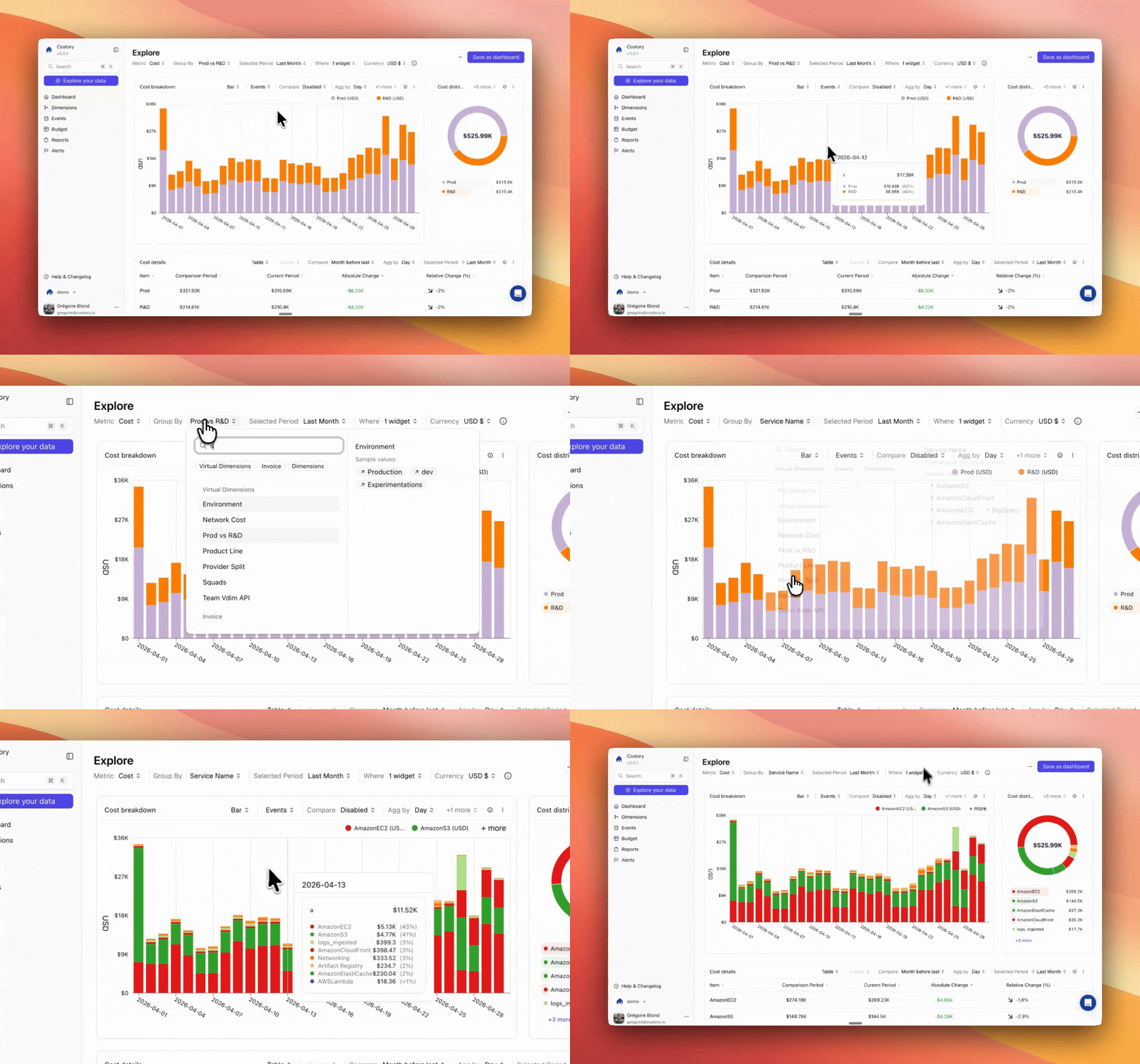
After connecting a datasource, explore costs across all providers in Explorer.
Supported providers
Click a provider to jump to the setup steps.AWS
CUR 2.0 exports via Terraform or manual setup. ~5 min.
GCP
BigQuery billing export with detailed usage costs. <5 min.
Azure
Azure Cost Management exports with SAS access. ~5 min.
Oracle Cloud
Native cost reports with an API signing key. ~5 min.
Custom Billing Format (FOCUS)
Import FOCUS tables from BigQuery. <5 min.
Confluent
Connect Confluent Cloud invoice data. <5 min.
Aiven
Sync Aiven billing via service account. <5 min.
Cursor
Admin API key for usage charges. <5 min.
Anthropic
Claude Console Admin API or claude.ai Enterprise Analytics. <5 min.
OpenAI
Admin API key for Platform organization costs. <5 min.
OpenRouter
Management API key for organization costs. <5 min.
ElevenLabs
Workspace API key for usage by product. <5 min.
Kling AI
Open Platform API key for unit deductions. <5 min.
BytePlus
IAM Access Key for BytePlus account bill details (includes Seedance / ModelArk). <5 min.
GCP CUD Metadata
Commitments metadata from BigQuery exports. <5 min.
Datadog (billing)
Pull Datadog usage and billing estimates. <5 min.
Elastic Cloud
Organization API key and Organization ID for Elastic Cloud billing. <5 min.
Snowflake
Snowflake integration (key-pair auth), then billing datasource. <5 min.
ClickHouse Cloud
ClickHouse Cloud API key for compute, storage, and transfer. <5 min.
Scaleway
IAM secret key and Organization ID for Scaleway consumption. <5 min.
Cloudflare
API token and Account ID for Cloudflare PayGo usage. <5 min.
Before you start
- A Costory account.
- Admin billing access to the providers you want to connect (AWS Billing console, GCP Billing Admin, Azure Cost Management, OCI tenancy admin for the reader-user policy). See Your permissions below.
- Read-only access only. Costory never writes to your cloud accounts or modifies your infrastructure. See Security.
- Connect as many AWS accounts, GCP projects, Azure subscriptions, Oracle Cloud tenancies, and SaaS providers as you need within one organization.
Your permissions
To perform the setup, you need the following permissions on your cloud account (separate from the read-only access Costory uses afterwards):Historical data backfill
Each provider has different backfill capabilities. Costory ingests whatever history is available in the export:What happens after setup
Costory normalizes your billing into Standard Columns and prepares Dimensions to detect, merge, and clean up your cost allocation tags across providers. Costs are ready in Explorer within minutes (up to 12 hours for the first AWS export). From there, follow the Quickstart guide to build your first dashboard and set up alerts.Next steps
Connect external metrics
Overlay usage data on your costs for unit economics and root-cause analysis.
Connect Events
Link deploys, incidents, and other engineering events for full context.
FAQ
What permissions does Costory need?
What permissions does Costory need?
Costory requires read-only access. Here is the minimal permission set per provider:
Costory never writes to your cloud accounts. See Security for details.
Can I connect at the organization level instead of per-account?
Can I connect at the organization level instead of per-account?
- AWS: Yes. Connect a single CUR export from your management (payer) account to cover all member accounts in the organization.
- GCP: Yes. The billing export covers all projects under the billing account automatically.
- Azure: Exports can be scoped at the Management Group or Billing Account level, but this is often restricted by customer agreements. Per-subscription exports are the most common setup.
- Oracle Cloud: Yes. Native cost reports are tenancy-wide. Connect one datasource per tenancy.
Where does Costory store my data?
Where does Costory store my data?
Costory stores ingested billing data in GCP EU by default. If you need US residency, contact us to update your configuration. For full details on compliance and certifications, see Security.
How do I rotate or update credentials?
How do I rotate or update credentials?
- AWS: No rotation needed. Costory uses a federated IAM role (web identity), so there are no long-lived credentials to manage.
- GCP: No rotation needed. Access is granted via a GCP service account.
- Azure: You can update the SAS token in-place from the Costory UI or via Terraform. The default Terraform config sets a 900-day expiry, so no action is needed for nearly 3 years.
- SaaS providers (Datadog, Confluent, Aiven, Cursor, Anthropic, OpenAI, OpenRouter, ElevenLabs, Kling AI, BytePlus, Elastic Cloud, Scaleway, Cloudflare): Rotate the key from Integrations when the provider supports it, or create a new datasource with the new API key and delete the old one. No data gap or re-ingestion occurs.
- Oracle Cloud: Rotate from Integrations. Costory generates a new key pair. Upload the new public key on the same reader user. Destination and tenancy stay the same.
Can I delete a datasource? What happens to historical data?
Can I delete a datasource? What happens to historical data?
Yes, you can delete a datasource from the Costory UI or via
terraform destroy. All ingested data for that datasource is permanently deleted. If you need to restore it, contact us.How do I fully remove Costory from my cloud accounts?
How do I fully remove Costory from my cloud accounts?
Delete the datasource in Costory first, then clean up the cloud-side resources:
- AWS: Delete the S3 bucket, IAM role, and CUR export, or revert the CloudFormation stack if you used that path.
- GCP: Revoke the BigQuery dataset access granted to the Costory service account.
- Azure: Delete the storage account, Cost Management exports, and resource group.
- Oracle Cloud: Delete the API key from the reader user, then remove the user, group, and endorse policy if you created them only for Costory.
terraform destroy handles all cloud-side and Costory-side cleanup automatically.Can I reuse an existing billing export?
Can I reuse an existing billing export?
Yes. If you already have a billing export for another tool, you do not need a second one:
- AWS: Reuse your existing CUR 2.0 export (Parquet format). Skip the bucket/export creation and only create the federated IAM role so Costory can read the data.
- GCP: There is only one BigQuery billing export table per billing account, so Costory always uses the same table as any other tool.
- Azure: Reuse your existing Cost Management export (Parquet format). Skip the export creation and only generate a SAS token for Costory.
- Oracle Cloud: Oracle already writes native cost reports to the
blingbucket. You only create a reader user and upload Costory’s public API key.
Does Costory require IP allowlisting or special network rules?
Does Costory require IP allowlisting or special network rules?
No. Costory accesses your data over the public internet using the credentials you provide (IAM role, SAS token, or API key). No IP allowlisting, firewall rules, or private connectivity setup is needed on your side.
What cloud costs does the setup create?
What cloud costs does the setup create?
The cloud-side costs are negligible. You only pay for storage (and minor egress) on the export bucket or dataset:
- AWS: S3 storage for CUR exports. Use overwrite mode (enabled by default) to keep storage flat.
- GCP: BigQuery storage for the billing export table.
- Azure: Blob storage for the export container.
- Oracle Cloud: No extra export to create. Costory reads Oracle-managed cost reports in the
blingbucket.
How do I monitor ingestion health?
How do I monitor ingestion health?
Open Integrations. Each billing datasource lists the period of billing data Costory has received, for example from Mar. 1st 2026 to Jul. 24th 2026.
- The from date is the earliest day Costory has for that source.
- The to date is the latest day Costory has for that source.
- If the to date is current (or matches the expected delay for that provider), ingestion is healthy.
What if my first AWS CUR export doesn't arrive?
What if my first AWS CUR export doesn't arrive?
The first CUR export can take up to 12 hours. Costory sends you an email when data is received. If nothing arrives after 12 hours, contact AWS Support to force-trigger the export. This is rare but can happen.A common pitfall is forgetting to backfill historical data: AWS only exports going forward. Use the
aws:createdBy tag backfill (up to 12 months) or open an AWS Support request for longer periods.What if my connection fails?
What if my connection fails?
Costory validates the connection when you add a datasource, both via the UI and Terraform. If credentials or permissions are misconfigured (e.g., wrong IAM role trust, invalid SAS token), you’ll receive an immediate error message before any sync is attempted.
Still having trouble?
Still having trouble?
If your question isn’t answered here, contact us. We typically respond within a few hours.