Schedule recurring cloud cost reports to Slack, Microsoft Teams, or email from dashboards, widgets, or Explorer context.
Cost dashboards only work if people see them. Cost Reports deliver multi-cloud cost breakdowns directly to Slack, Microsoft Teams, or email on a recurring schedule.
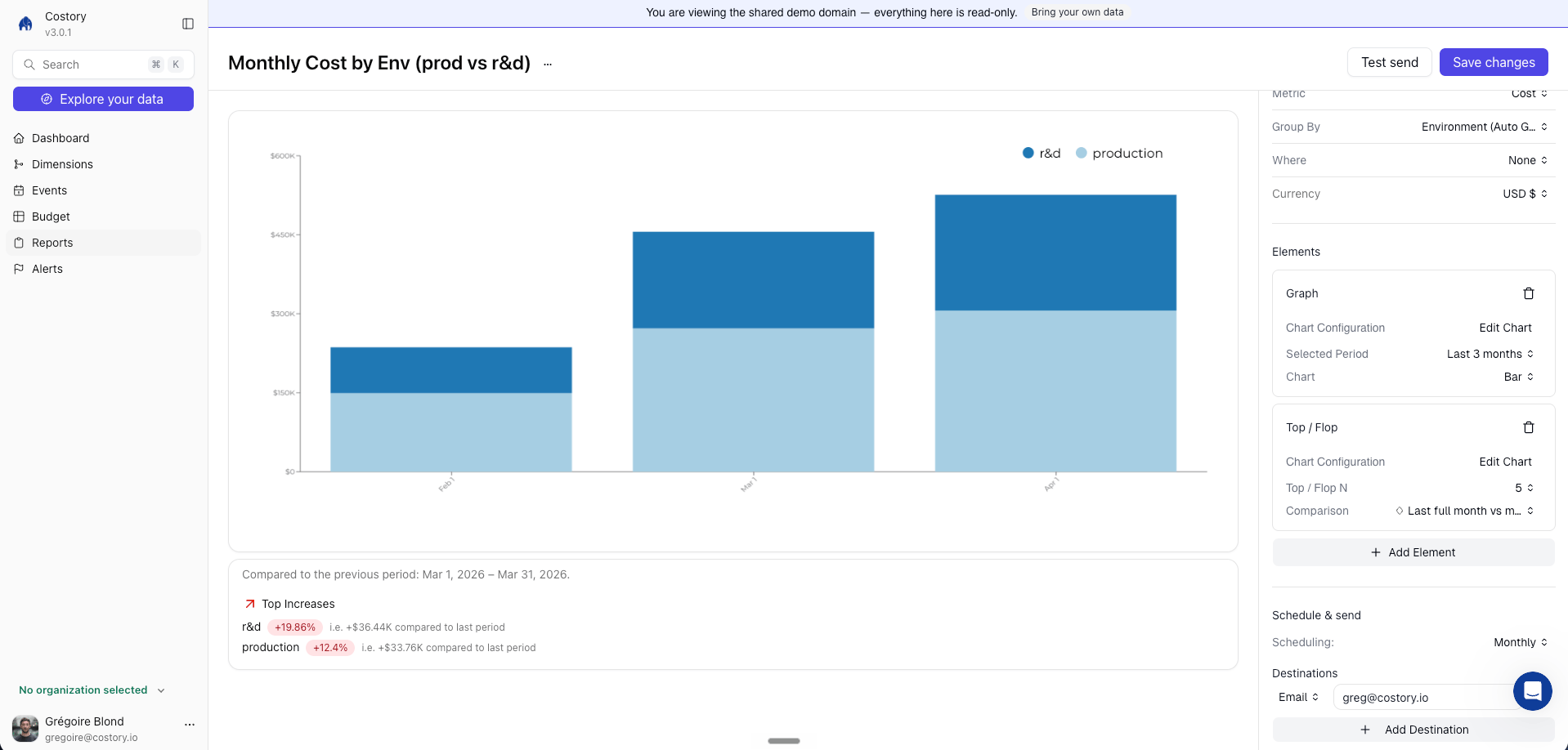
Monthly cost report configured with schedule, destinations, and period comparison
Cost Reports deliver a dashboard, dashboard widget, or Explorer-backed cost view as a formatted snapshot on a schedule you define. Each report includes the cost breakdown, a comparison against a previous period, and a direct link back to Costory.Where it fits in your day-to-day:
Sending weekly cost updates to each squad’s Slack channel so engineers see their infrastructure spend without logging into a dashboard
Delivering monthly executive summaries to leadership with pre-filtered views scoped to their business unit
Keeping SRE and platform teams informed about infrastructure cost trends as part of their existing review cadence
You can schedule a report from chat. Ask the Costory MCP to “send a weekly cost-by-team report to our #finops Slack channel” and it creates the schedule against the view you describe.
1
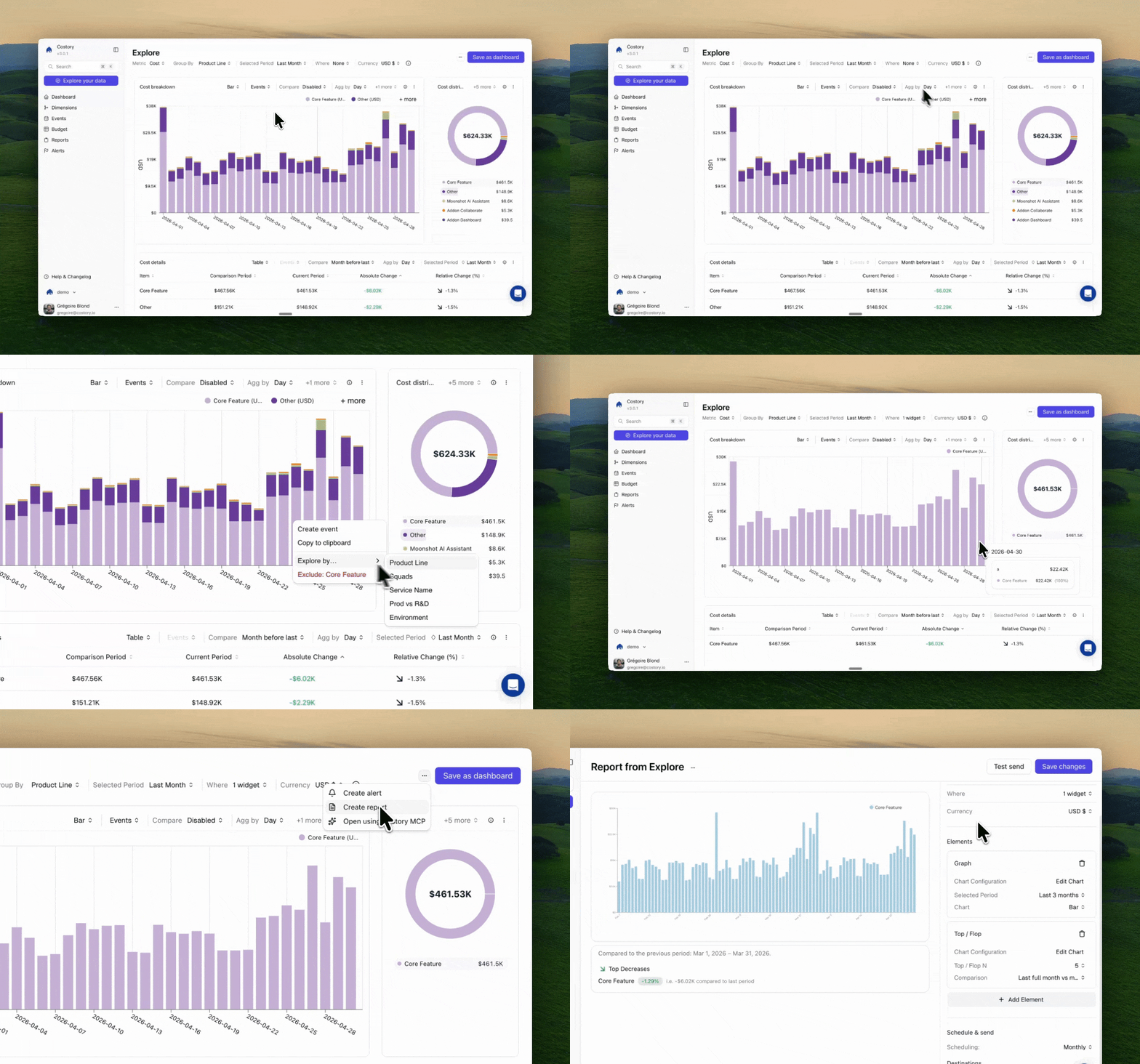
Create or open the source view
Open the dashboard, dashboard widget, or Explorer query you want to deliver on a schedule.
2
Click Schedule Report
Open the action menu and select Schedule Report. This opens the scheduling
configuration panel.
Scheduling a report from cost context in Costory
3
Choose a delivery channel
Select where the report should be delivered. Costory supports Slack,
Microsoft Teams, and email.
You can create multiple scheduled reports from the same source view, each
targeting a different channel or cadence.
The reference period shown alongside the current period, so recipients see
the cost change at a glance.
5
Confirm and send a test report
Review the configuration and click Save. You can send a test report
immediately to verify the channel, format, and data before the first
scheduled delivery.
There is no additional cost for scheduling reports. Send as many as you need
across Slack, Teams, and email.
Send weekly reports to each engineering squad’s Slack channel with a dashboard or widget scoped to their services, accounts, or dimensions. Engineers see their cost impact as part of their regular workflow, which builds cost awareness without requiring anyone to open a dashboard. See the Decentralize FinOps guide for a full walkthrough.
Platform teams can subscribe to a cost view grouped by infrastructure service (compute, networking, storage) and receive a weekly or monthly report. This surfaces cost trends alongside their existing reliability and capacity review cadence.
Create a high-level dashboard grouped by business unit or provider and deliver it monthly to a leadership channel or mailing list. The comparison period gives executives a one-glance summary of how cloud spend changed, without needing to learn the Explorer interface. See Executive Cost Reports for more on building views for stakeholders.
Costory supports Slack, Microsoft Teams, and email. You can send the same
report to multiple channels by creating separate schedules from the same
source view.
Can I send different views to different channels?
Yes. Each scheduled report is tied to a specific dashboard, widget, or Explorer context. You can create as
many source views as you need and schedule each one to a different channel with its own cadence.
How often can reports be sent?
Reports can be sent weekly or monthly. The cadence is configured per
schedule, so one source view can have a weekly report going to the engineering
channel and a monthly report going to leadership.
What's the difference between Cost Reports and Digest?
Cost Reports are the scheduled delivery container.
Cost digest is one element you can put in a report: a
multi-level cost tree with optional AI narrative, also readable as Summary,
Tree, or Table in the UI. Many teams put a digest next to a graph or Top /
Flop in the same report.
Is there a limit on the number of scheduled reports?
No. Scheduled reports are included at no additional cost, and there is no
cap on the number of active schedules.