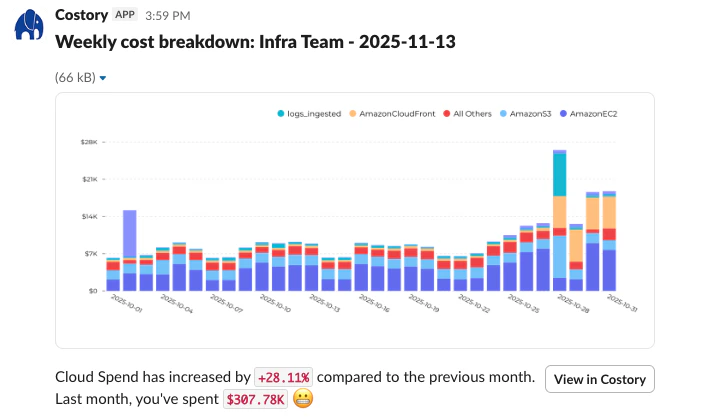
Scale cost visibility across engineering teams by scoping automated reports to each squad. Deliver cloud cost insights via Slack, Teams, or email, no billing console access needed.
When FinOps sits with one person, every other team is blind to its own cloud spend. Cost-saving work is hard to track, teams can’t see the impact of their changes, and the FinOps owner becomes a bottleneck.This guide scopes automated cost reports to each team using Costory’s Slack, Teams, and email reports, so every squad sees its own costs.
Your cloud billing data is connected to Costory (see Quickstart).
You have a way to scope costs per team, either via native cloud tags, via dimensions that map resources to teams, or via Teams with persistent cost scopes.
Open any view in Explorer and filter to the scope you want to report on: a specific team, service, or environment.Reports can be scoped using:
CSP metadata: cloud provider attributes like service name, region, or account
Native labels: your existing cloud resource tags
Dimensions: imported tags and rule-based mappings to teams, environments, features, or custom groupings via Dimensions
Per-team cost report, scoped to a specific squad
2
Schedule automated delivery
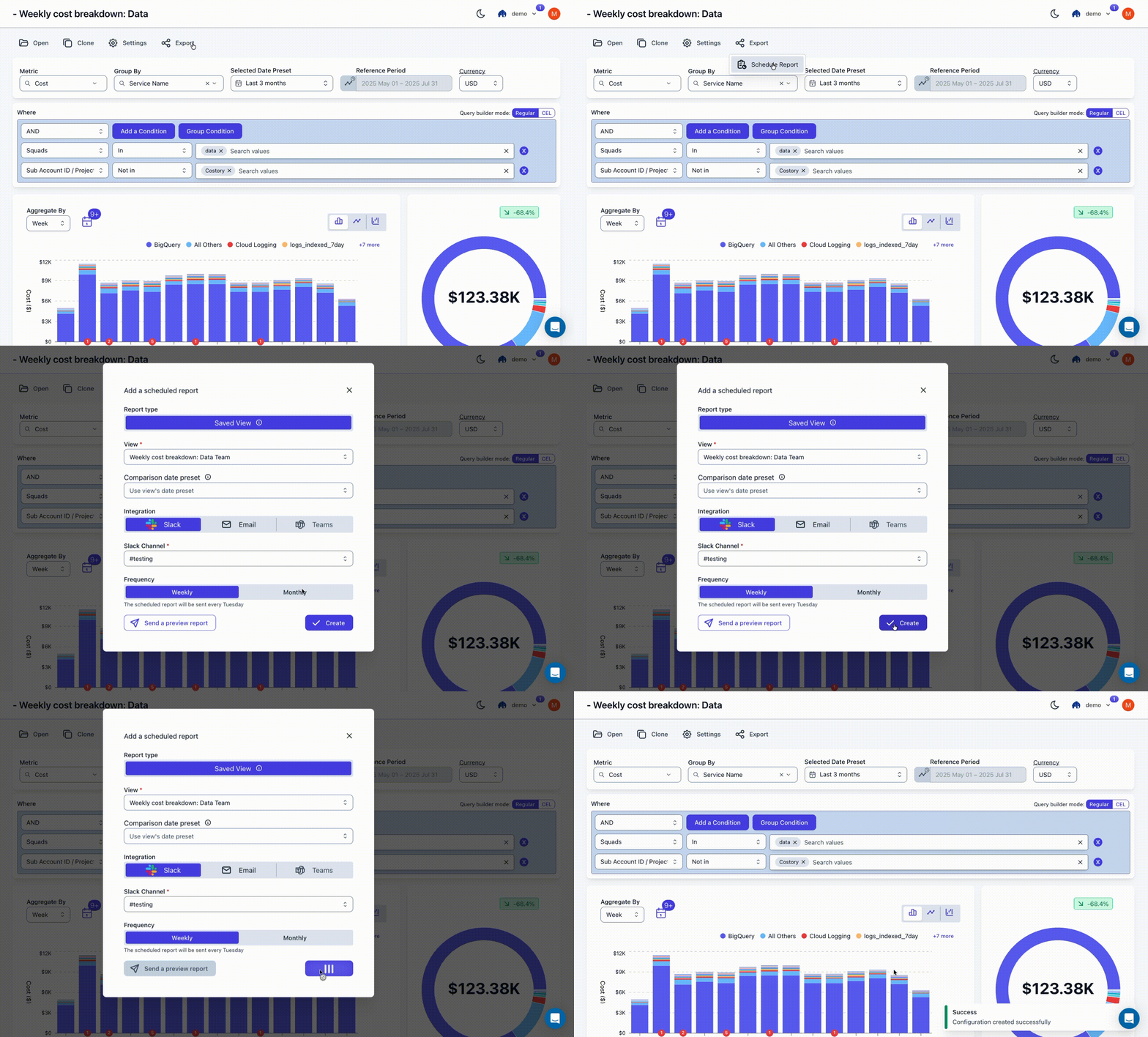
Create a scheduled report from your current view. Configure the delivery channel (Slack, Teams, or email) and set the cadence: weekly or monthly.Reports run automatically, giving teams a continuous feedback loop.
Scheduling a report from Explorer
For example: your backend team gets a weekly Slack report scoped to their services, your data team gets one scoped to BigQuery and Datadog, and leadership gets a monthly summary across everything.
You can set up each team’s report from chat with the Costory MCP: “schedule a weekly Slack report of the backend team’s costs to their channel.”
3
Iterate and expand coverage
Start with one or two teams, validate the report content, then roll out to all squads. Combine with budgets to add spending alerts alongside the reports.