
Your cloud tags are a mess.Documentation Index
Fetch the complete documentation index at: https://docs.costory.io/llms.txt
Use this file to discover all available pages before exploring further.
Env, environment, k8s_label_env, environnement: four keys that mean the same thing, scattered across providers. Feature Engineering fixes this automatically. It detects duplicates, suggests merges, and normalizes values so prod, production, and prd all become production.
The result: one clean tag per concept, across every provider, retroactively applied to all your historical data. Then explore them in the Cost Explorer.
Key terms
- Feature Engineering: Costory’s automatic process of merging equivalent tag key names and standardizing values across providers.
- Tag key: The label name (e.g.,
environment,env,team). Feature Engineering merges keys that mean the same thing. - Tag value: The assigned value (e.g.,
production,prod,prd). Feature Engineering maps variants to a single canonical value.
Which cloud tags does Costory import?
Costory imports all tag types from AWS, GCP, Azure, Kubernetes, and Aiven, including system tags, project tags, pod tags, and EKS/ECS tags.| Provider | Tag Source / Type | Field / Example | Notes |
|---|---|---|---|
| GCP | Customer defined tags | labels | Google Cloud Console |
| GKE pod tags / namespace tags | labels | ||
| Project tags | project.labels | ||
| System tags | system_labels | ||
| AWS | Customer defined tags | resource_tags | All tags enabled in your Tag Cost Allocation |
| EKS / ECS tags at pod level | resource_tags | Via EKS cost visibility | |
| Aiven | Customer defined tags | labels | From Aiven Console |
| Azure | Customer defined tags | labels | |
| Additional information | additional_info |
Merge duplicate tag keys into one
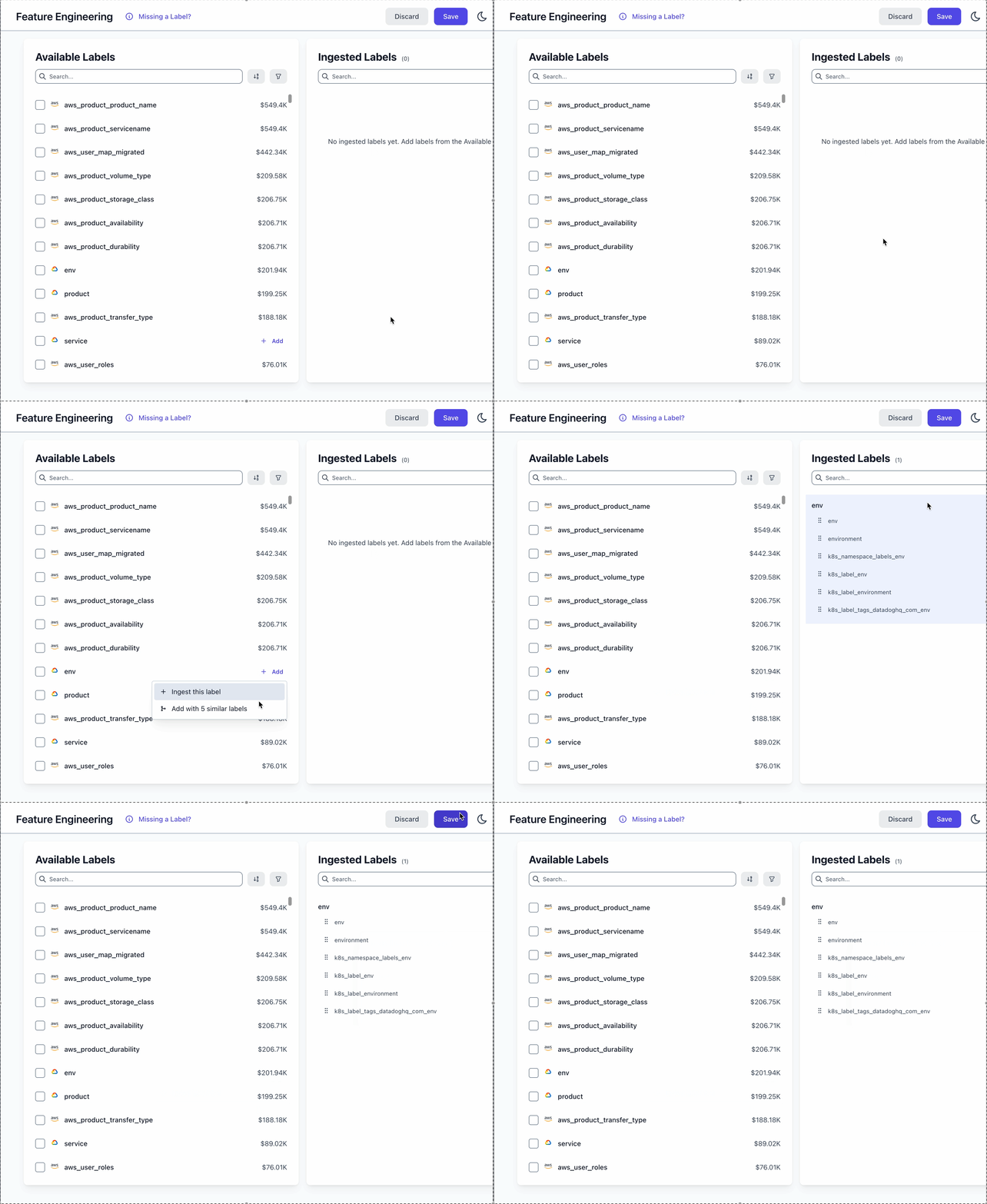
Different teams, different providers, different conventions: you end up withenv, environment, Environment, and k8s_label_env all meaning the same thing. Instead of re-tagging resources in every cloud console, merge them in Costory.
Costory automatically detects tag keys that likely mean the same thing using semantic similarity and suggests merging them.
Review suggested merges
Costory groups tag keys it considers equivalent. Review the suggestions and confirm the ones you want to merge.
Pick a canonical key name
Choose the key name you want to keep (e.g.,
environment). All variants will map to this name.Apply
Costory reprocesses your billing history. The merged tag is available immediately in the Cost Explorer and in .
Fix inconsistent tag values across providers
Even when the key is consistent, the values often are not. One team tags resources asprod, another uses production, and a third writes prd. Feature Engineering normalizes these into a single canonical value, automatically and without scripts.
Costory detects tag values that refer to the same concept and suggests mapping them to one canonical value.
Open the value mapping view
Inside a merged tag key, click on Value Mapping to see all unique values Costory found.
Review suggested mappings
Costory groups values it considers equivalent (e.g.,
prod, production, prd). Confirm or adjust the groupings.Pick a canonical value
Choose the value you want to keep (e.g.,
production). All variants map to it.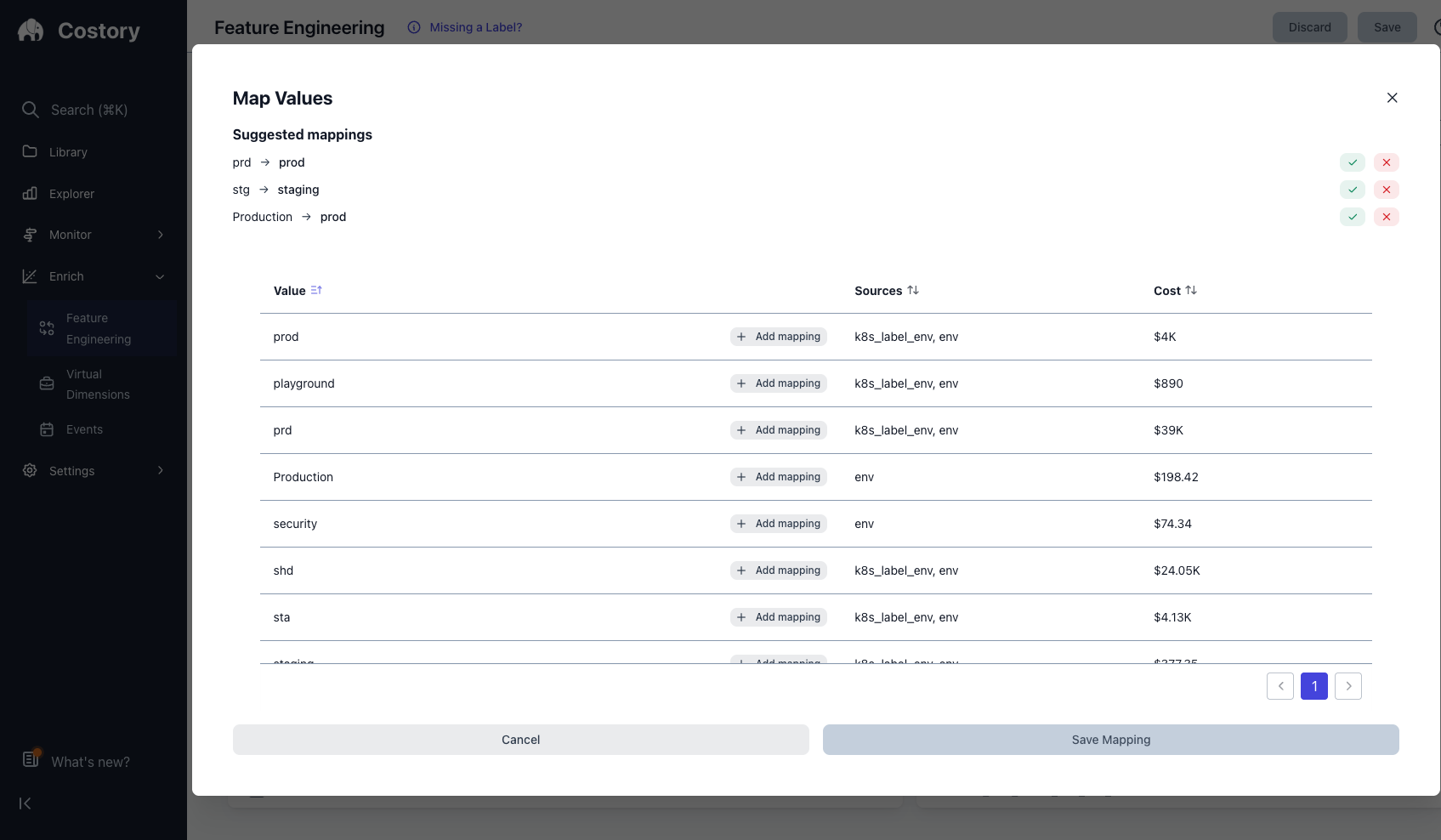
What happens next
Once your tags are clean, you can explore costs by your unified tags in the Cost Explorer, build Virtual Dimensions on top of them to create team or business unit allocations, and automate reports scoped to clean tag values via Slack Reports.Virtual Dimensions
Build rule-based allocations on top of your clean tags
Environment Cost Visibility
Full walkthrough: unify environment tags and see cost per env