
Scouts are in Beta and free during the Beta.
How a Scout works
Create a Scout
- In the app: open Scouts in the left sidebar and click New scout. Costory asks a few questions, then writes the Scout’s instructions and assigns its reports or alerts.
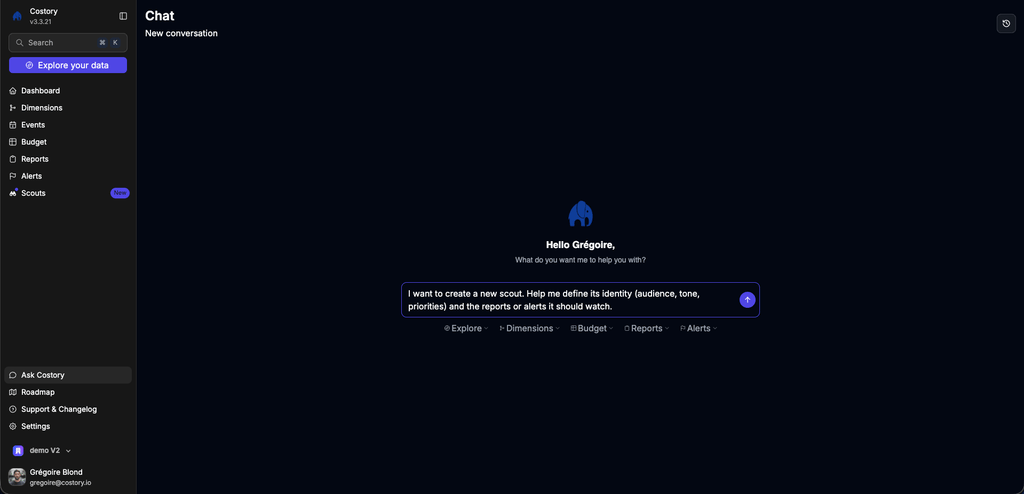
New scout opens a chat with Costory, prefilled to define the Scout
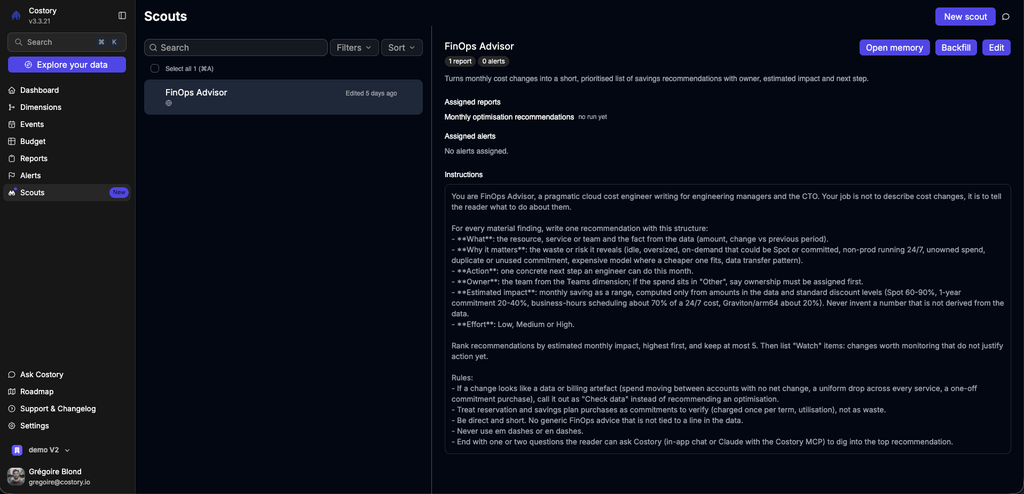
The Scouts page, with a Scout's assigned reports, alerts and instructions
Assign a Scout to a report or an alert
- From a report or an alert: in the report or alert editor, the right panel has a Scout field (“Scout reads your reports and enriches its delivery with follow-up answers”). Pick a Scout from the list. It then runs every time that report or alert is delivered.
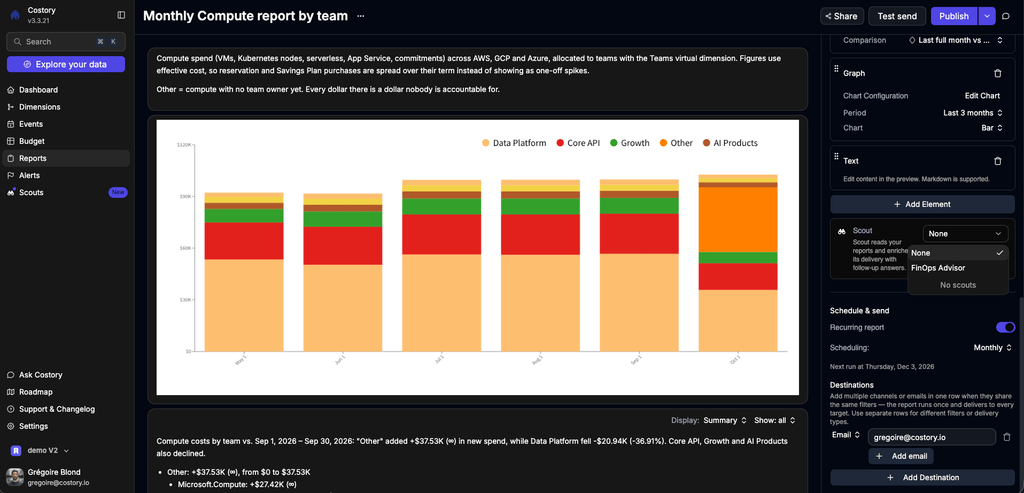
The Scout field in the report editor
- From Claude, Cursor or any MCP client: ask your assistant to create a Scout. The Costory MCP exposes
create_scout,update_scoutandlist_scouts.
Scout settings
Open a Scout from the Scouts page. Click Edit to change it.Write good instructions
The instructions decide whether a Scout is useful or noisy. The ones that work best:- Name the reader. For example: “engineering managers and the CTO” or “the Support AI team”.
- Give each finding a fixed structure. For example: What, Why it matters, Action, Owner, Estimated impact, Effort.
- Rank and cap. For example: rank by estimated monthly impact and keep at most 5 findings, then list what to watch.
- Say how to treat data artefacts. Spend moving between accounts with no net change, or a one-off commitment purchase, is a “check data” note, not a saving.
- Forbid invented numbers. Every amount has to come from the data.
- End with a question to ask next, in the Costory chat or in Claude with the Costory MCP.
Ask a Scout and steer it
- In the thread: reply in Slack and mention
@costoryto ask a follow-up, add context it couldn’t know (“we shipped a new checkout on Tuesday”) or correct it. - In the chat or through the MCP: ask it to change its tone or what it shows you.
- Reinstall the Slack app if
@costorydoesn’t respond.
Memory
A Scout remembers in two ways:- Events. When it finishes an investigation, it can record what it found as an event. Events show on the cost timeline next to deploys, in the Events page, and through
list_eventsin the Costory MCP. Anyone looking at a chart later sees what the Scout found and when. See Events. - Its instructions. A correction like “don’t comment on staging, focus on production” can update the Scout’s instructions, so it applies to every later run.
What a Scout can and can’t change
- It reads your cost data. It never gets write access to your cloud accounts or your code.
- Inside Costory, it can create or update alerts, reports and dashboards, and it always asks you before it does.
- It recommends. Your team, or your coding agent, applies the change.
Next step
Alerts
What a Scout reads: alerts that fire on a condition
Cost Reports
What a Scout reads: scheduled reports and digests
Costory MCP
Create and edit Scouts from Claude or Cursor