
Create a dashboard from Explorer
Use this workflow when an investigation produces a view worth monitoring.1
Build the query
Open Explorer, select the metrics or formulas, apply filters, choose the group-by, and add event context if it helps explain the chart.
2
Save as a dashboard
Click Save as dashboard and choose whether to create a new dashboard or add the view to an existing dashboard.
3
Adjust the widget
Rename the widget, choose the visualization, and place it next to related widgets.
4
Save the dashboard
The widget keeps the Explorer query and refreshes as new billing data arrives.
Add a widget manually
Use manual widgets when you already know the metric, grouping, and chart you want.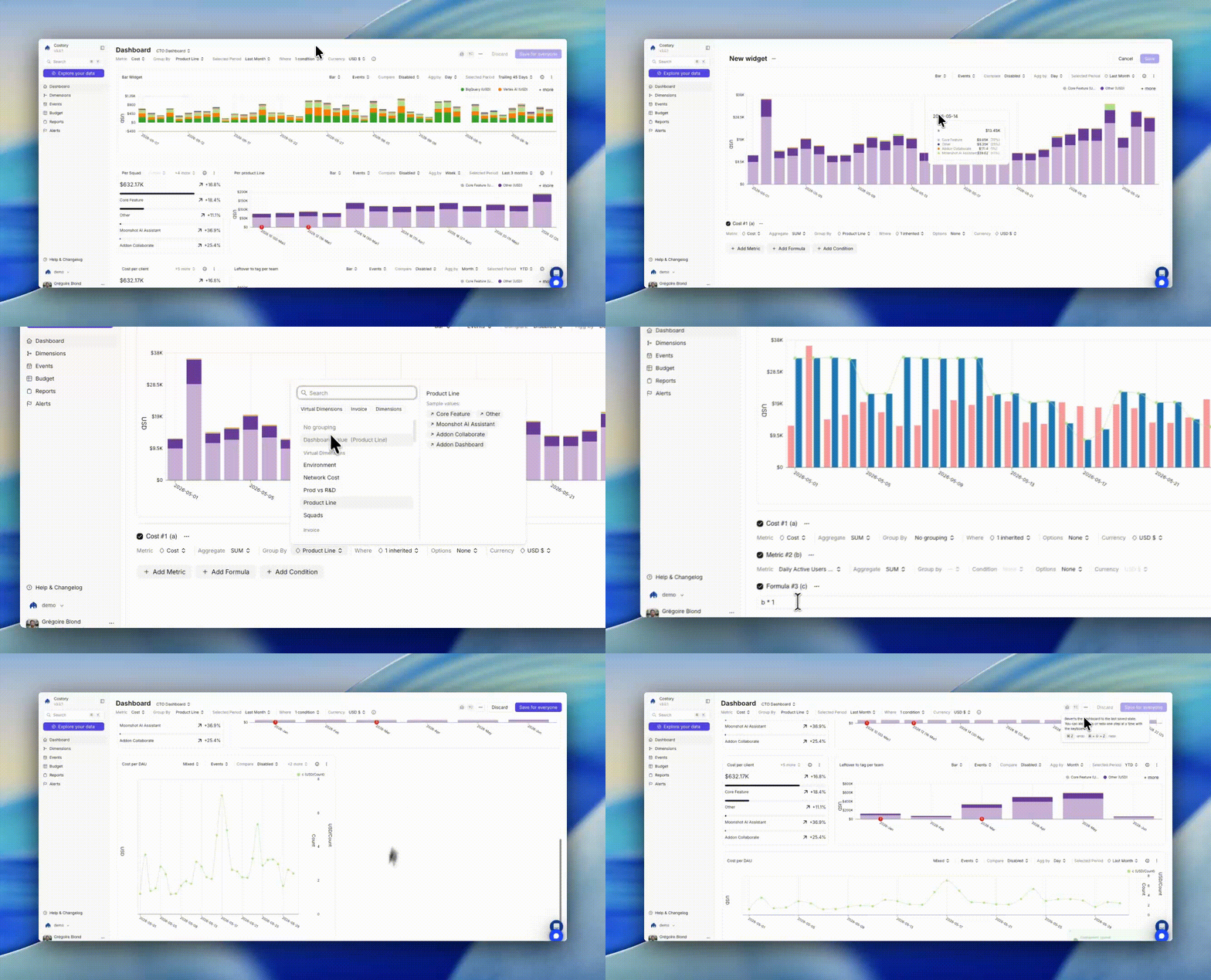
Adding a widget to a dashboard from the widget picker
1
Open a dashboard
Navigate to an existing dashboard or create a new one.
2
Add a widget
Click Add Widget and choose a widget type.
3
Configure the query
Select the cost metric, filters, group-by, and visualization. You can use any dimension available in Explorer, including dimensions and custom formulas.
4
Save the widget
Click Save. The widget updates after each data refresh.
Duplicate a widget
Duplicate widgets when you need the same chart structure with a different filter. For example, duplicate a cost trend widget and swap the team filter to create the same view for another team.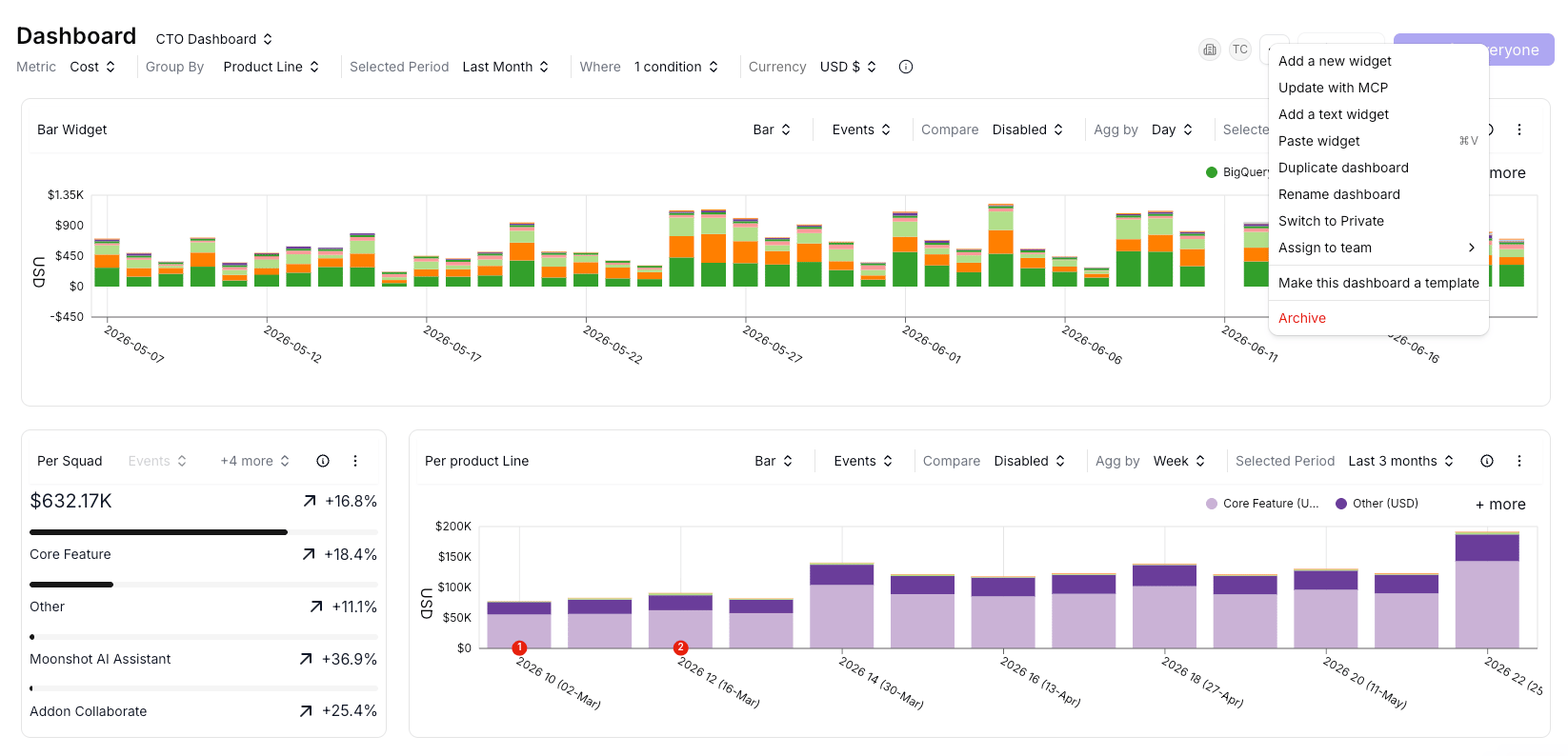
Duplicating a widget to reuse its configuration with different filters
Organize dashboards with tags
Use dashboard tags to group dashboards by team, workflow, reporting cadence, or FinOps process. Tags appear on the View all dashboards page.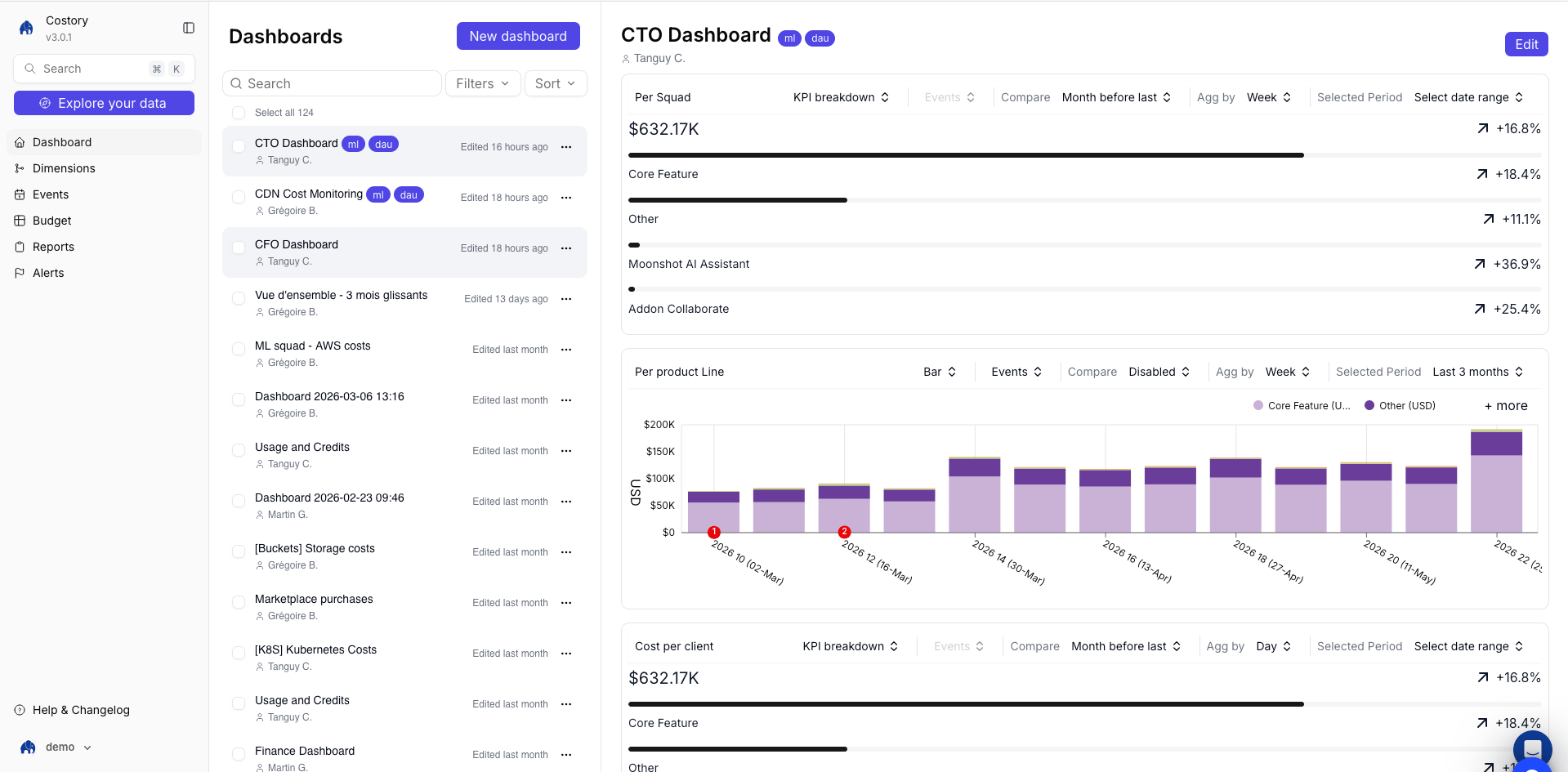
Dashboard tags on the View all dashboards page
1
Open all dashboards
Navigate to Dashboards and click View all dashboards.
2
Select dashboards
Select one or more dashboards you want to tag.
3
Edit tags
Click Edit tags, add the tags you want, and remove tags that no longer apply.
4
Save the changes
Save the tag changes. The dashboard list updates with the new tags.
Save as copy and versions
Use Save as copy when you want a larger edit (new widgets, a different layout, another breakdown) without changing the original dashboard. The copy is a new object. Grant access on it separately. Dashboards also keep versions. Open the version history to revert after a bad save, or to copy an older version as another dashboard. See Share cost views.Assign dashboards to teams
Assign dashboards to a Team when a dashboard belongs to a specific group. Team scopes still pre-filter what members see. Who can open or edit the dashboard is set with object permissions: Reader, Editor, Can manage, or a public dashboard. This is useful for:- Team showback dashboards
- Product-line dashboards
- Budget owner dashboards
- Platform or SRE dashboards
Related links
Dashboard templates
Start from common FinOps dashboard layouts.
Widgets and chart types
Choose the right widget for each cost question.
Sharing
Copy a dashboard link, save as copy, or restore a previous version.
Cost Reports
Deliver dashboards to Slack, Teams, or email on a schedule.