
Widget types
Chart types
Choose the chart type based on the question the widget should answer.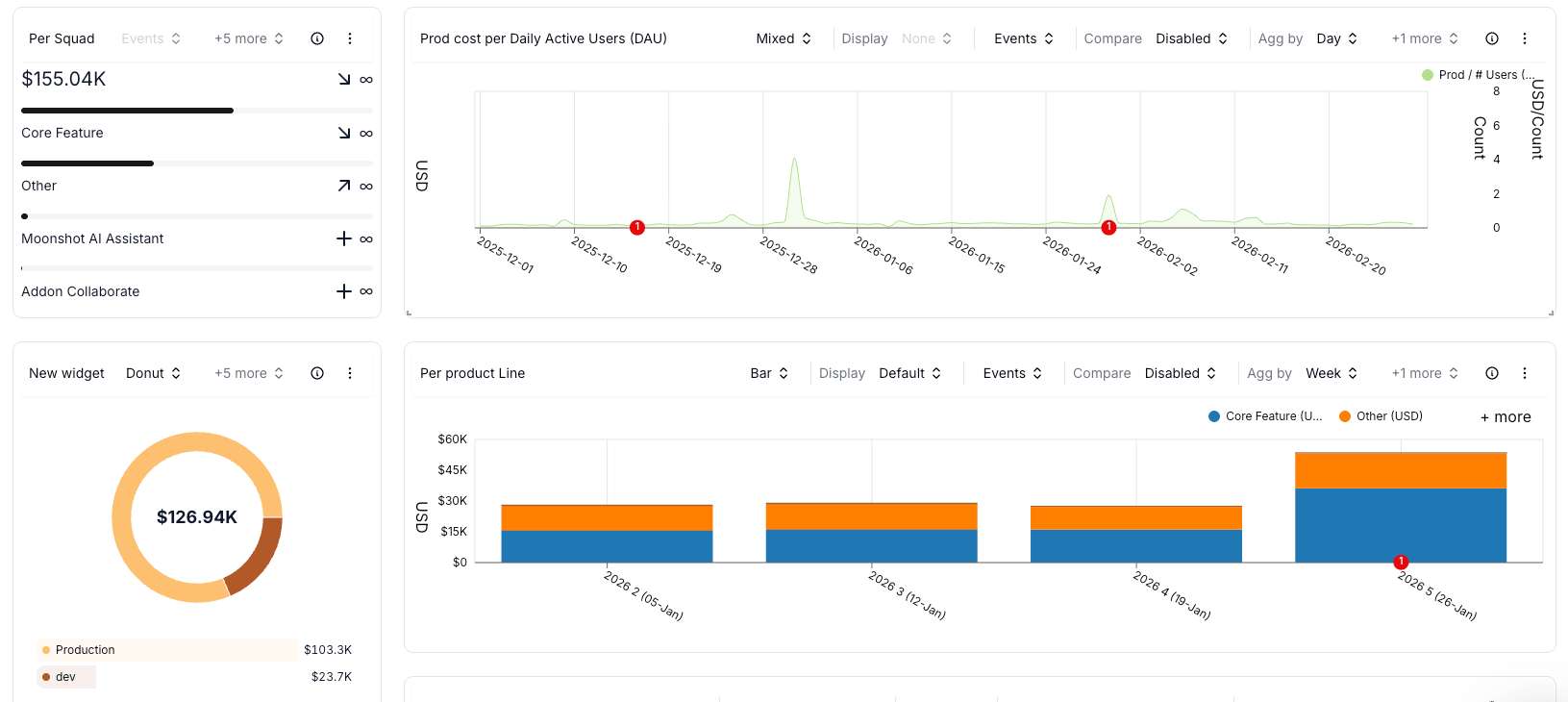
Chart type selector with Line, Bar, Donut, Waterfall, and Table options
Waterfall charts
Waterfall charts show which services, accounts, teams, or products drove a cost increase or decrease between two periods. Use them during budget reviews, migration reviews, and cost-change explanations.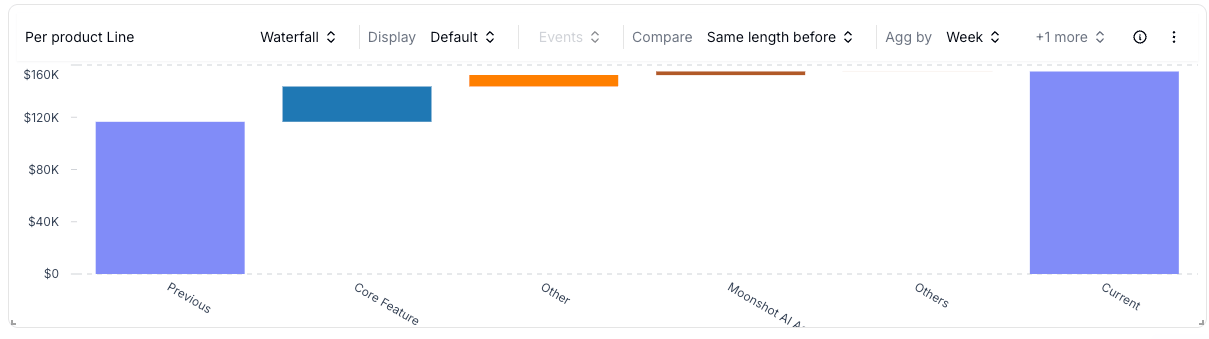
Cost Waterfall shows which groups contributed most to a cost change
Doughnut charts
Doughnut charts show proportional spend for a selected period. Use them for high-level split views such as cost by provider, business unit, environment, or product.Tables
Table widgets show the data behind a chart. Use them when reviewers need exact values, sorting, or exportable cost breakdowns. Open the Display menu on a table to control sort field and direction, hide empty rows, limit the list with Top N, show a Total column, and set decimal Precision. These options change how the table is shown, not the underlying query.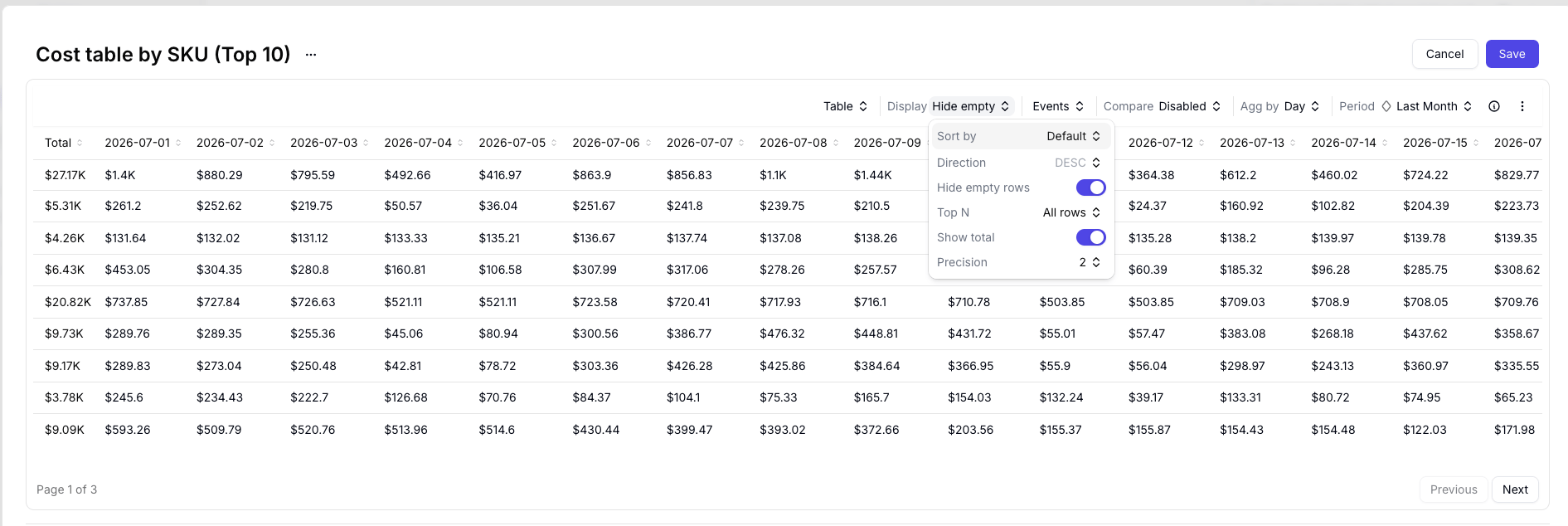
Display menu on a table widget
- Selected-period cost
- Reference-period cost when comparison is enabled
- Absolute change
- Relative change
- Cost, usage, budget, or formula values
Budget vs actual widgets
Use a budget widget when you want to compare an approved with actual spend.1
Edit the dashboard widget
Open the dashboard, click the widget action menu, and select Edit widget.
2
Add the budget metric
Click Add Metric, open the budget tab, and choose the budget version you want to analyze.
3
Add related cost
Open the action menu for the budget metric and click Add related cost. Costory adds a cost metric scoped to the budget definition.
4
Break actual spend down
Set Group By on the related cost metric to the dimension you use for ownership, such as team, squad, or product line.
5
Save the widget
Click Save.
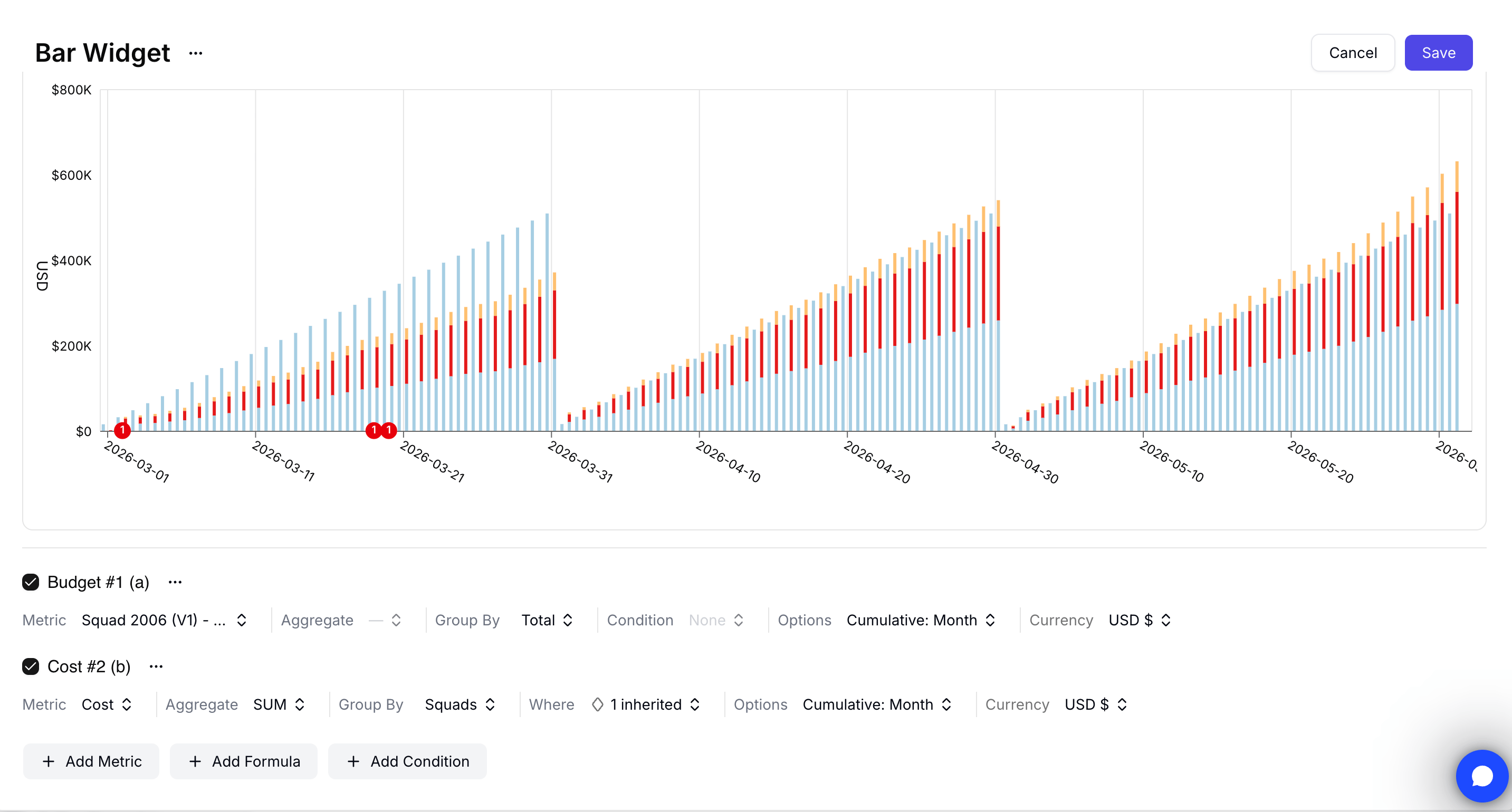
A dashboard widget comparing a budget target with actual spend grouped by squad
Color palettes
Each chart widget can use one of four color palettes. Switch palettes to keep visuals readable across stacked bars, line charts, and grouped breakdowns. The setting lives in the widget editor’s chart display options.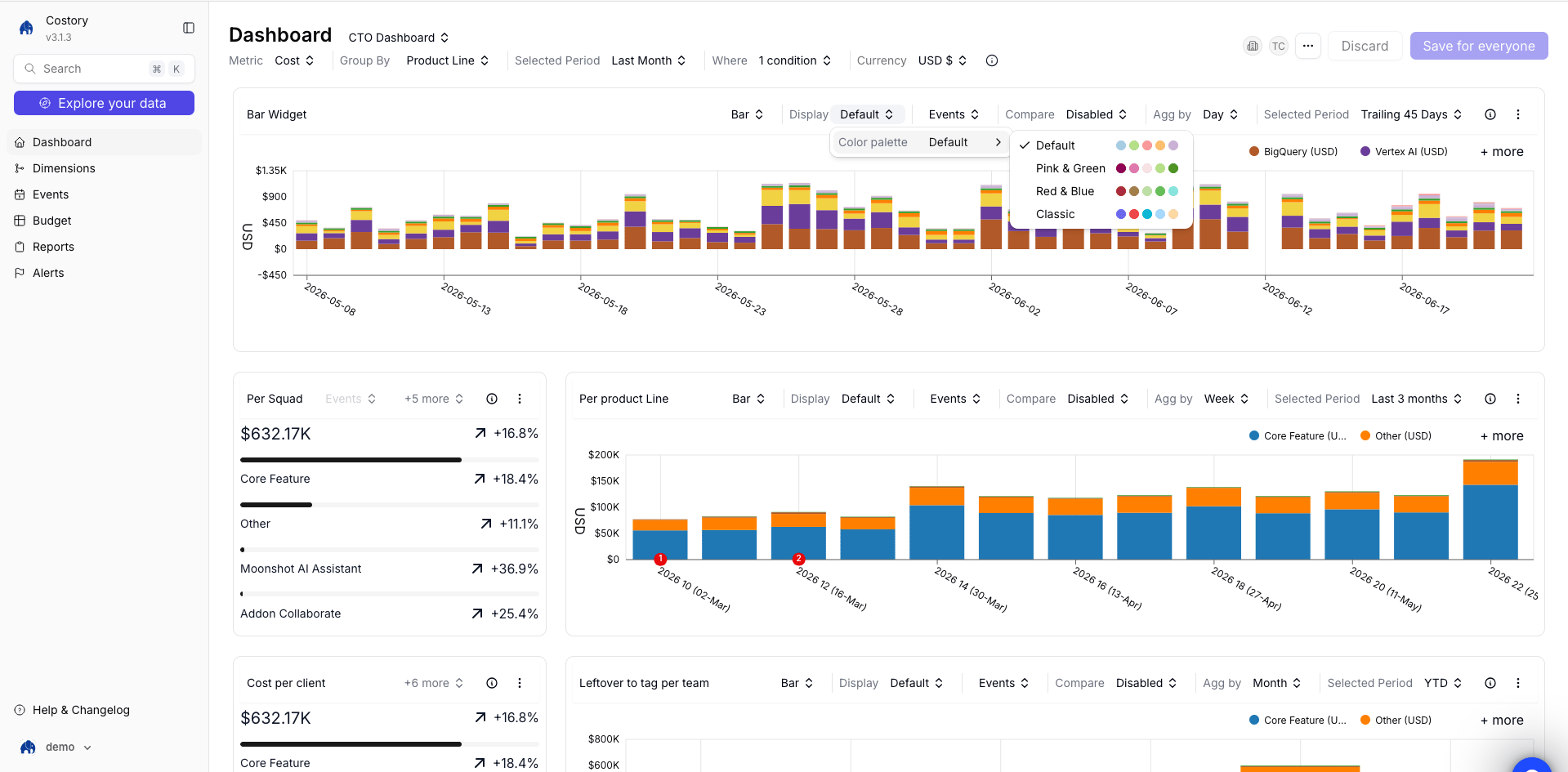
Choose a chart color palette
Export widget SQL to BigQuery
BigQuery data exports let you query the same cost data shown in a dashboard widget from your own BigQuery project. Use this when you want to reuse dashboard logic in Looker, notebooks, dbt, or custom SQL without rebuilding filters.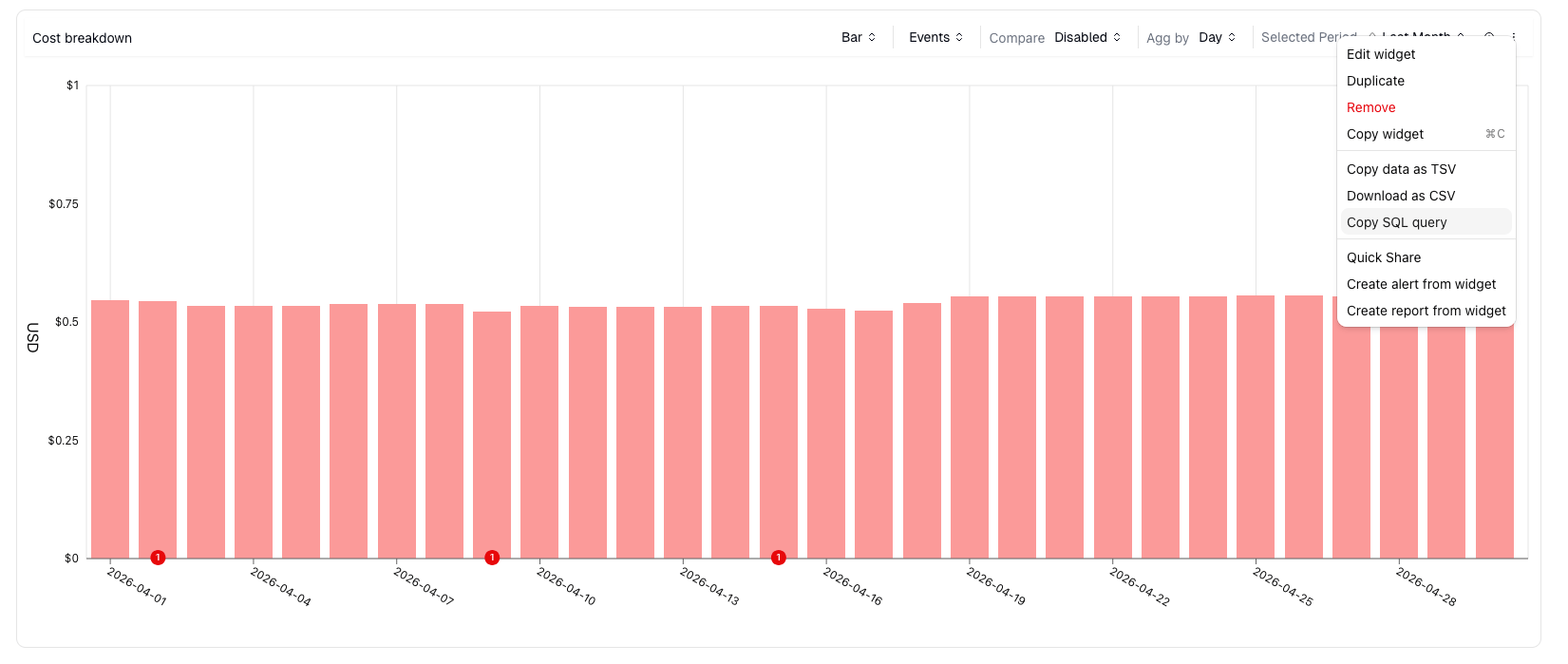
Copy SQL query from a dashboard widget
1
Set up the BigQuery destination
Ask an Organization Admin to grant your BigQuery user or service account read access to the Costory export table under Integrations > Destinations. See BigQuery Data Exports for setup.
2
Open the dashboard widget
Open the dashboard that contains the widget you want to query outside Costory.
3
Copy the SQL
Open the widget action menu and click Copy SQL query.
4
Run the query
Paste the SQL into BigQuery, Looker, or a notebook that can query BigQuery.
Open in Explorer
To continue an investigation, or to share one widget, open the widget menu and click Open in Explorer. Costory takes the widget query, including unsaved edits, into Explorer. Share it from there with Link or Secure external link. Share widget still exists. The recipient now lands in Explorer with that query, not back on the dashboard. See Share cost views.Related links
Sharing
Open a widget in Explorer, then share the query as a link or PNG.
Create and organize dashboards
Add widgets to dashboards and organize them for teams.
Dashboard templates
Start with pre-built FinOps widgets.
Unit Economics
Add usage metrics and formulas to the queries behind widgets.
BigQuery Data Exports
Set up the destination used by SQL export.